

The Azure Workbook
The deployment of Install the Monitoring Function creates a workbook with the name Repstance and the name of the server. Open it in the portal under Monitor, Workbooks, or in the resource group of the deployment.
The three lists at the top choose what the workbook shows: the time range (the last 3 hours at first), the server (the value of the column Instance; the first server is chosen at first) and the replication (pair id), a Capture Process and an Apply Process with the same id.
Every process
The table State now shows every Capture Process and Apply Process of the server, one line for each, named by its kind and its id: apply 1. The graphs below it show them over time.
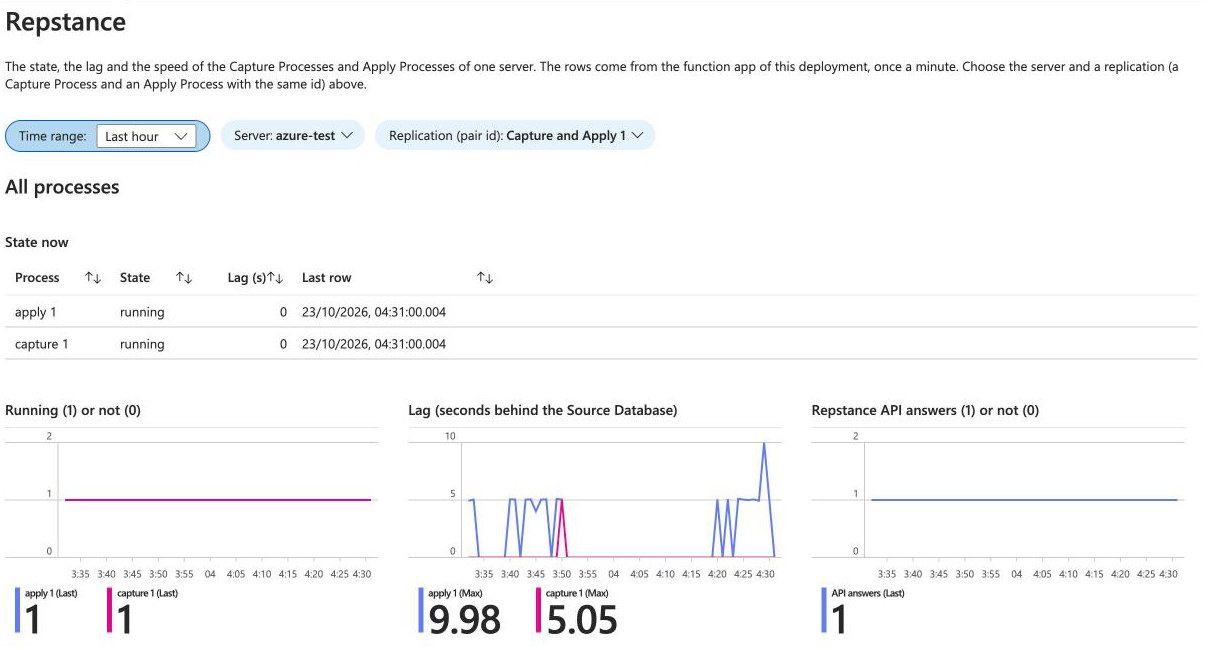
- State. running, loading during an Initial Load, stopped, or failed; Lag (s) is the seconds that the process is behind the Source Database, and Last row the time of its newest row.
- Running (1) or not (0). A process that has been stopped, has failed or has never run shows 0. The number under the graph is the last value.
- Lag. The seconds that the process is behind. A process that does not run has no lag: its line ends. The number under the graph is the highest lag in the time range.
- Repstance API answers. 1 while the function gets an answer to the status command, 0 when it does not.
One replication
The list Replication (pair id) chooses a pair: the Capture Process and the Apply Process with that id. The graphs below it show only that pair.
The list works for a pair whose two processes have the same id, as in all the examples of this documentation. If your Capture Process and your Apply Process have different ids, the graphs of an id show only the process with that id.
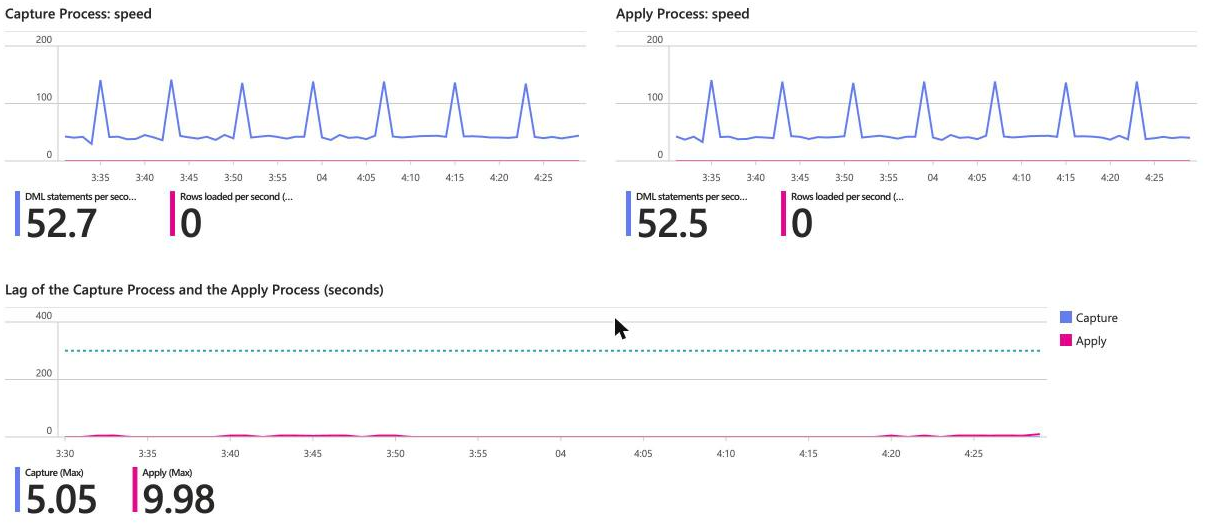
- Capture speed and apply speed. The blue line is the DML statements per second: the inserts, updates and deletes that the process has handled. The red line is the rows per second that the process loads during the Initial Load. The number under the graph is the average over the time range.
- Lag. The lag of the Capture Process and of the Apply Process over time. The dotted line marks the warning level, 300 seconds unless you changed the parameter lagWarningSeconds.
An example: an Apply Process that waits
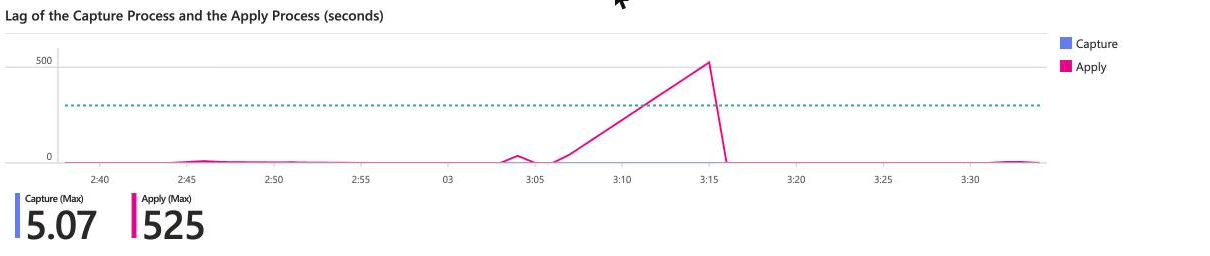
The graph is the lag of a real replication of two tables between two Azure SQL databases, while a workload changes the Source Database. The times in the picture are the local time of the browser, UTC+3. At 03:06 an exclusive lock on the table of the Target Database made the Apply Process wait. Its lag grew for nine minutes, to 525 seconds, almost nine minutes. When the lock was released at 03:15 the Apply Process caught up within a minute and the lag fell to zero. The dotted line is the warning level of the workbook, 300 seconds. The alert rule apply-1-lag of that replication, set to 30 seconds for the test, went off at 03:12 (see Azure Monitor Alerts).
Your own queries
The workbook is made of queries on the two tables. To change a graph, open the workbook, choose Edit, and edit the query of the graph; the tables are described on Table Reference. The edit works on a copy in your browser until you choose Save; the next deployment of the template replaces the saved workbook, so save a changed workbook under another name (Save as).
The speed graphs use the counters of the pair. The counters are totals since the start of the run of a process, so the speed is their change divided by the seconds between two rows: with InsertsTotal, UpdatesTotal and DeletesTotal the DML statements per second of the Apply Process 1 are
RepstanceProcess_CL
| where Instance == "prod" and ProcessType == "apply" and ProcessId == "1"
| order by TimeGenerated asc
| extend dt = datetime_diff("second", TimeGenerated, prev(TimeGenerated))
| extend dml = (InsertsTotal - prev(InsertsTotal)) + (UpdatesTotal - prev(UpdatesTotal)) + (DeletesTotal - prev(DeletesTotal))
| where dt > 0
| project TimeGenerated, DmlPerSecond = iff(dml < 0, 0.0, todouble(dml) / dt)
After a restart of the process the counters start again at 0 and the change is negative once; the query shows 0 for that minute.
How long the rows are kept
A new workspace keeps the rows for 30 days (the parameter retentionDays, from 30 to 730). The workbook shows the time range that you choose, up to that age.
Prev page:
Install the Monitoring FunctionNext page:
Azure Monitor Alerts- Repstance User Guide
- ABOUT REPSTANCE
- SUPPORTED DATABASE REQUIREMENTS
- GETTING STARTED WITH REPSTANCE
- INTERACTING WITH REPSTANCE SERVER
- CONFIGURE REPLICATION WITH REPSTANCE
- DATABASE CONFIGURATION COMMANDS
- PROCESS CONFIGURATION COMMANDS
- PROCESS CONTROL COMMANDS
- DATA COMPARISON
- REPSTANCE WEB USER INTERFACE
- REPSTANCE SERVER MAINTENANCE
- MONITORING WITH AMAZON CLOUDWATCH
- TROUBLESHOOTING AND FAQ
- GLOSSARY