

Tasks Control
This page explains how to run a comparison task and follow it, how to stop and resume it, how to compare only some tables or only the changes, and how to repair the differences. The buttons are in the “Compare” window of the Capture Process (see Task Configuration for creating the tasks and Compare Data for the principles). Only one task of a Capture Process can run at a time.
Run a task
Select the tab of the task and click “Run”:
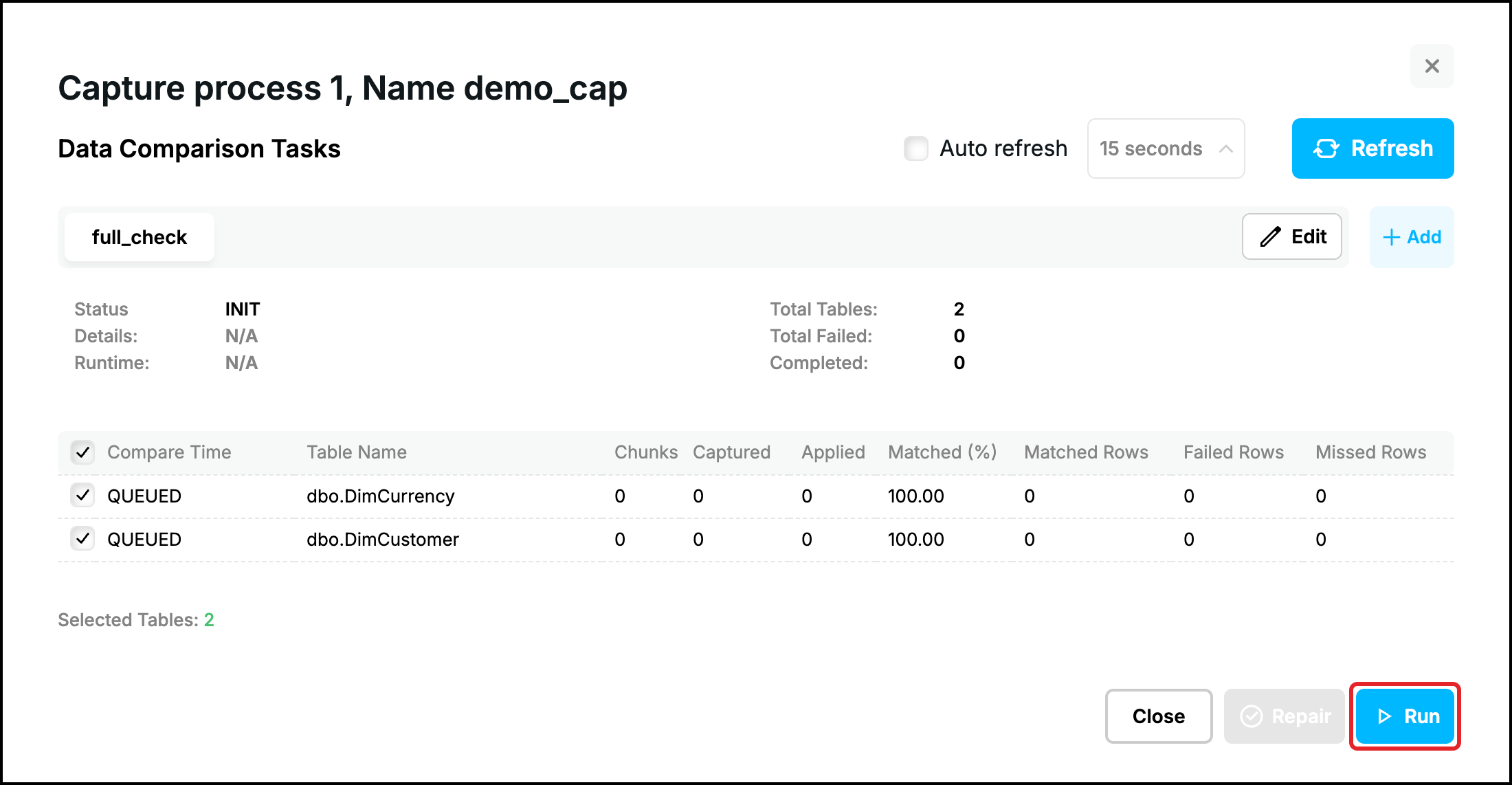
A task that has not been run before offers one run mode, “Full Validation”. Click “Run” in the dialog:
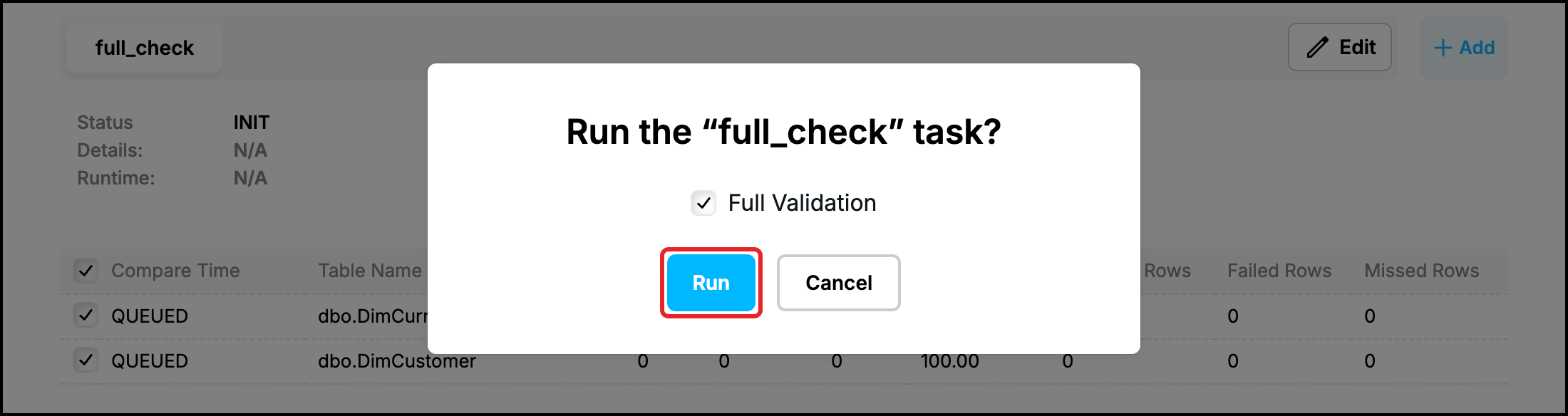
The window shows a loading state for a few seconds and then the report. The comparison runs on the server, so you can close the window and come back later. The Capture Process and the Apply Process have to be running.
Follow the progress
The report shows the state at the moment it was loaded. Click “Refresh” to load it again, or tick “Auto refresh” and choose the interval:
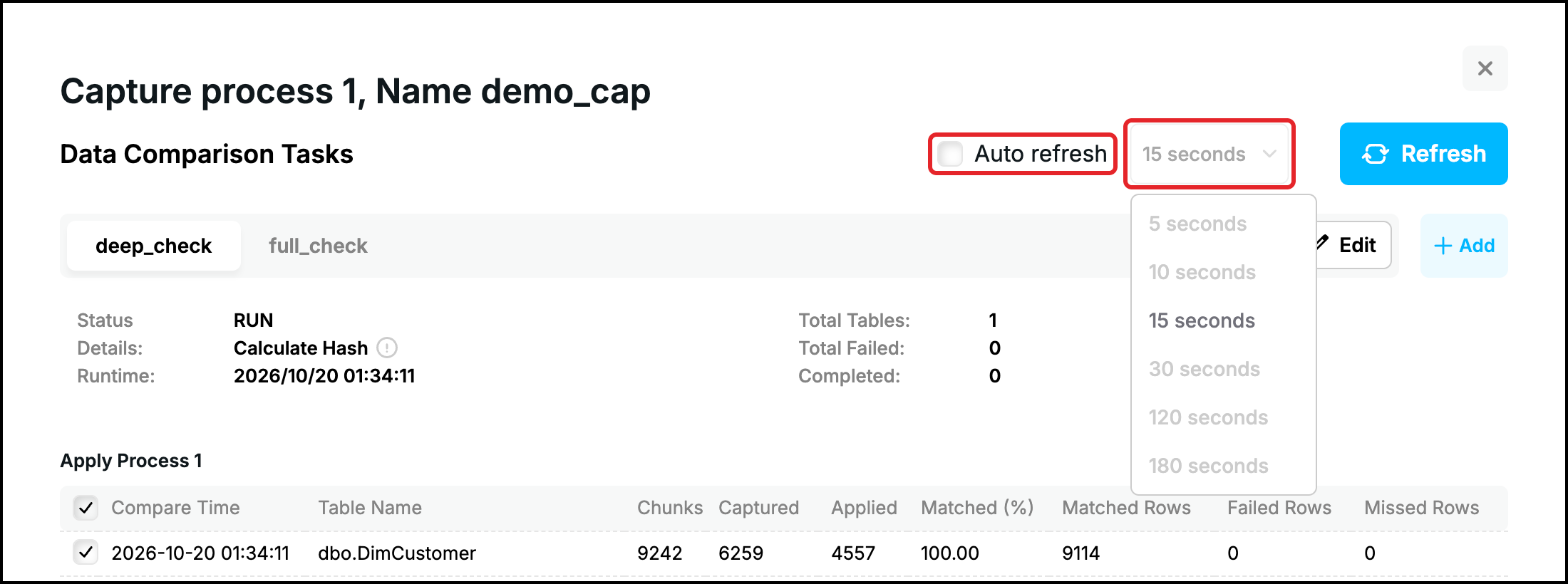
While the task runs “Status” is RUN and “Details” says what it is doing, “Calculate Hash”. Click the information icon next to it to see the table which is being processed and its progress: the percentage done, the number of chunks, the speed in chunks per second and the time left. “Captured” counts the chunks which the compare process has read and hashed in the Source Database and “Applied” the chunks which the Apply Process has compared, so “Applied” follows “Captured”:
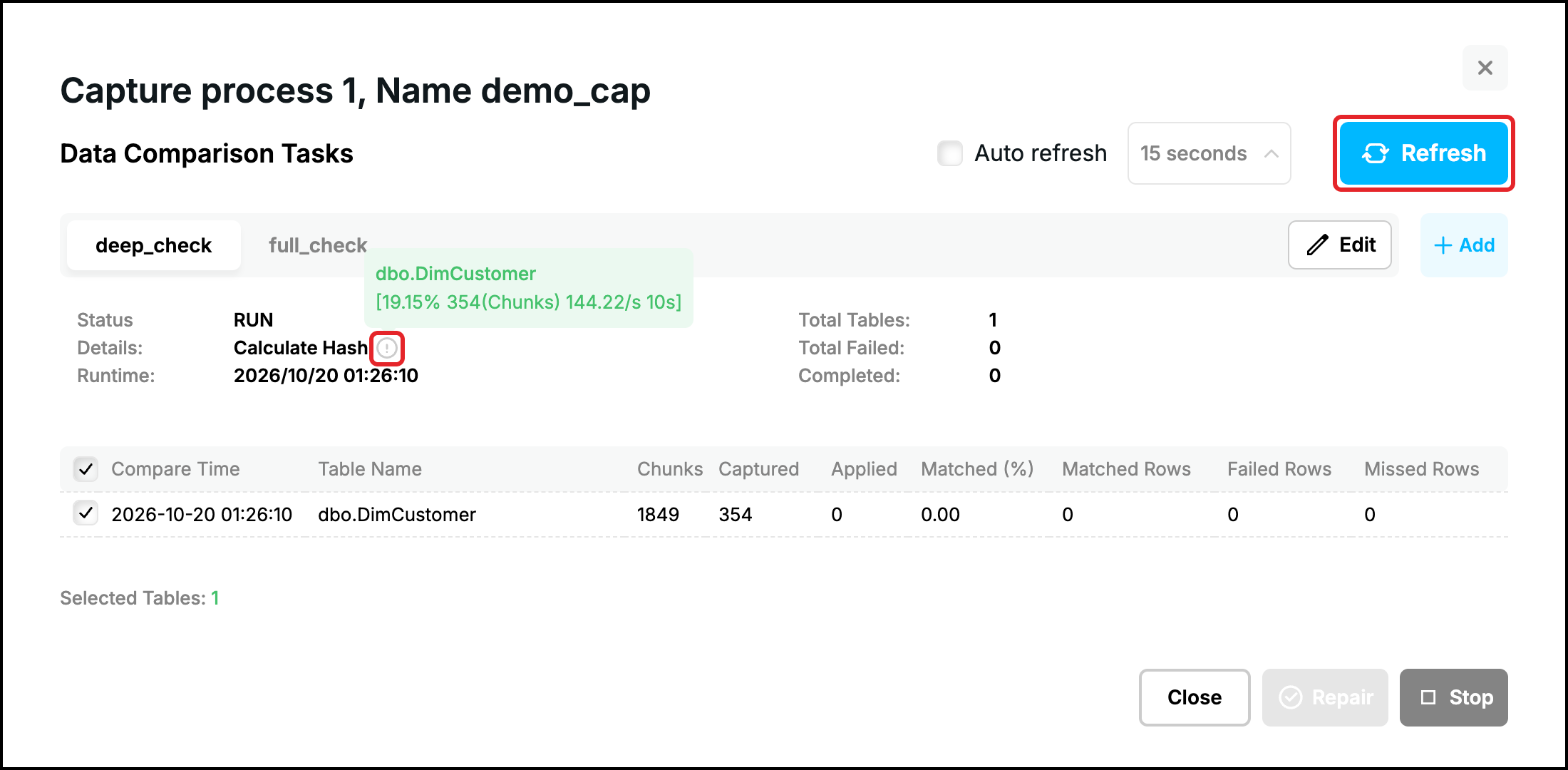
A table is complete when “Captured” and “Applied” equal “Chunks”. When all the tables are complete “Status” is DONE and “Completed” equals “Total Tables”:
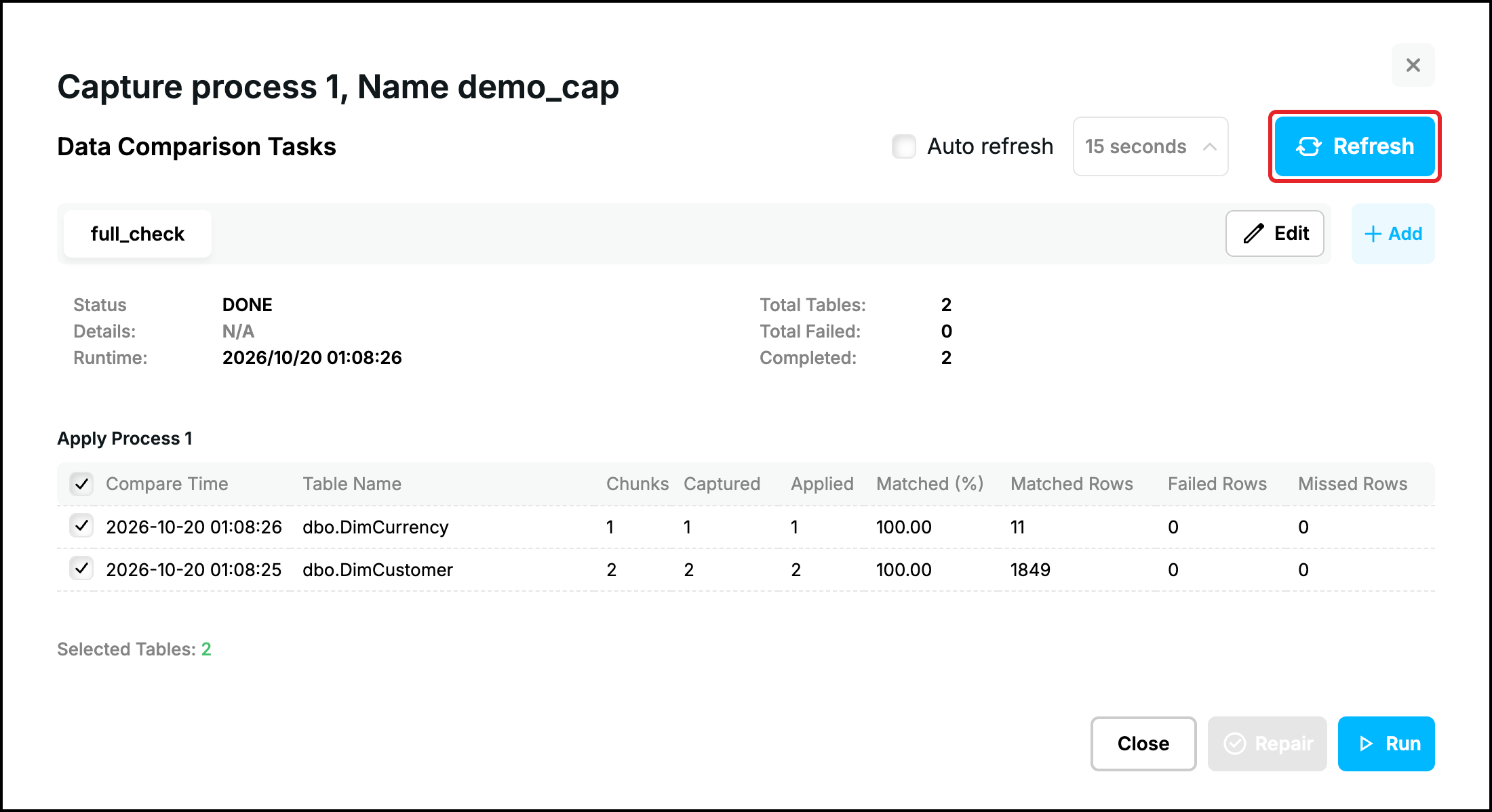
“Status” turns to DONE when the compare process has finished reading, the Apply Process may still be comparing the last chunks. If “Applied” is lower than “Captured” (or “Matched (%)” shows 0.00), click “Refresh” again.
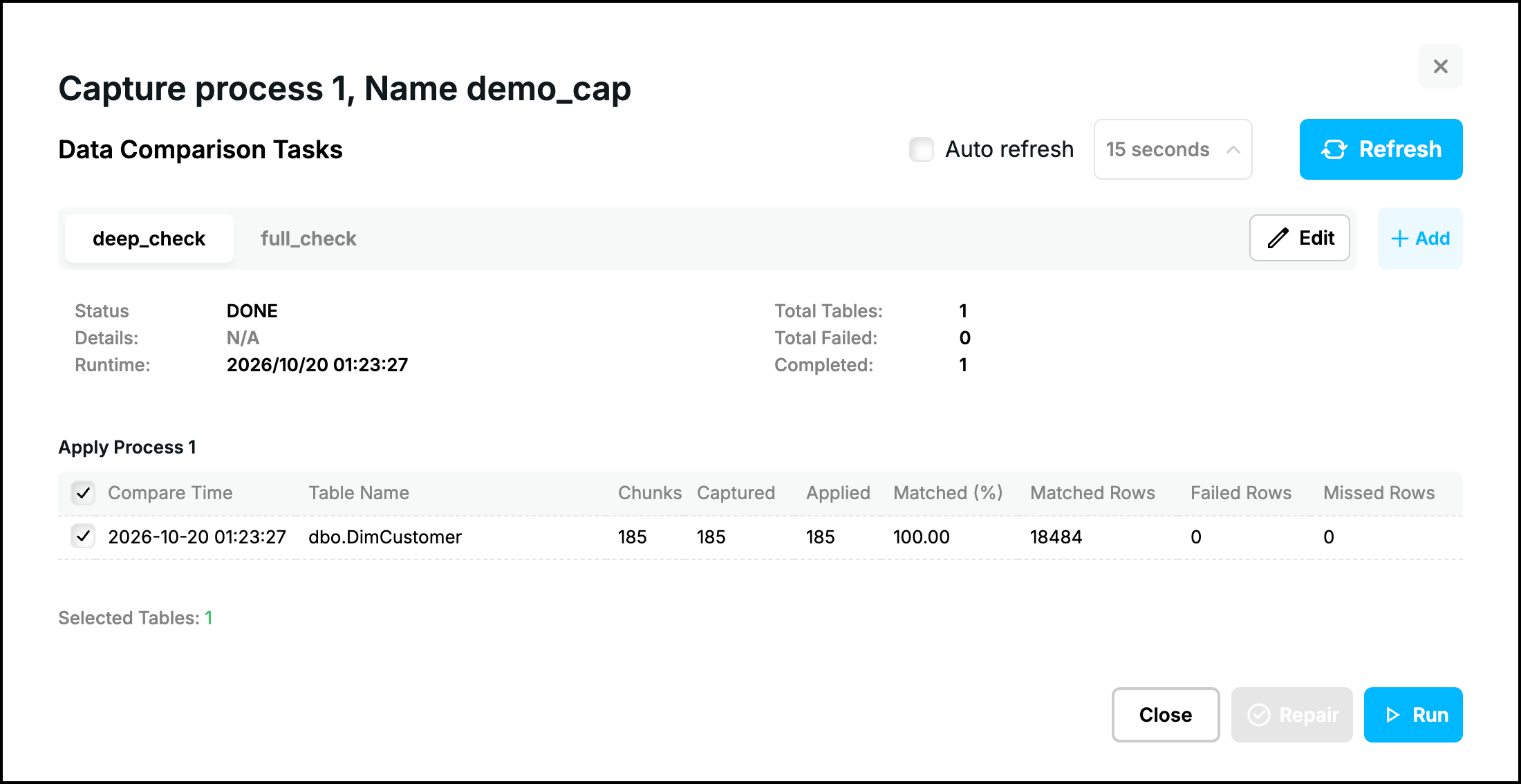
“Data Validation %” decides how many rows are compared. With the default 10 only a tenth of the rows is compared: 11 of the 105 rows of dbo.DimCurrency and 1849 of the 18484 rows of dbo.DimCustomer in the picture above. With 100 every row is compared, here all 18484 rows of dbo.DimCustomer:
Run modes
After the first run the “Run” dialog offers the modes which fit the state of the task:
| The dialog offers | When | What the run does |
|---|---|---|
| Full Validation | The task has never been run. | Compares the tables from the start. |
| Full Validation and Incremental (Incremental is selected) | All the tables of the task are complete. | Full Validation compares everything again from the start and replaces the previous result. Incremental compares only the rows which have changed since the previous run. It reads them from the trail files of the Capture Process (see Compare only the changes). |
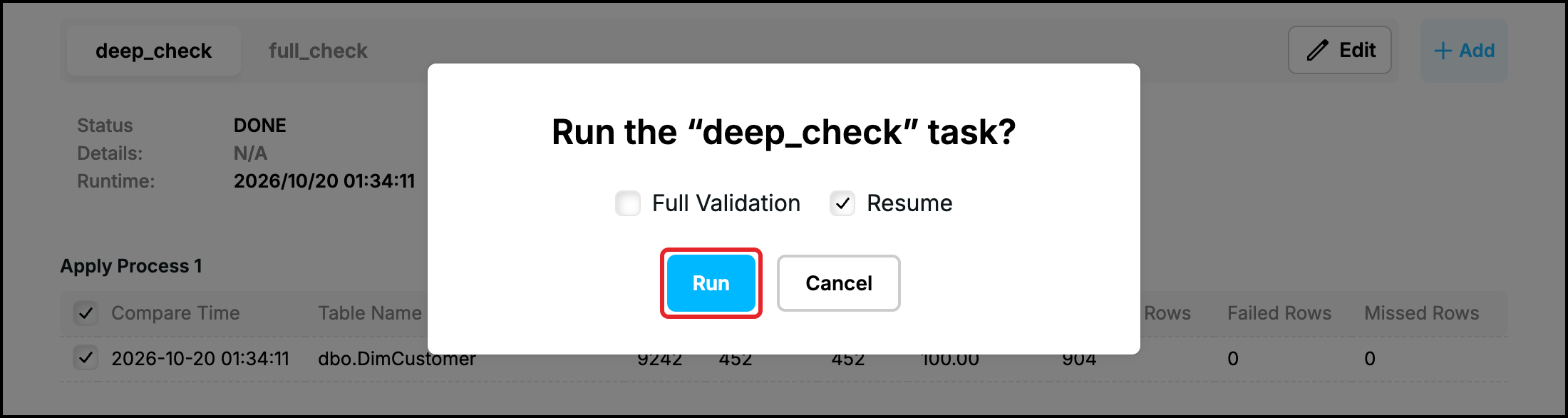
| Full Validation and Resume (Resume is selected) | The task was stopped before the tables were complete. | Full Validation starts again from the beginning. Resume goes on from the point where the task stopped. |
The same modes in repcli (the command “compare run”, see Start/Stop Task): Full Validation is mode=1, Resume is mode=0 (the default mode), Incremental is mode=2 and Repair is mode=3.
Full Validation
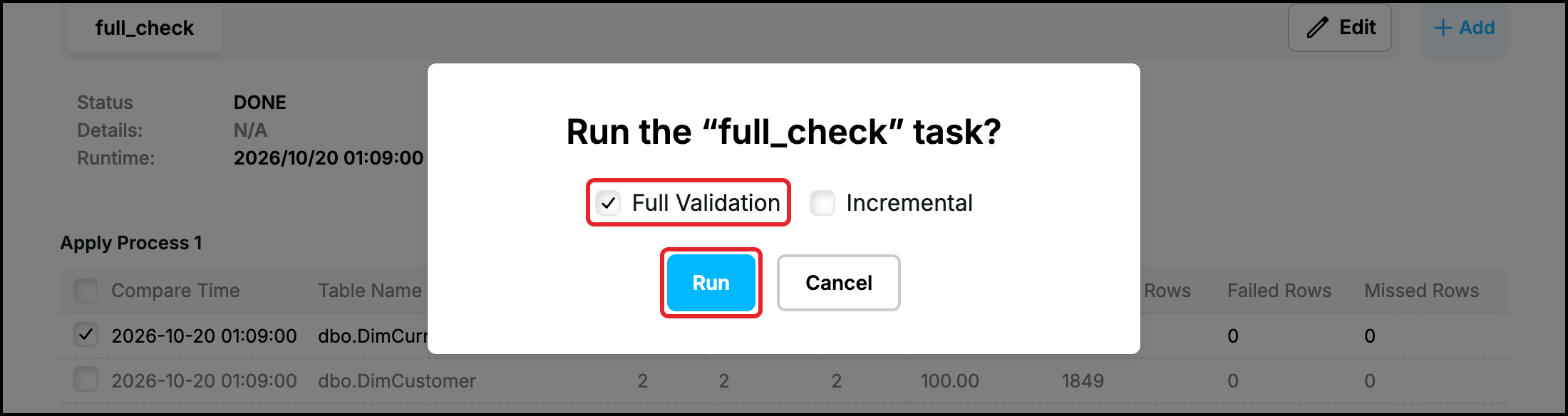
“Full Validation” starts the task from the beginning. The earlier result is replaced and every selected table is compared again with the current settings of the task. Choose it to repeat a comparison, or after you have changed the task. When the dialog opens with another mode selected, click “Full Validation”:
Compare only some tables
The check boxes in front of the tables select the tables which “Run” works with. All the tables are ticked at first. Untick the tables you do not want to compare, click “Run” and choose the mode. The other tables are not touched and keep their last result. Here dbo.DimCustomer is unticked, so only dbo.DimCurrency is compared again:
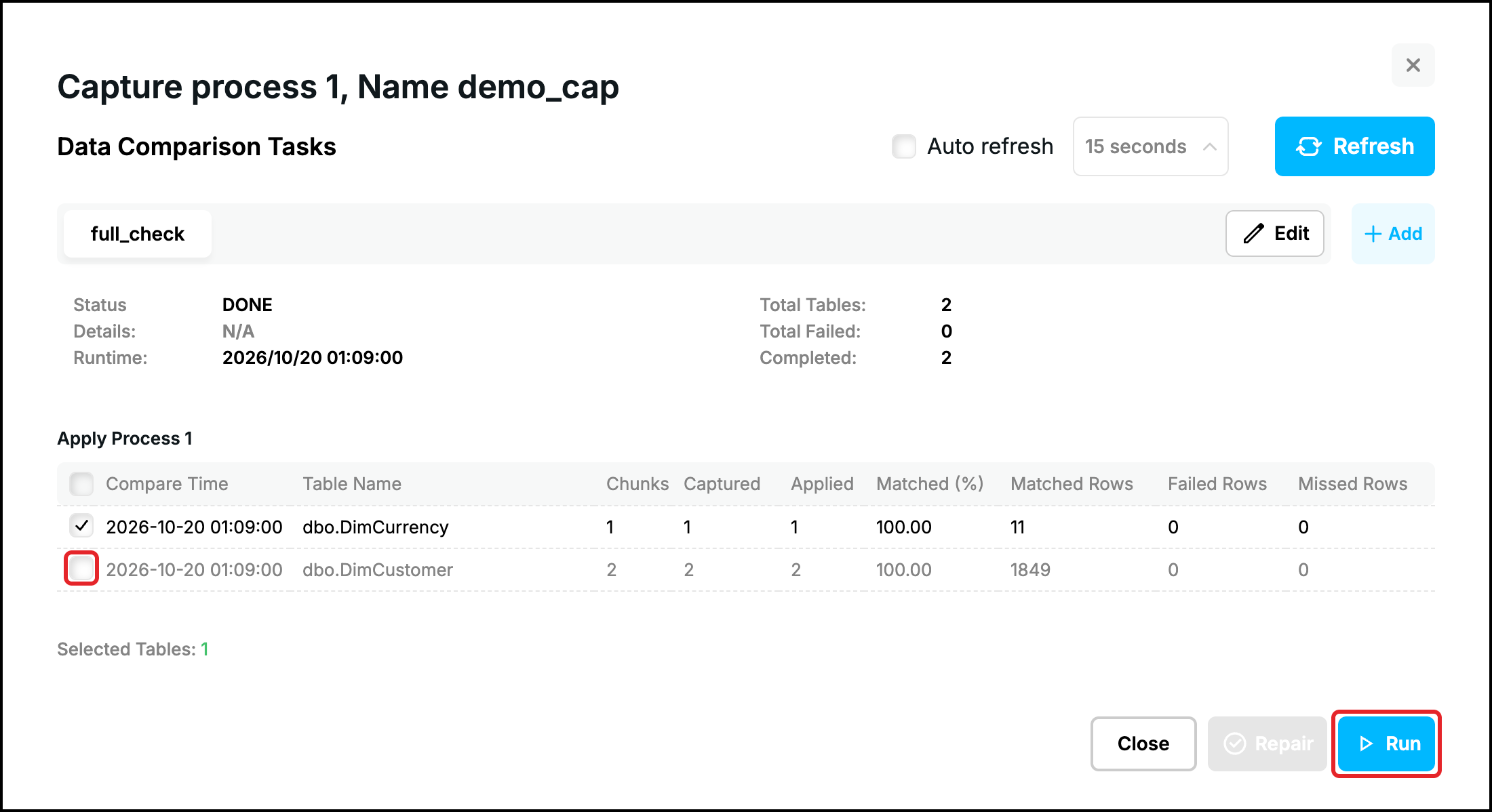
The check box in the header of the table ticks or unticks all the tables. “Repair” (see below) also works with the ticked tables only.
Stop and resume a task
Click “Stop” while the task runs, it takes the place of “Run”. There is no confirmation:
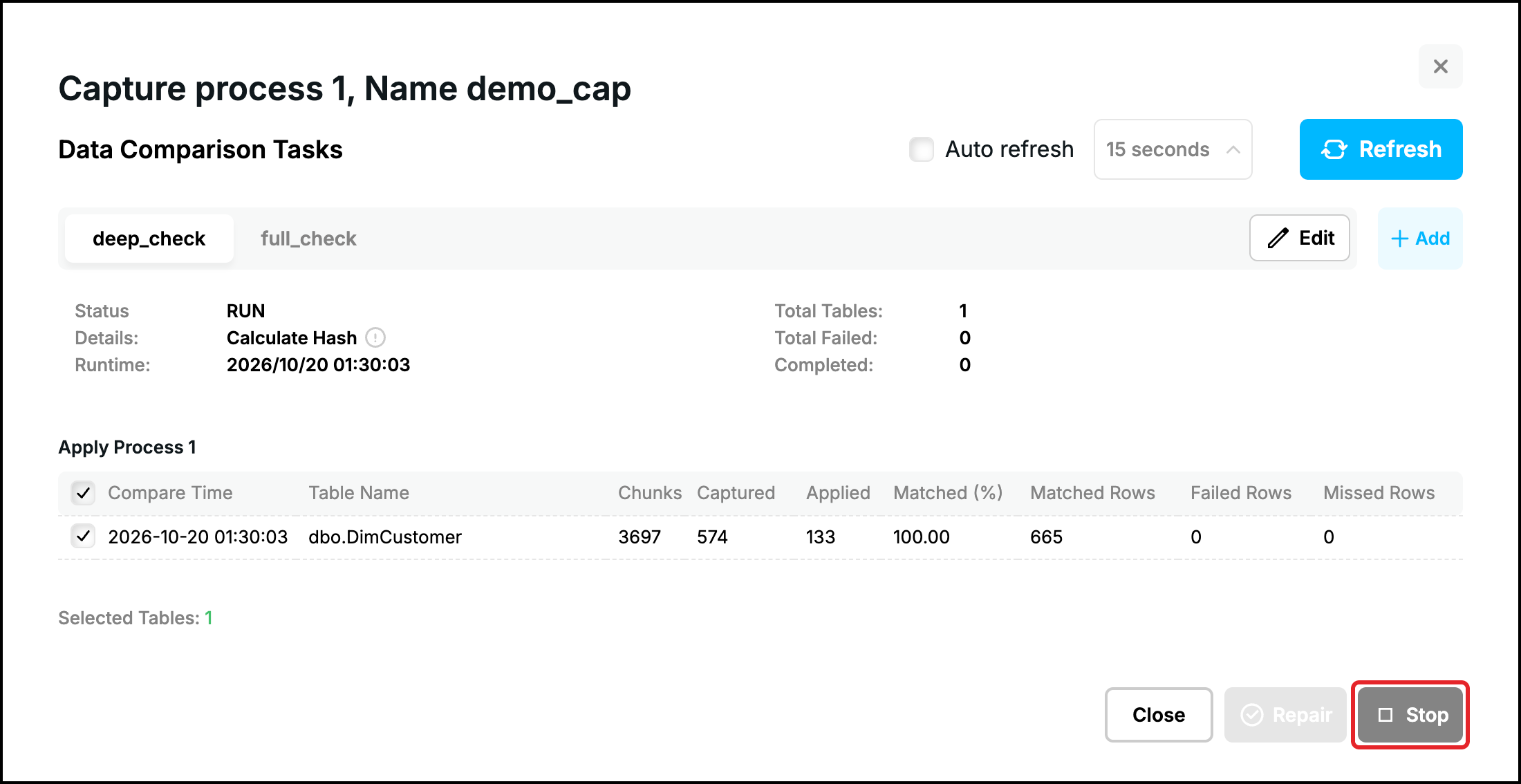
The task stops within a moment; only the comparison stops, the Capture Process and the Apply Process keep running. Its status becomes DONE, but the tables are not complete: “Completed” is lower than “Total Tables” and the table that was being compared stays at the chunk it had reached (452 of 9242 chunks here):
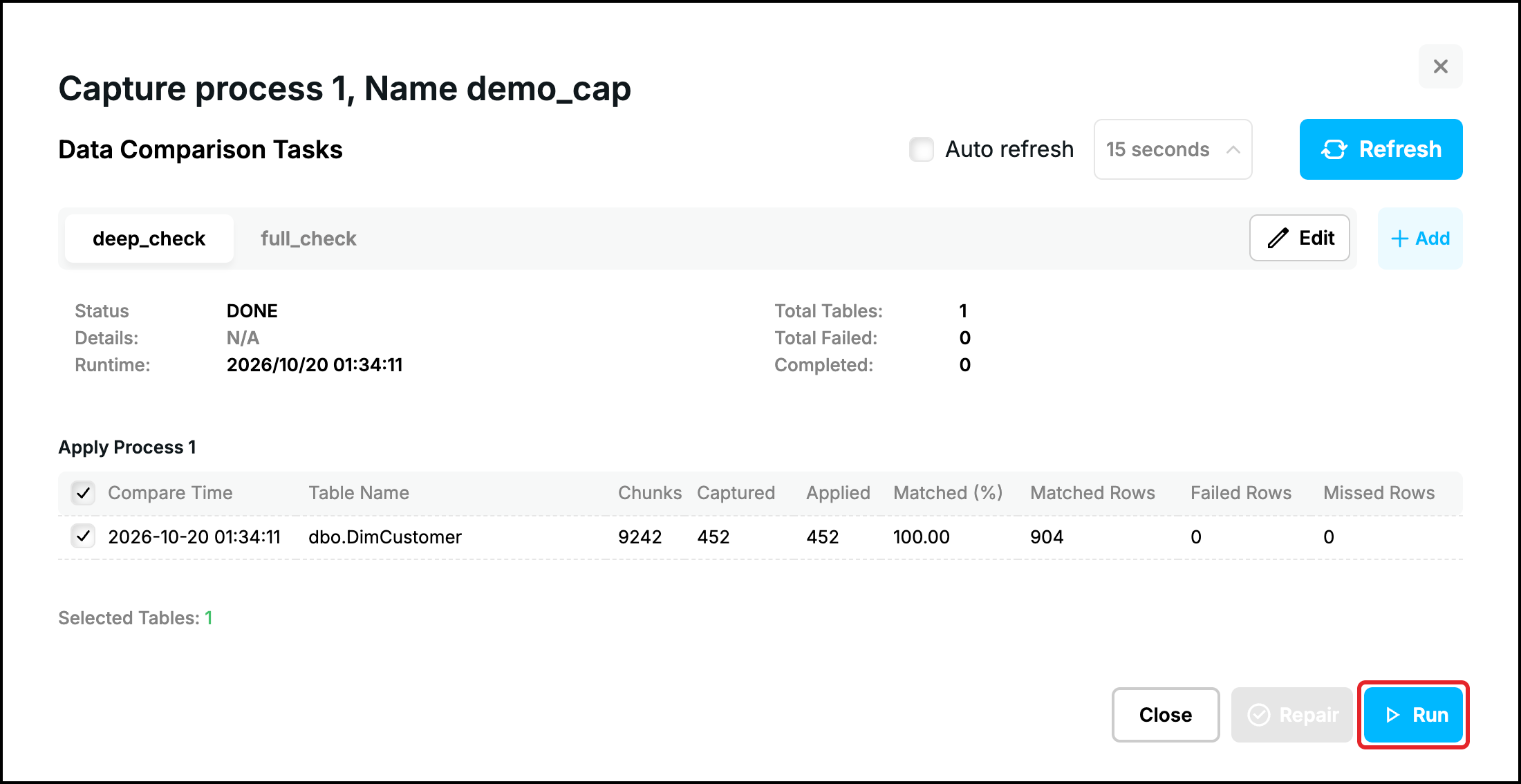
Click “Run” to go on. The dialog now offers “Full Validation” and “Resume”, “Resume” is selected. “Run” continues from the last chunk that was completed, “Captured” and “Applied” go on from their last values. Choose “Full Validation” to start again from the beginning:
Compare only the changes
When all the tables are complete the dialog offers “Full Validation” and “Incremental”, “Incremental” is selected:
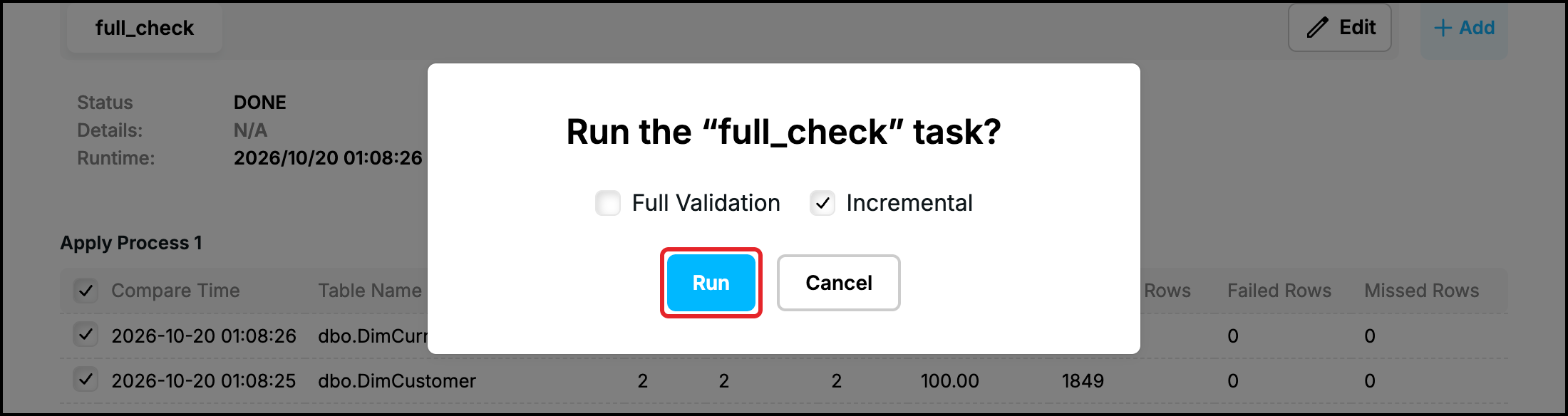
An incremental run does not read the tables again. The compare process looks in the trail of the Capture Process for the rows which have changed since the previous run of each table and compares these rows only, all of them (“Data Validation %” is not applied to them). It is a quick way to go on checking tables which have already been compared completely. If nothing has changed since the previous run the numbers of the report stay as they were and only “Compare Time” shows the new run.
Incremental needs the trail files. The changed rows are found in the trail files of the Capture Process, and the Apply Process deletes a trail file when it has finished applying it. How long the Apply Process keeps the files is set by “Cleanup Trail Files” on the “Process Parameters” tab of the Apply Process Configuration (the parameter cleanuptrail, see Edit Replication Processes): “Cleanup After Processing”, the default, deletes the files at once, “Days” keeps them for the number of days that is entered and “Never Cleanup” keeps them. An incremental run needs every trail file from the one in which the previous run started up to the current one. The Capture Process starts a new trail file when the current one is full (50 MiB by default) or when its configuration changes, so with the default setting the file in which the previous run started is deleted as soon as the Apply Process has finished it.
When a trail file that is needed has been deleted the incremental run fails: it does not start and the result of the task stays as it was. repcli and the REST API return an error that names the missing trail file, for example “open trail/trdemo_cap00000012: no such file or directory”. The Web UI does not show the error: the Compare window stays in the loading state until you close it with the cross. Run “Full Validation” in this case, it does not need the trail files. To use “Incremental” regularly, set “Cleanup Trail Files” of the Apply Process to “Days” with more days than pass between two runs, or to “Never Cleanup”, and watch the disk space that the trail files take.
Failed and missed rows
When rows differ, “Failed Rows” (in red) and “Missed Rows” show how many. A failed row exists in both databases but its values differ. A missed row exists in the Source Database but not in the Target Database. “Matched (%)” is lower than 100 then. With a very big table a few differing rows can still be rounded to 100.00, so look at “Failed Rows” and “Missed Rows”. When some tables have differences “Show Failed or Missed Rows” appears above the table: tick it to list only those tables. Click the number of failed rows to see the keys of the rows:
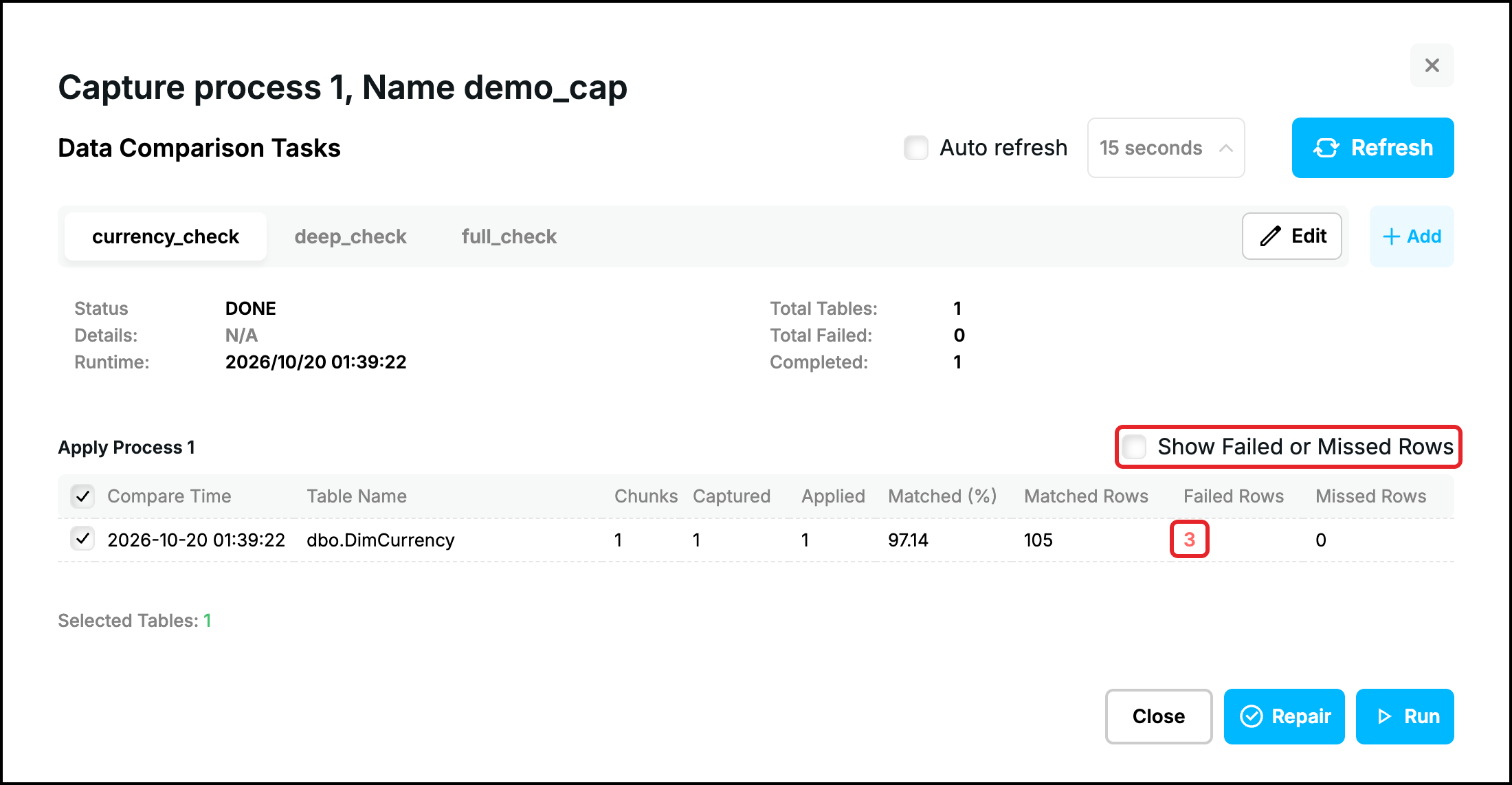
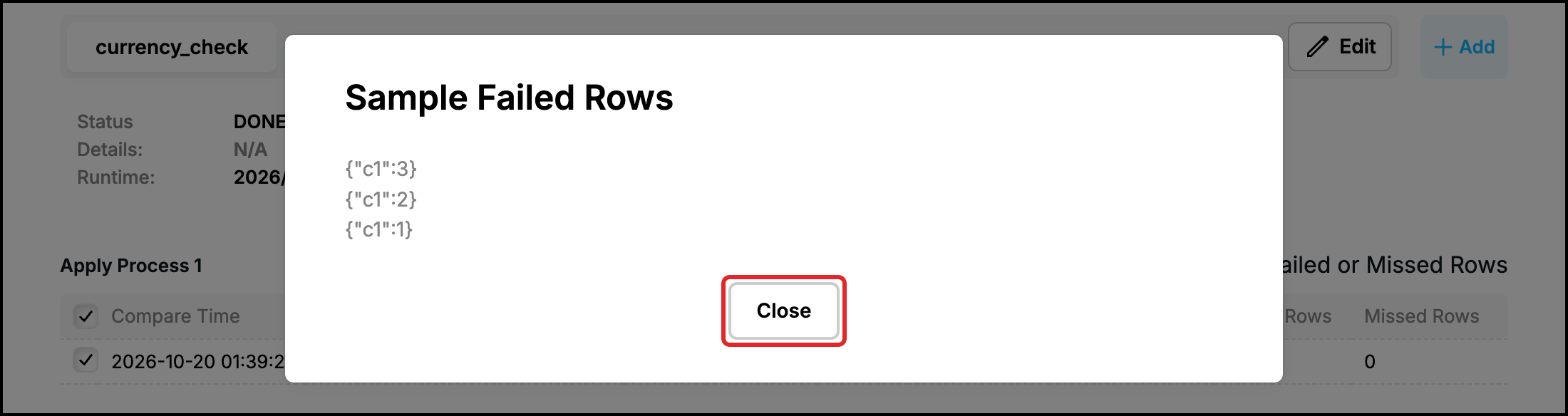
The window shows up to five rows. Every line is the key of a row: “c1” is the number of the column (the first column of the table) and 3 is its value:
Typical reasons for a difference are a row that was changed directly in the Target Database, a transaction that was not applied (see the incidents of the Apply Process) and a function or a transformation rule that makes the values differ. Find the reason, or repair the rows.
Repair the differences
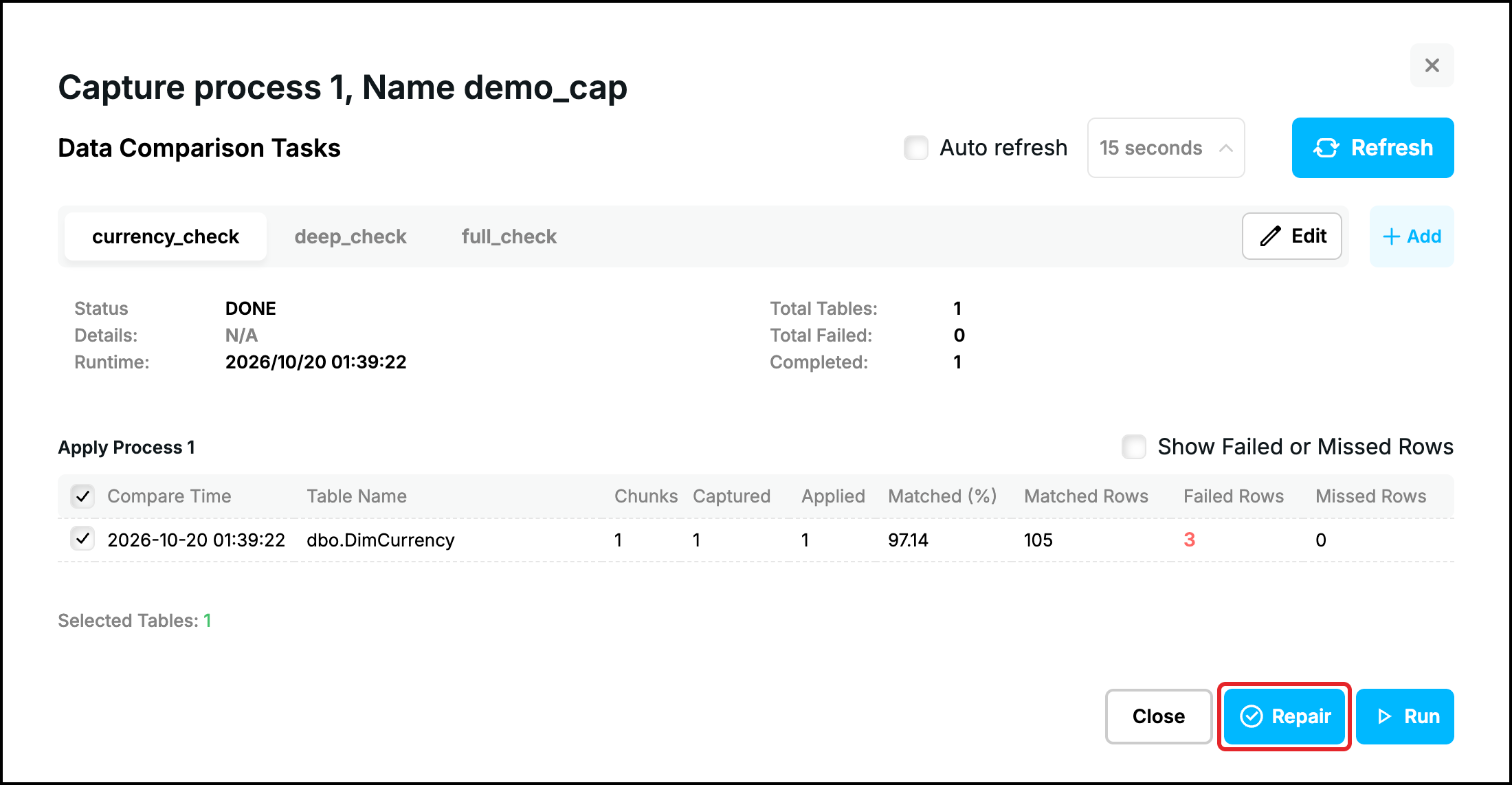
“Repair” brings the failed and the missed rows in line with the Source Database and does not touch the other rows. It works with the ticked tables that have failed or missed rows. Click “Repair”:
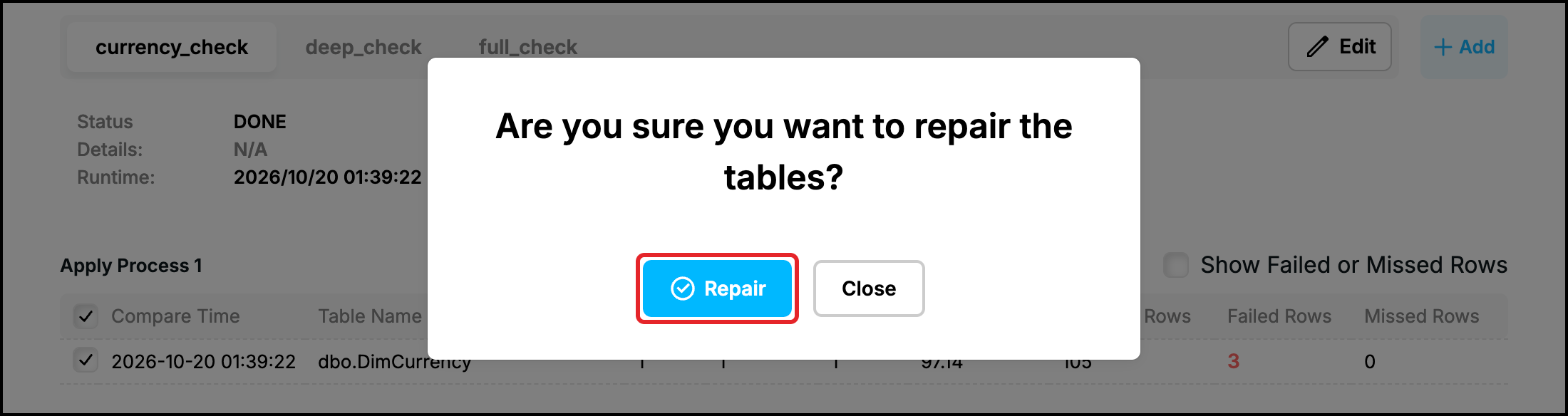
Confirm the question:
The repair is done in three steps:
- The Capture Process reads from the Source Database the rows whose keys the last run has saved as failed or missed, all the columns of the rows.
- The rows are delivered to the Apply Process that has reported them. It merges them into the Target table by the key: a missing row is inserted, a row that differs is updated.
- When the Capture Process has reloaded the tables, the task compares the repaired rows once more.
While the Capture Process reloads the rows “Details” says “Waiting for Capture to Reload the Tables” and names the tables:
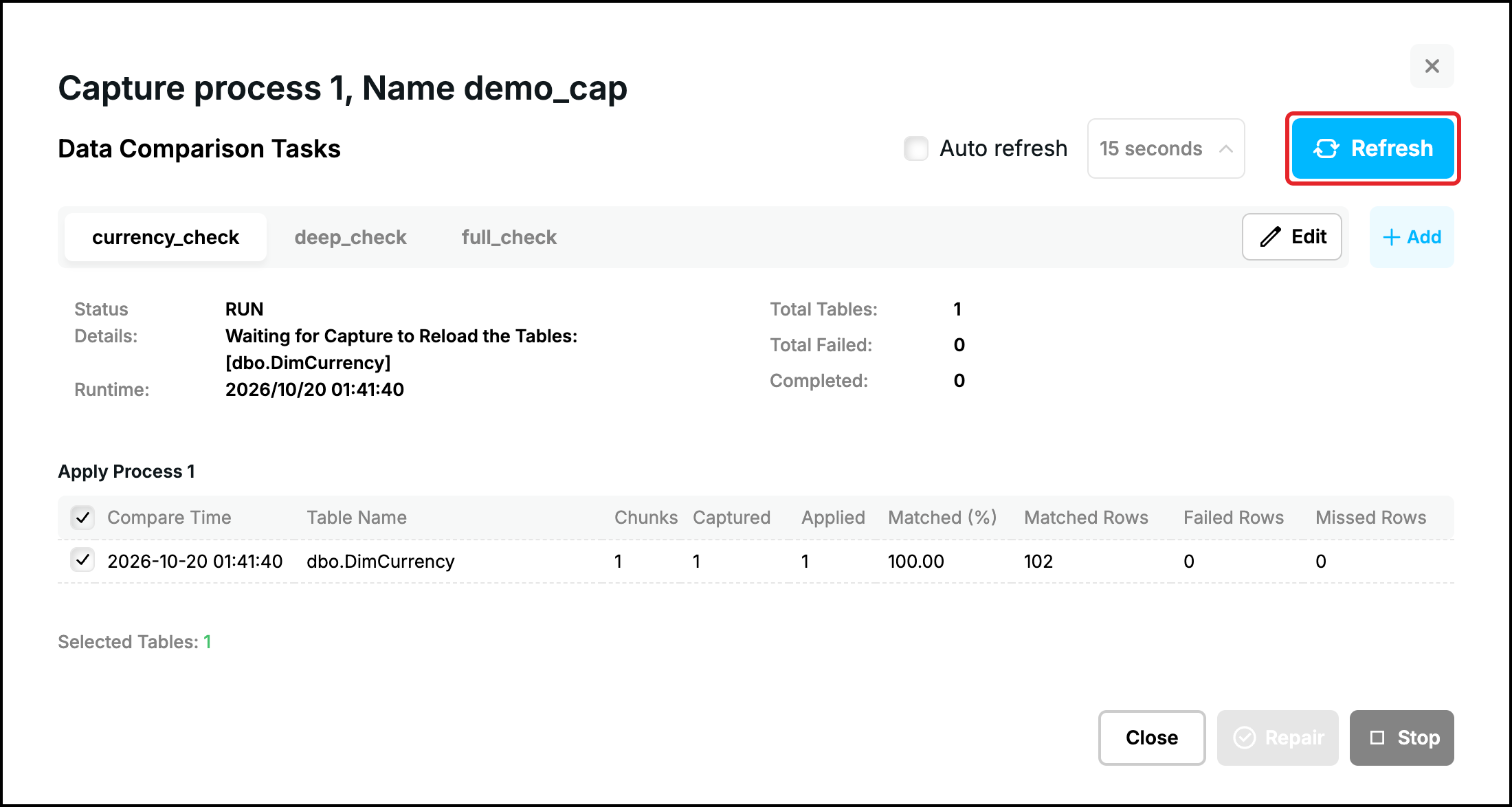
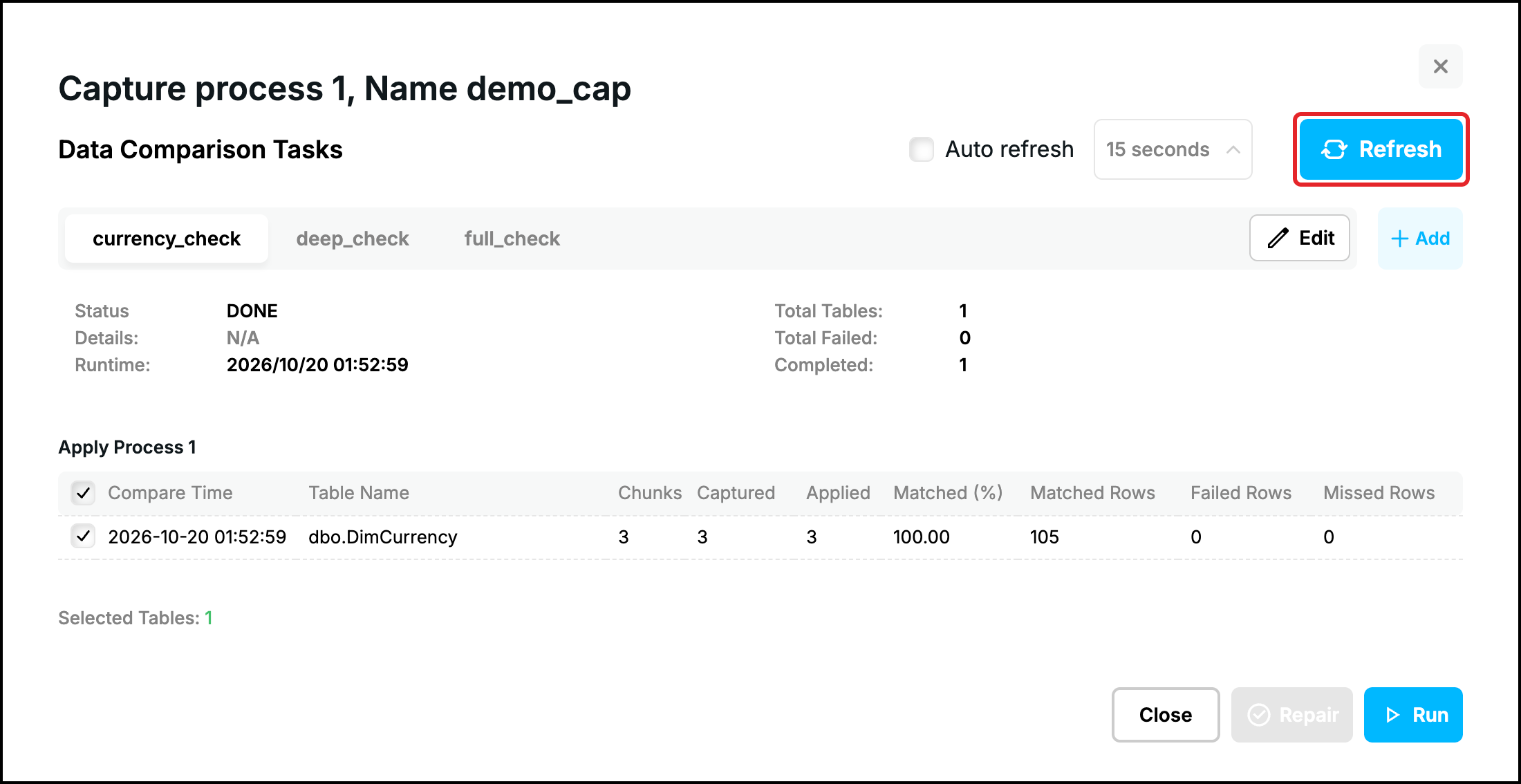
Click “Refresh”. The new result replaces the previous result of the table: the rows that are still different appear again as failed or missed rows, otherwise “Failed Rows” is 0 and “Matched (%)” is 100.00. “Chunks”, “Captured” and “Applied” also count the chunks of the repair, so they grow with every repair (here they are 3 after the run and two repairs):
Good to know about the repair:
- It needs the Capture Process and the Apply Process to be running: the task is complete when the Apply Process has applied the rows and compared them.
- It merges the rows by the primary key or the unique index of the table. Do not repair a table that is compared with other key columns (see “Add key” and “Remove key” in Task Configuration).
- It repairs only the rows that the last run has found. When “Data Validation %” is less than 100 the other rows were not checked, so they are neither found nor repaired. Compare with 100 to find all the differences.
- It reads the rows from the Source Database at the time of the repair: a row changed since the comparison is loaded with its current values, a row deleted from the Source Database is not loaded.
- It does not delete the rows that exist only in the Target Database, the comparison does not report them.
- “Full Validation” discards the previous result. Repair before you run the task from the beginning again.
- If the repair of a table fails, the error is registered in the incidents and in the log of the Capture Process and the report does not change. Check them if the numbers are the same after the repair.
Task status
“Status” in the report can be:
| Status | Meaning |
|---|---|
| INIT | The task has been saved but has never been run. |
| RUN | The task is running. |
| DONE | The run has ended, because the tables have been compared or because the task was stopped. Compare “Completed” with “Total Tables”. |
| STOPPING | A stop has been requested and the task is ending. It is shown for a moment only. |
| STOP | The task is not running and is not the task that ran last: another task has been run since, or the server was restarted. The report shows the result that was saved. |
| FAILED | The comparison could not be done. The message after the status gives the reason. |
“Details” is N/A when the task is not running. While it runs it shows “Calculate Hash” (see above), and during a repair “Waiting for Capture to Reload the Tables”.
More than one Apply Process
If several Apply Processes read from the Capture Process, for example for two Target Databases, each of them compares the hashes with its own Target Database. The report is then shown for one Apply Process at a time, with arrows and the number (for example 1 of 2) next to its name to switch between them.
Command line and REST API
The functions of this page are also available in repcli and in the REST API, see Start/Stop Task for running, stopping and repairing and Task Status for the report.
Prev page:
Task ConfigurationNext page:
Stop/Run Replication Processes- Repstance User Guide
- ABOUT REPSTANCE
- SUPPORTED DATABASE REQUIREMENTS
- GETTING STARTED WITH REPSTANCE
- INTERACTING WITH REPSTANCE SERVER
- CONFIGURE REPLICATION WITH REPSTANCE
- DATABASE CONFIGURATION COMMANDS
- PROCESS CONFIGURATION COMMANDS
- PROCESS CONTROL COMMANDS
- DATA COMPARISON
- REPSTANCE SERVER MAINTENANCE
- GLOSSARY