

Replication Objects
The “Include Tables” and “Exclude Tables” tabs of the Replication Object Wizard generate the object rules of a Capture Process: the tables which are replicated (DML), the tables whose DDL statements are replicated (DDL) and the tables whose existing data is copied before the replication starts (Initial Load). The rules are written to the six fields of the “Objects Rules” tab of the process form: “DML Include”, “DDL Include”, “Load Include”, “DML Exclude”, “DDL Exclude” and “Load Exclude” (see Capture Objects Specification). A table is replicated if its name matches an include rule and does not match an exclude rule.
Search the tables
The “Include Tables” tab opens first. “Replicated Tables” lists the tables which the rules of the process include now: “DML” and “DDL” show a + for the tables whose changes or DDL statements are replicated, “Load” shows L for the tables which are loaded first:
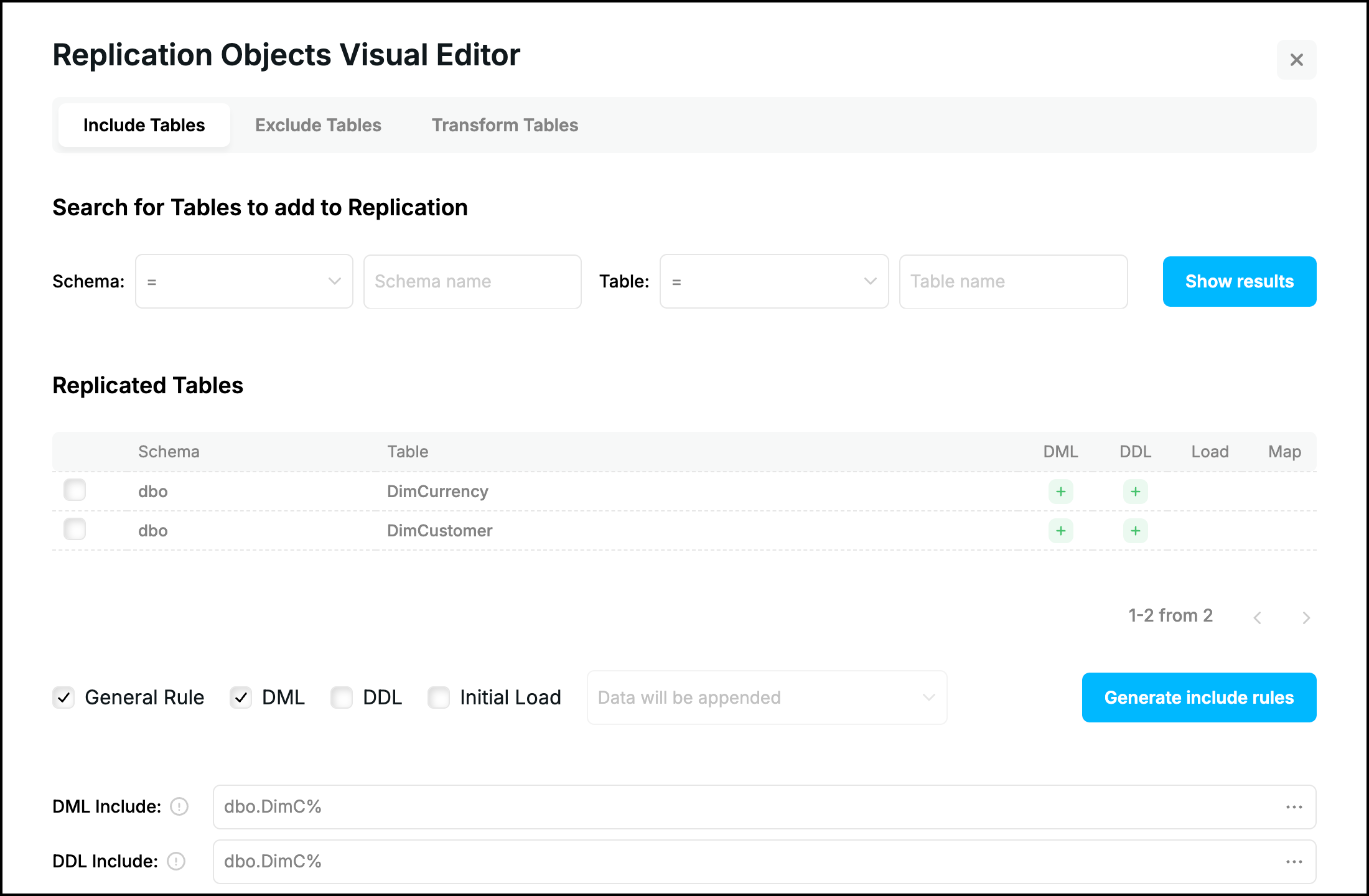
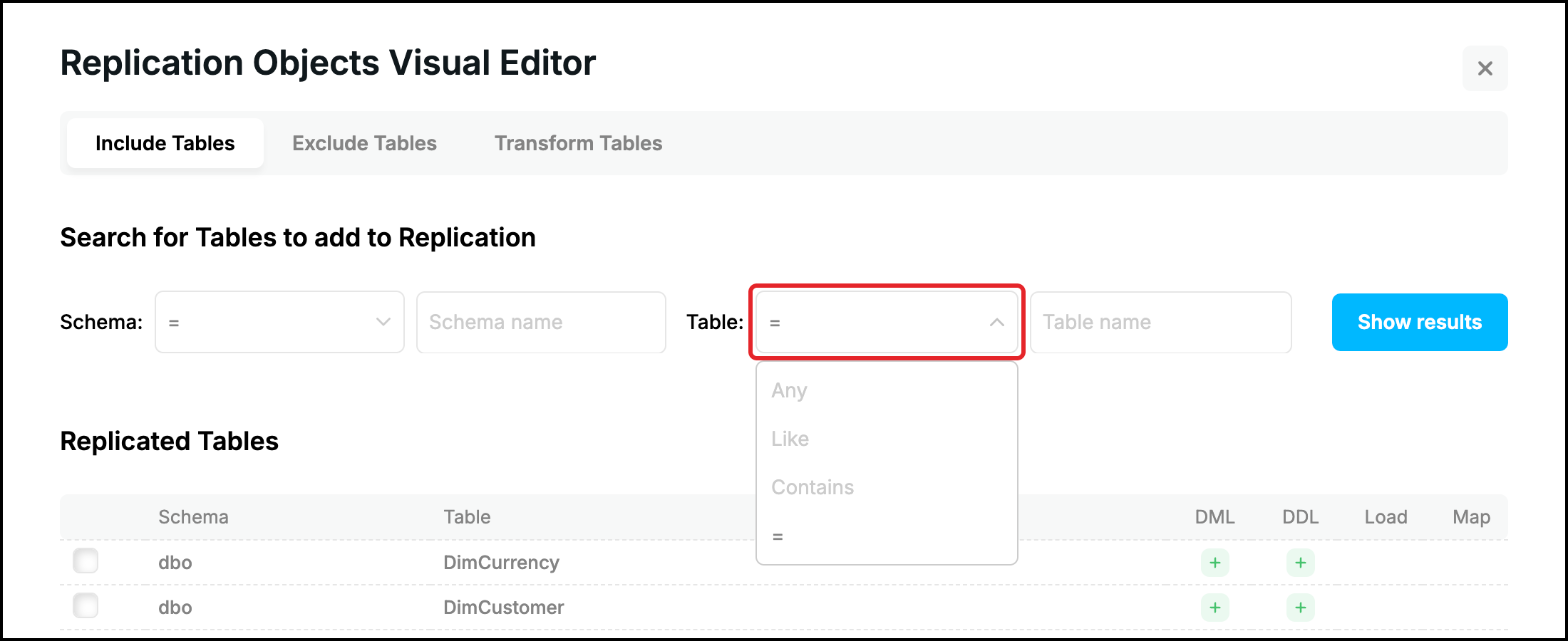
To look for other tables enter the schema and the table name and choose an operator for each of them: “Any” matches every name, “Like” the names which start with the text, “Contains” the names which contain the text and “=” only the name which is exactly the text. Do not type the % symbol, the wizard adds it for “Like” and “Contains”:
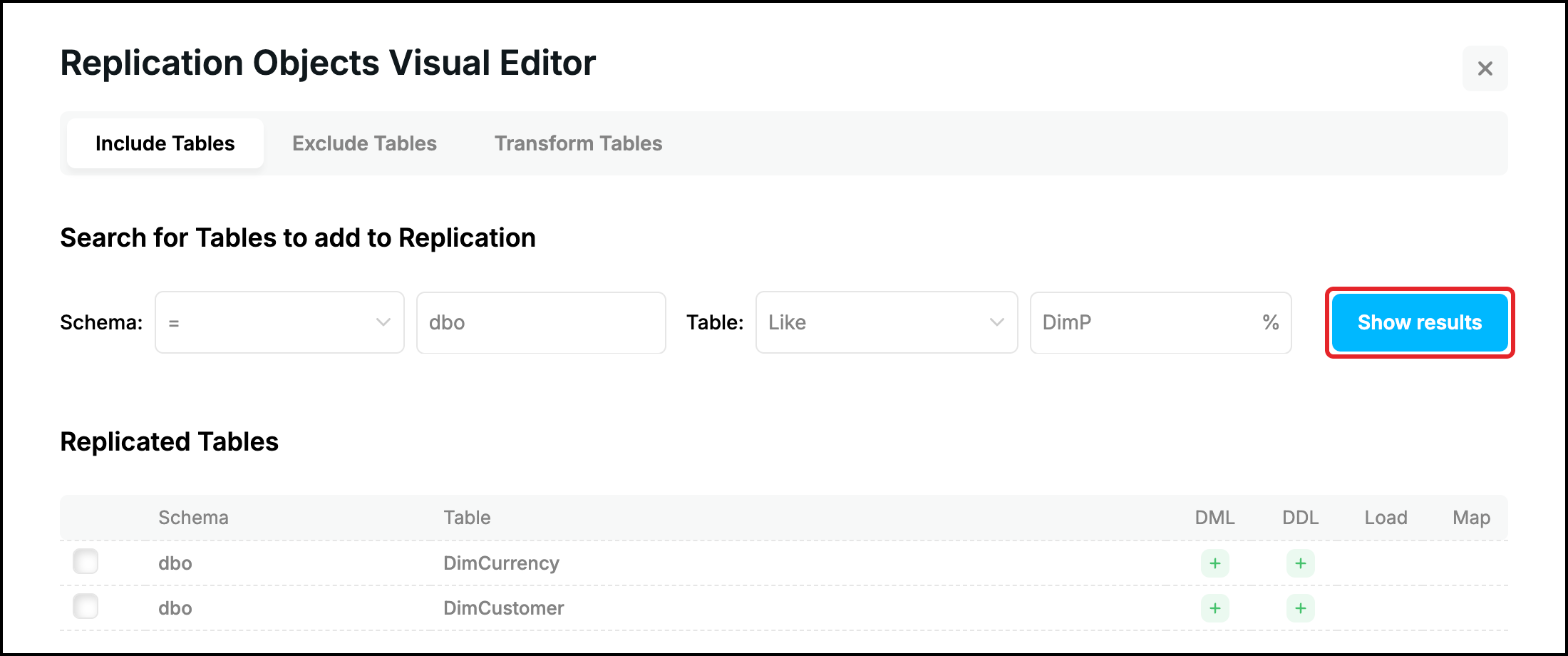
Click “Show results”:
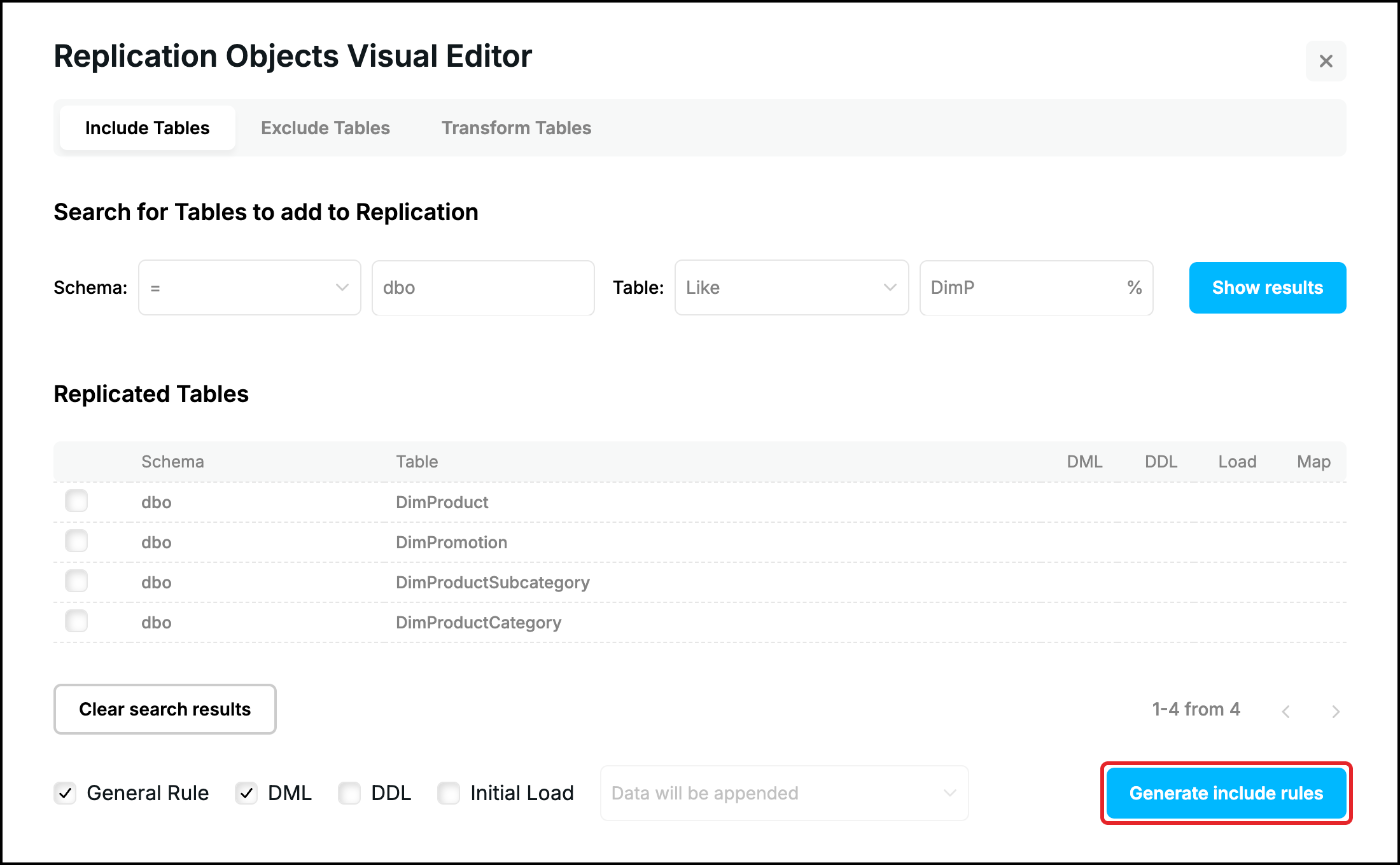
The tables which meet the criteria are listed, 10 on a page (use the arrows under the list to see the other pages). The marks appear when the rules are generated. “Clear search results” removes the criteria and shows the tables of the current rules again:
Choose the tables and the type of the rule
The flags under the list define what is generated:
- General Rule – one rule is generated from the search criteria (for example dbo.DimP%). It covers all the tables which meet the criteria, also the ones which are not on this page of the list or are created later. It is ticked at the start. When you tick a table in the list, “General Rule” is cleared and the rule names the ticked tables one by one (for example dbo.DimProduct); when no table is ticked it is set again.
- DML – the changes of the data of the tables are replicated. It is ticked at the start.
- DDL – the DDL statements of the tables (changes of the structure) are replicated.
- Initial Load – the data which is in the tables now is copied to the Target Database before the replication starts.
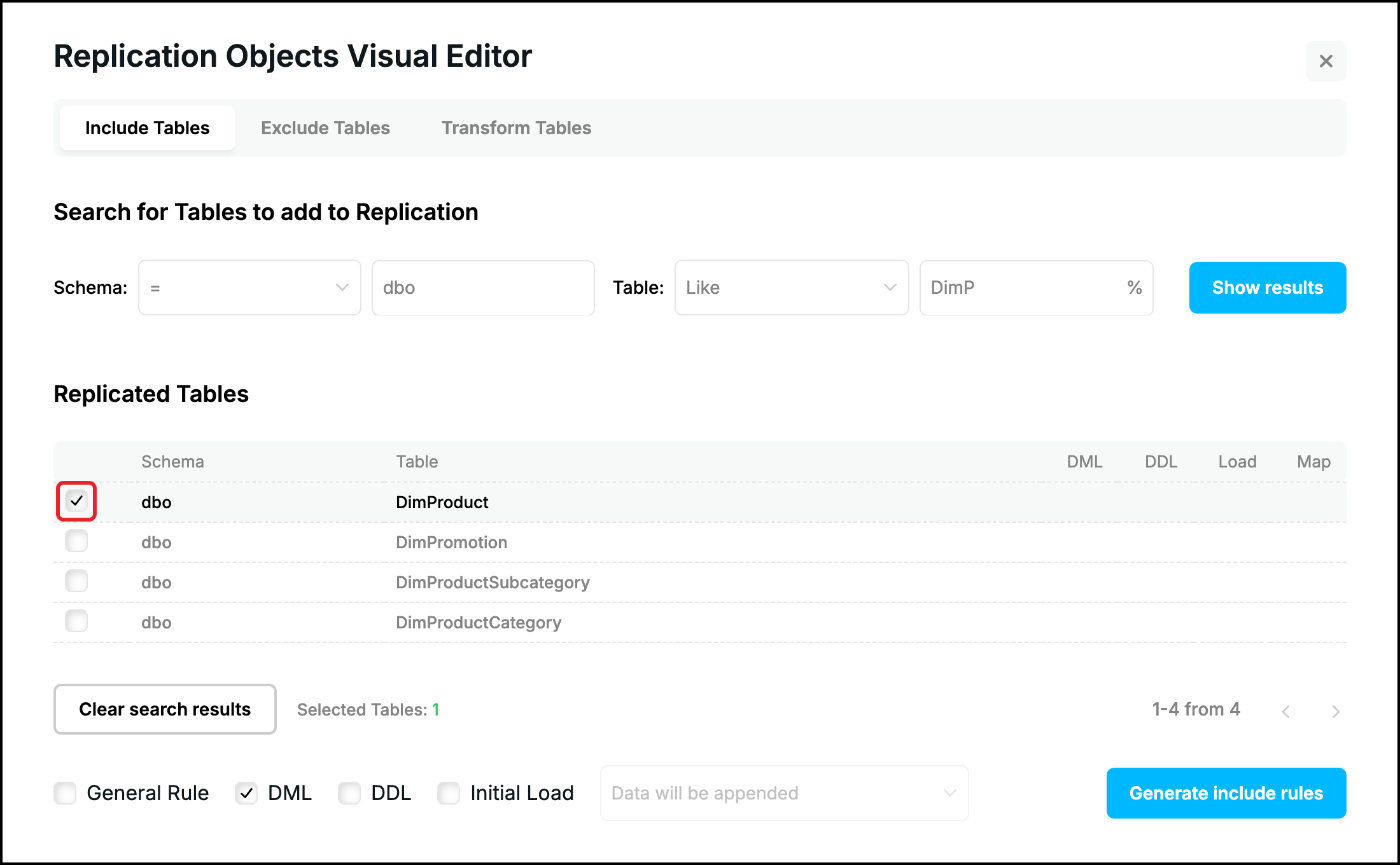
Every flag writes its own field: DML to “DML Include”, DDL to “DDL Include” and Initial Load to “Load Include”. At least one flag stays ticked. A table which is loaded must be replicated as well, so tick “DML” together with “Initial Load” (see Initial Load). Tick the tables to generate the rules for them only:
Initial Load
When “Initial Load” is ticked, choose in the list how the tables of the Target Database are prepared before the data is copied:
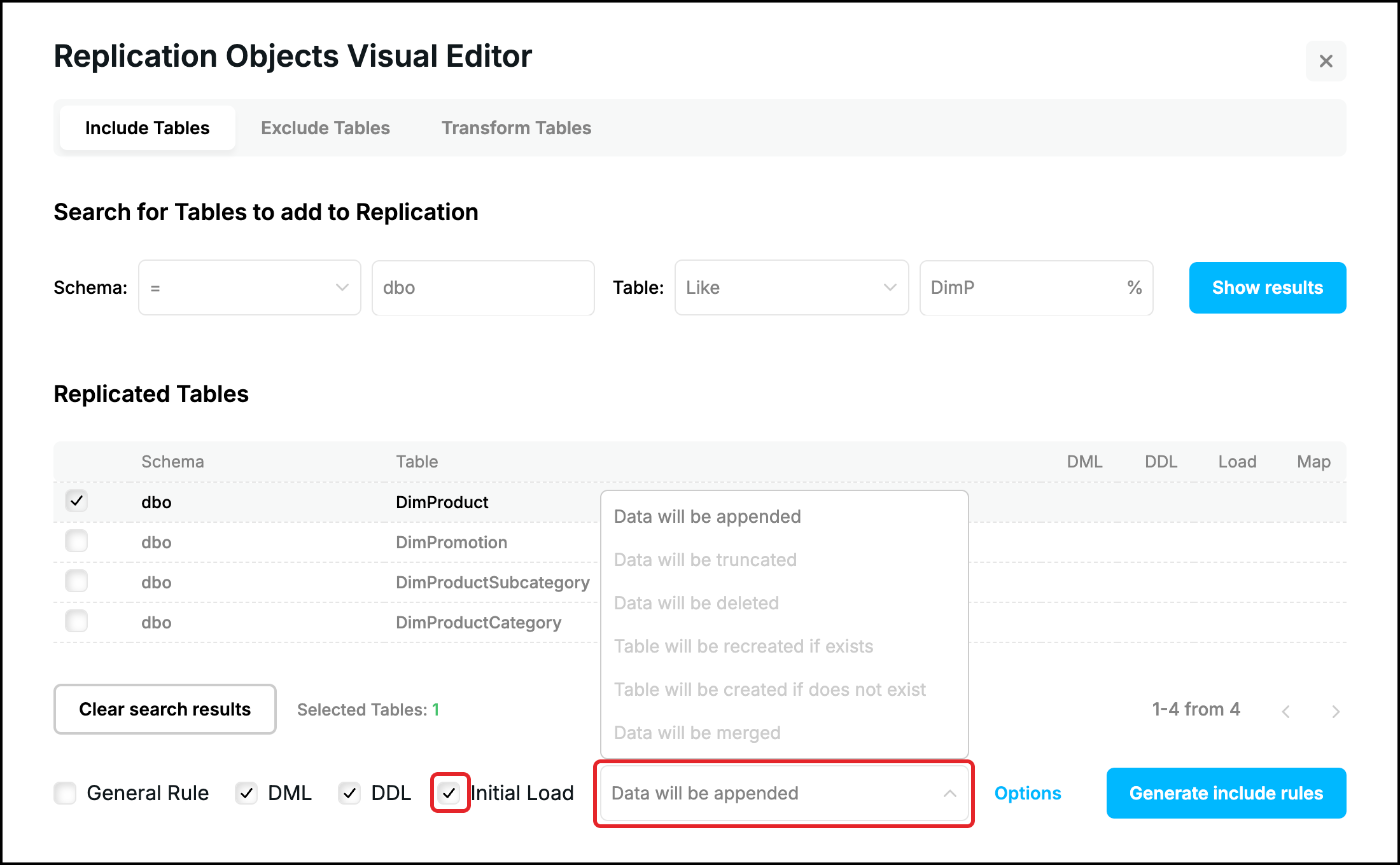
- Data will be appended (A) – the rows are added to the data which is in the table (the default value).
- Data will be truncated (T) – the table is cleaned up with the truncate statement.
- Data will be deleted (D) – the table is cleaned up with the delete statement.
- Table will be recreated if exists (R) – the table is dropped and created again.
- Table will be created if does not exist (C) – the table is created when it is missing in the Target Database.
- Data will be merged (M) – the rows are merged into the data of the table by its key instead of being inserted.
Click “Options” (the link is called “Edit” once the options are set) to open “Initial Load Options”:
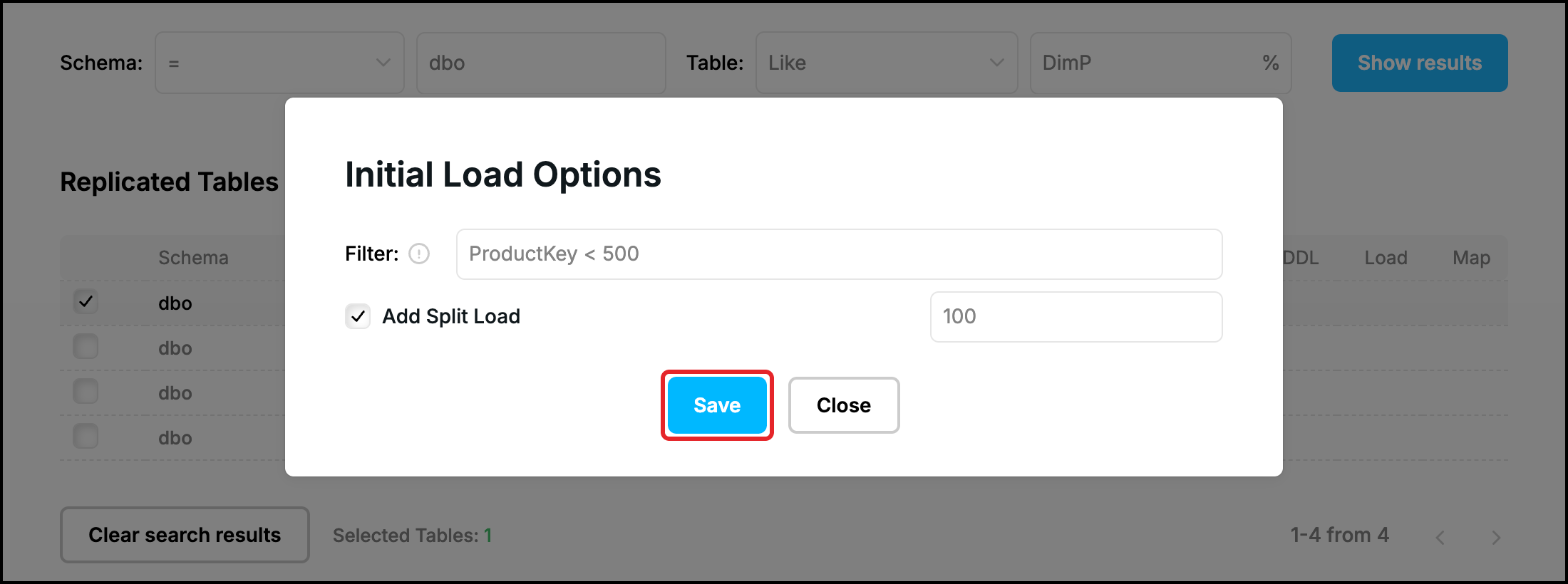
- Filter – the condition which selects the rows to copy (the part of the select statement after “where”), for example ProductKey < 500. A filter cannot contain a comma or a colon.
- Add Split Load – the table is copied in pieces of the given number of rows (here 100 rows). The pieces are ranges of the key of the table, so the table needs a primary key or a unique index, otherwise it is copied in one piece.
Click “Save” to keep the options. They are added to every load rule which is generated by the next “Generate include rules”, so use a filter for one table (as in the picture) or for tables which all have the column. The syntax of the load rules is described in Initial Load.
Generate the rules
Click “Generate include rules”. The rules are added at the end of the rules which are in the three fields (a rule is not added twice) and “Replicated Tables” shows the result: the table DimProduct is included in the DML and the DDL replication and is loaded first, the tables dbo.DimC% were included before:
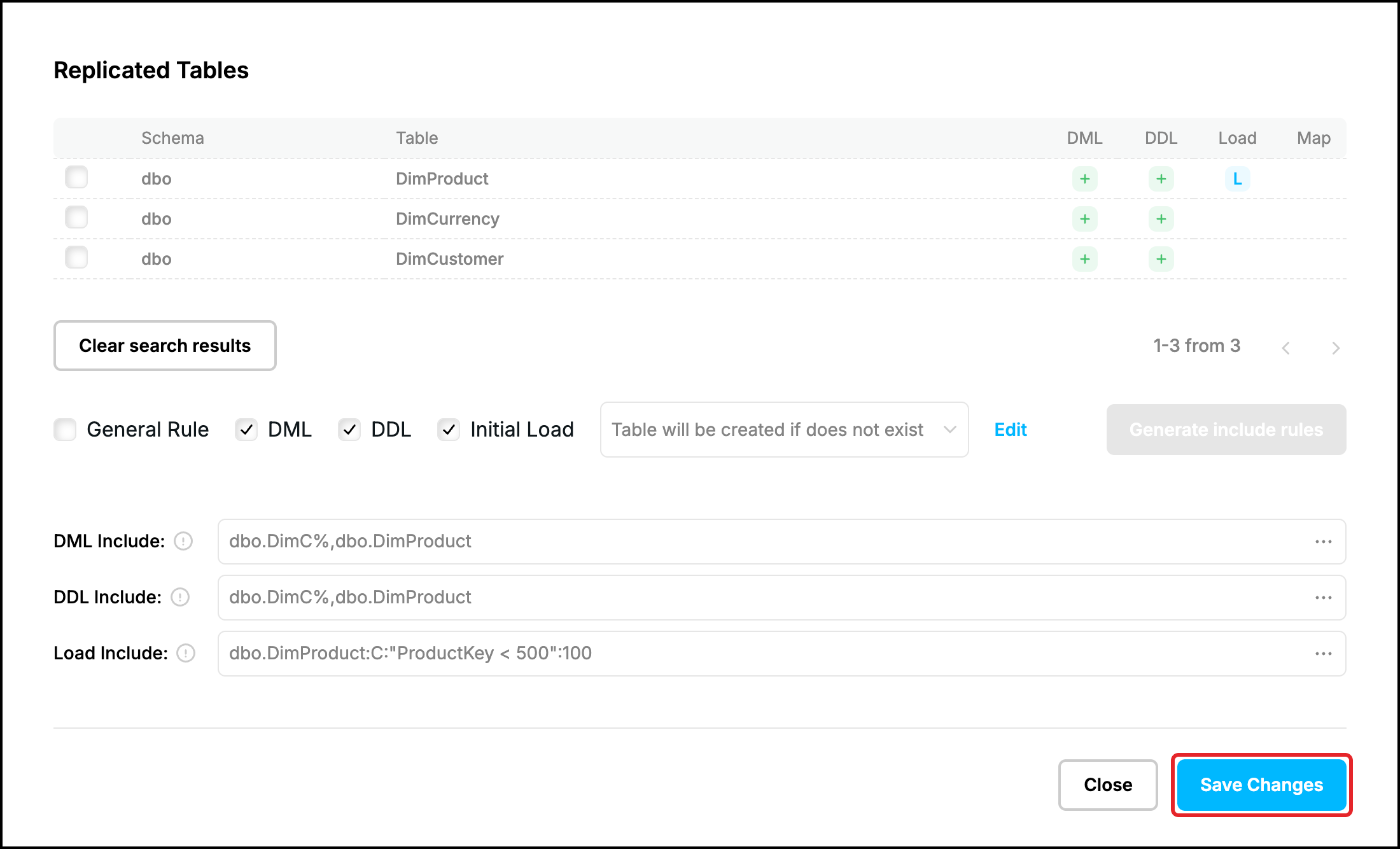
These rules were generated in the pictures of this page:
- schema dbo, “Like” DimP, “General Rule”: dbo.DimP%
- the table DimProduct ticked, “DML” and “DDL”: dbo.DimProduct in “DML Include” and “DDL Include”
- “Initial Load” with the mode C, the filter ProductKey < 500 and the split load of 100 rows: dbo.DimProduct:C:"ProductKey < 500":100 in “Load Include”
The rules can also be typed in the fields, or edited one by one in the window which opens with the three dots (…) next to a field (see Edit Replication Processes):
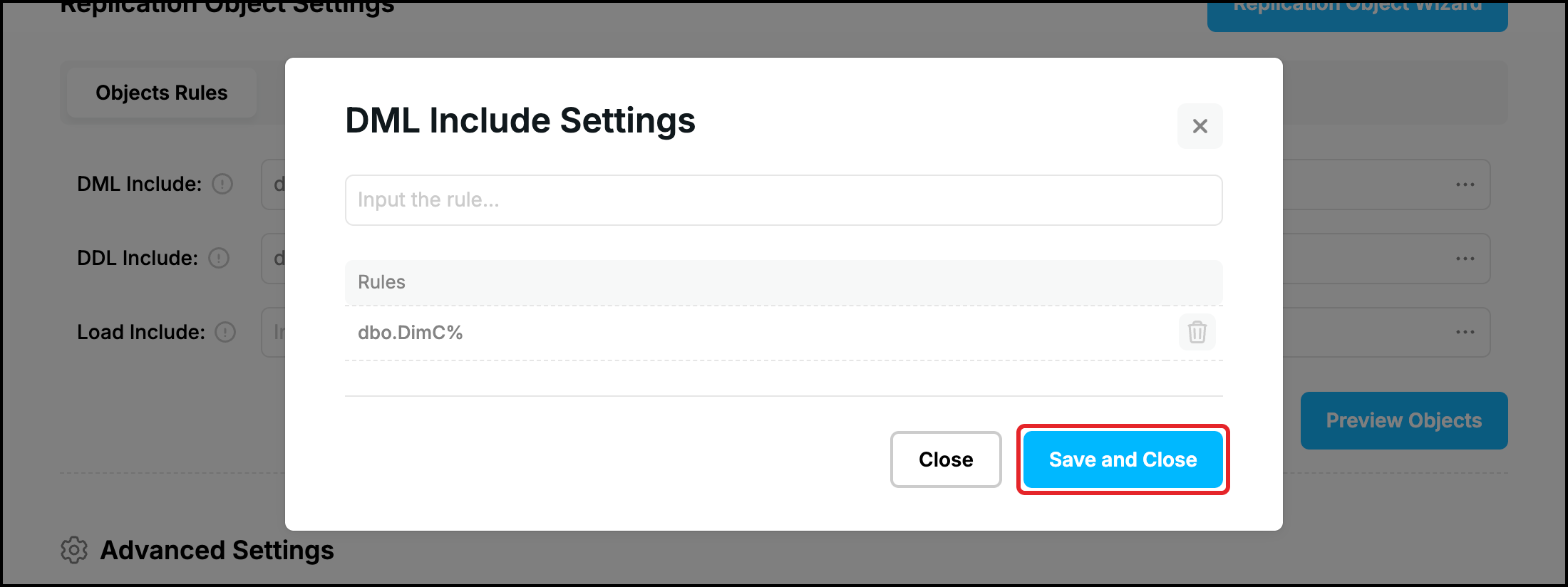
After the Initial Load has been completed the Capture Process removes the load rules, so “Load Include” and “Load Exclude” are empty again (see Initial Load).
Exclude Tables
The “Exclude Tables” tab works in the same way (search, flags, “Generate exclude rules”) but has no load modes. The rules go to “DML Exclude”, “DDL Exclude” and “Load Exclude”. An exclude rule wins over an include rule: a table which matches both is not replicated. Search the table and click “Generate exclude rules”:
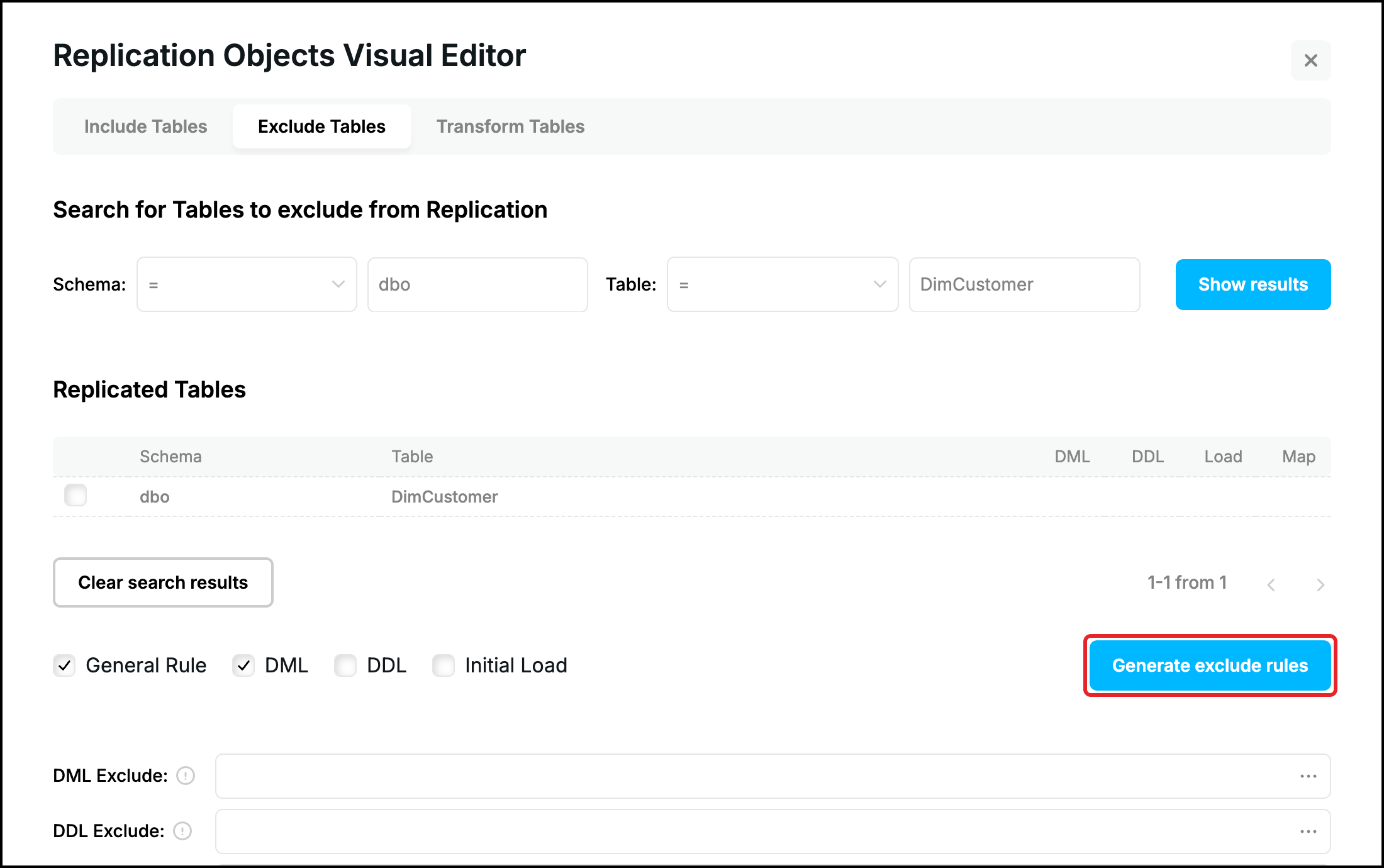
The list shows the effect: with “DML” ticked the table dbo.DimCustomer lost its “DML” mark, it is not replicated any more, while its DDL statements still are:
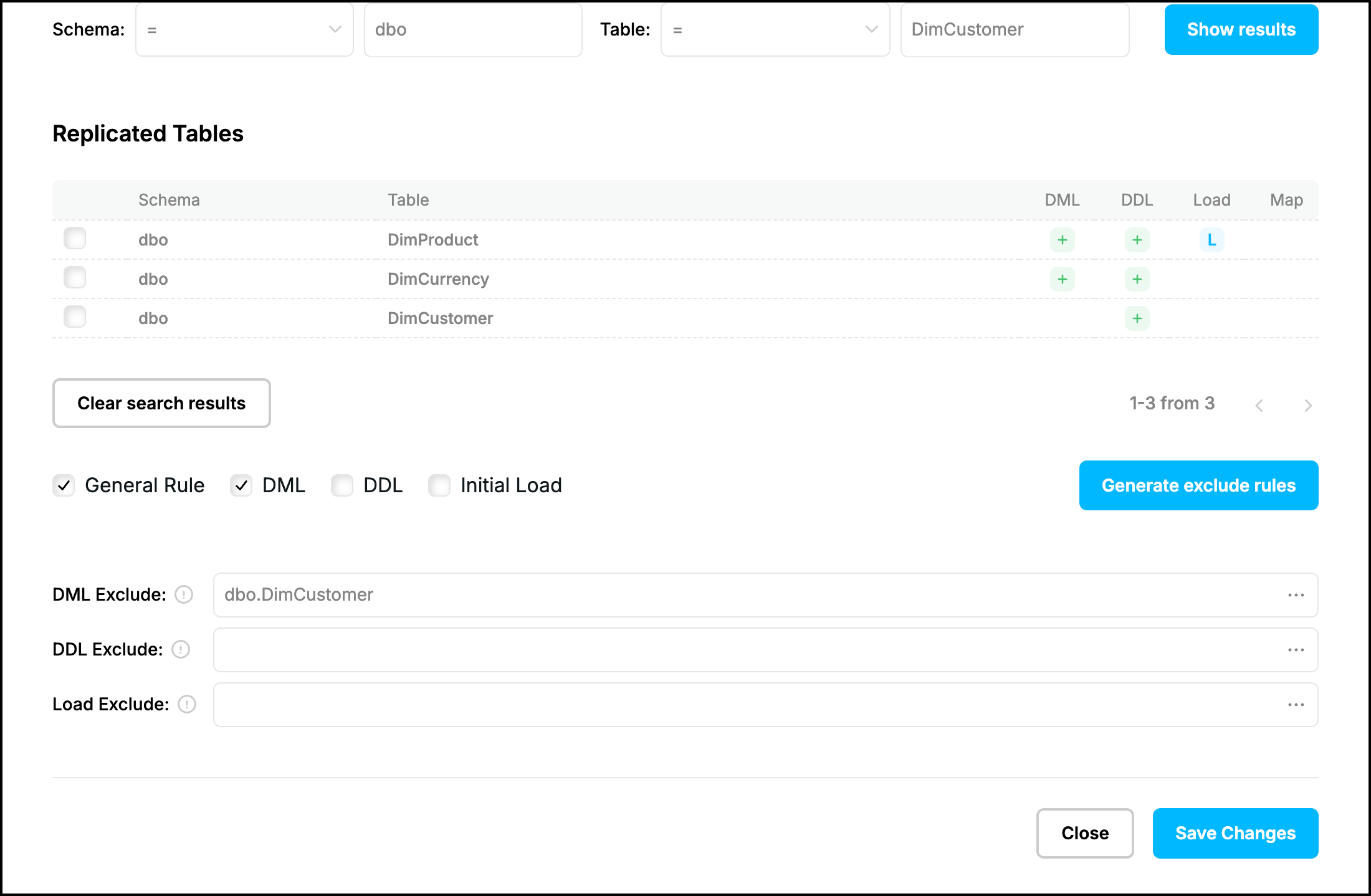
Save the changes
Click “Save Changes” when the rules of all the tabs are ready (see Replication Object Wizard for what happens next: the rules are stored with “Save Process”). For the transformation rules see Transformation (Mapping) Rules.
Prev page:
Replication Object WizardNext page:
Transformation (Mapping) Rules- Repstance User Guide
- ABOUT REPSTANCE
- SUPPORTED DATABASE REQUIREMENTS
- GETTING STARTED WITH REPSTANCE
- INTERACTING WITH REPSTANCE SERVER
- CONFIGURE REPLICATION WITH REPSTANCE
- DATABASE CONFIGURATION COMMANDS
- PROCESS CONFIGURATION COMMANDS
- PROCESS CONTROL COMMANDS
- DATA COMPARISON
- REPSTANCE SERVER MAINTENANCE
- GLOSSARY