

Task Configuration
A comparison task is a named list of tables with the settings for each of them. This page shows how to create, change and delete tasks in the “Compare” window of a Capture Process. To run a task and to read its result see Tasks Control, for the principles of the comparison see Compare Data.
Open the Compare window
Click “Compare” on the card of the Capture Process on the dashboard:

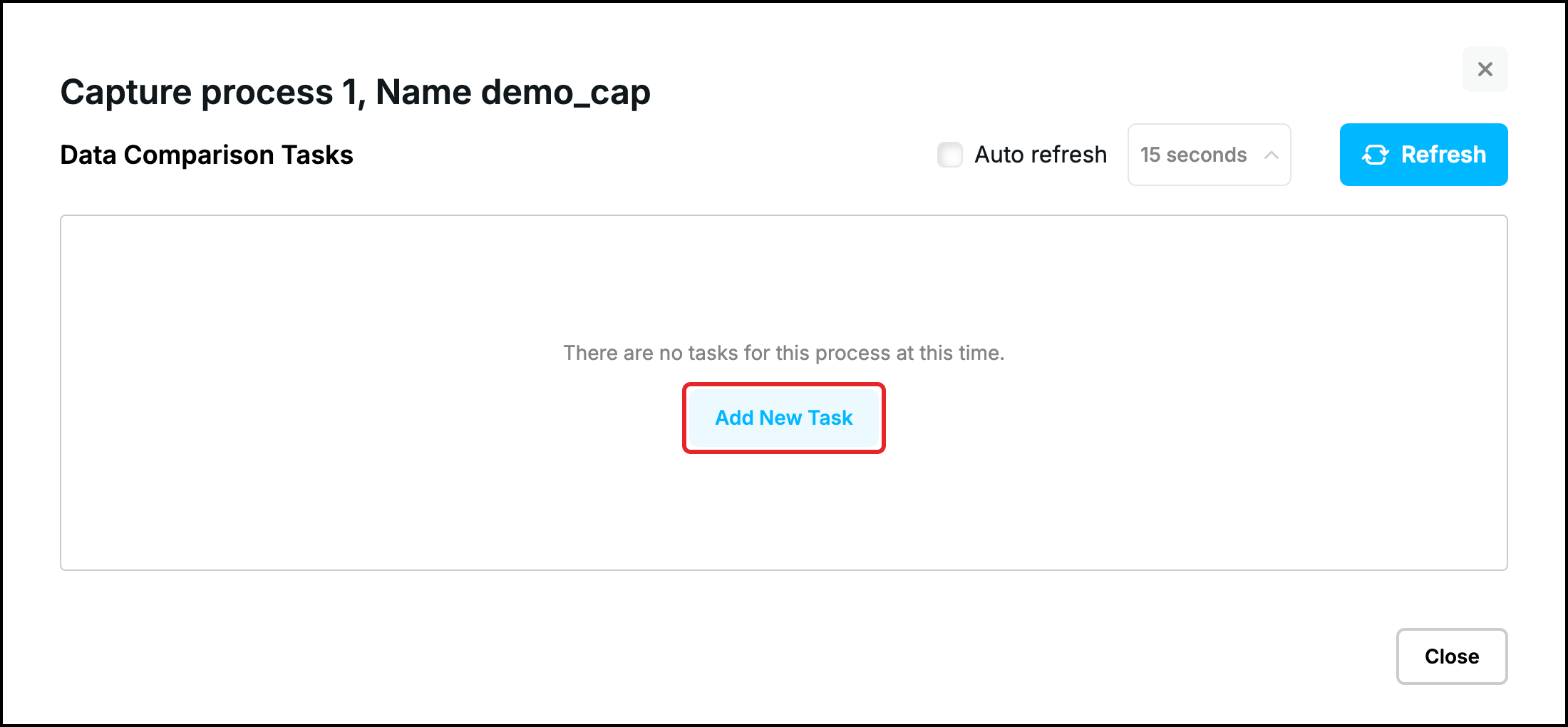
The window is called “Data Comparison Tasks”. Every task of the Capture Process is a tab. A Capture Process that has no task yet shows an empty window, click “Add New Task”:
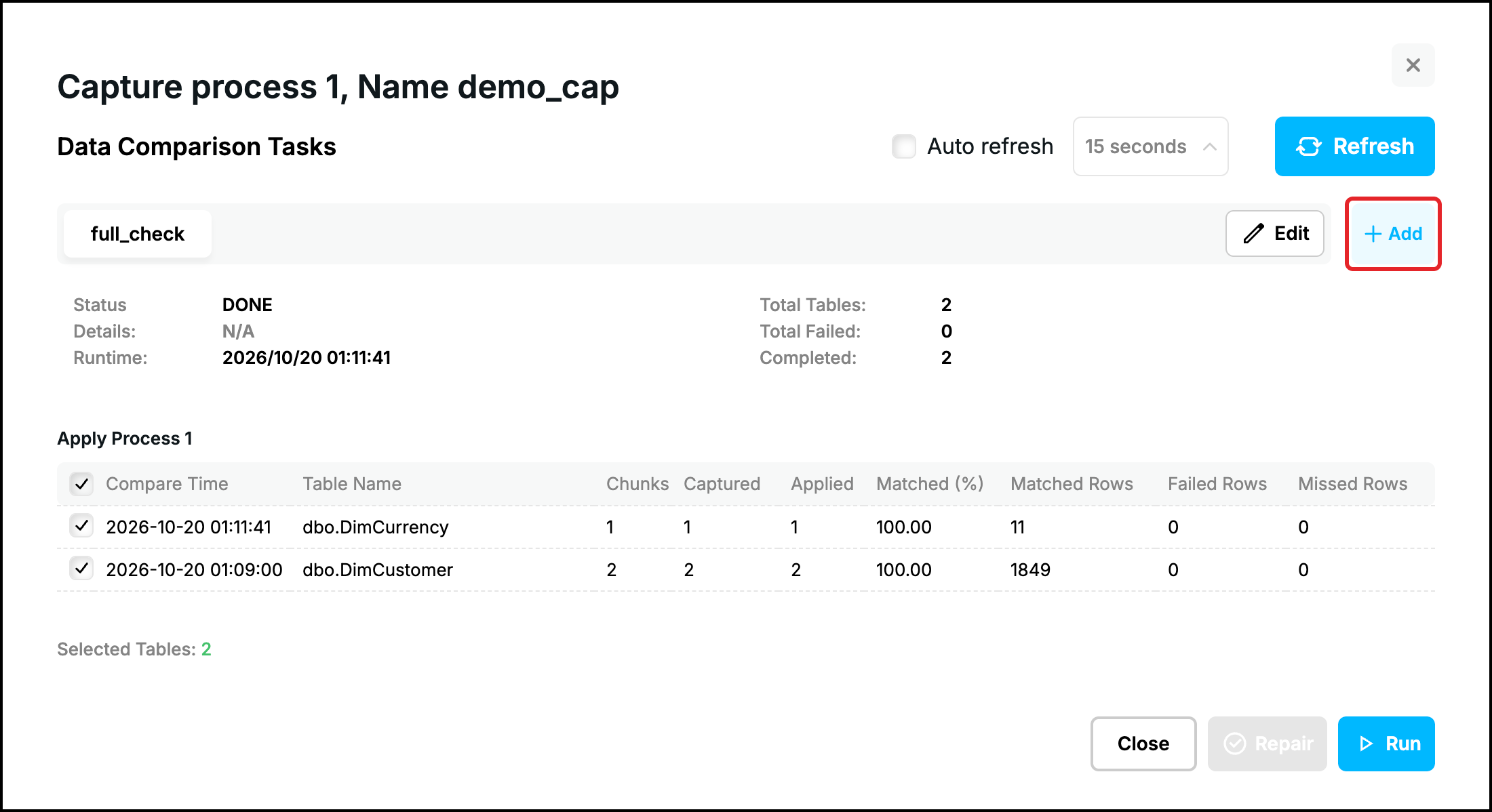
When there are tasks, click “+ Add” at the right end of the tabs:
Name the task
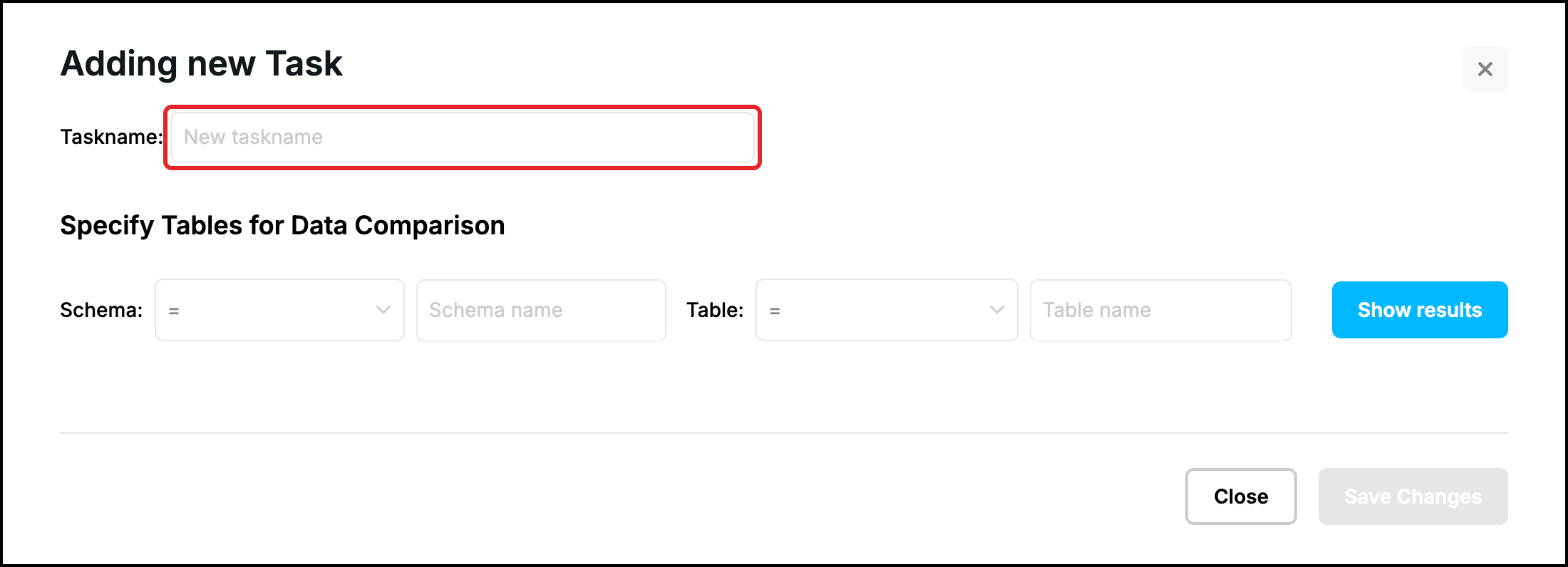
The “Adding new Task” window opens. Type the name of the task in “Taskname”. The name is shown on the tab and is also used for the names of the task files on the server, so use letters, digits and the underscore. A name that another task of the Capture Process already has is refused. If you leave the field empty the task is called default.
Choose the tables
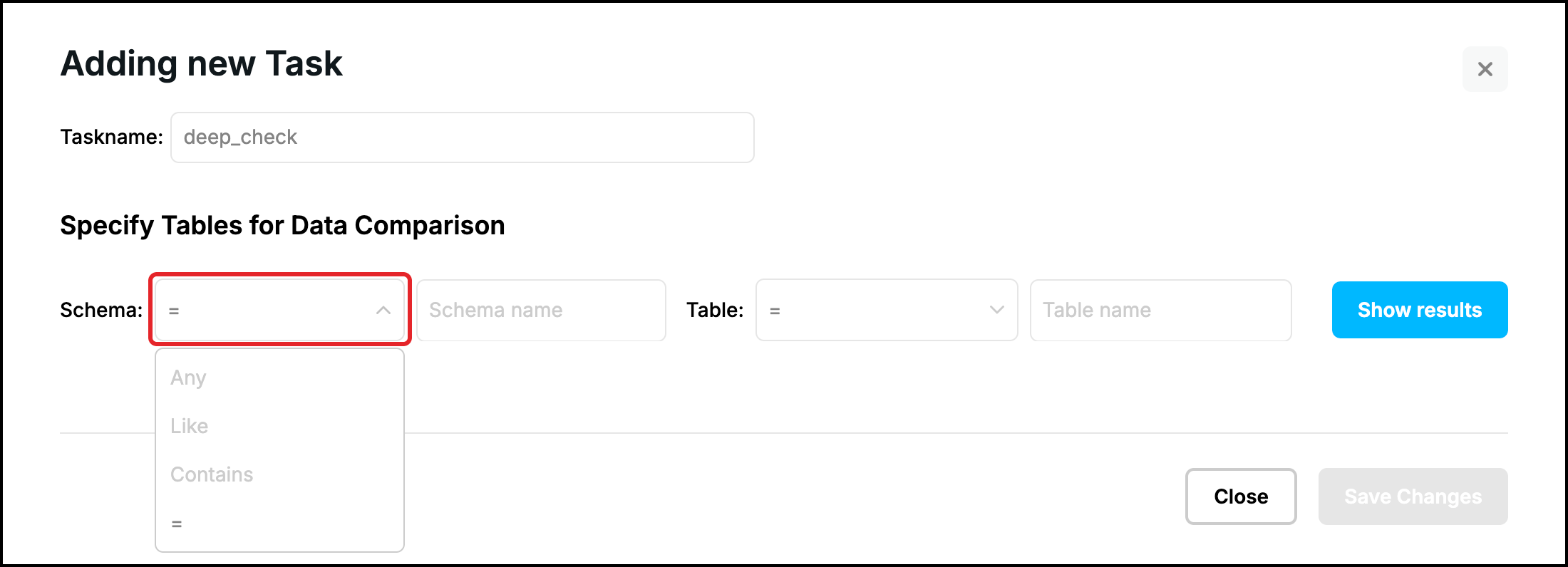
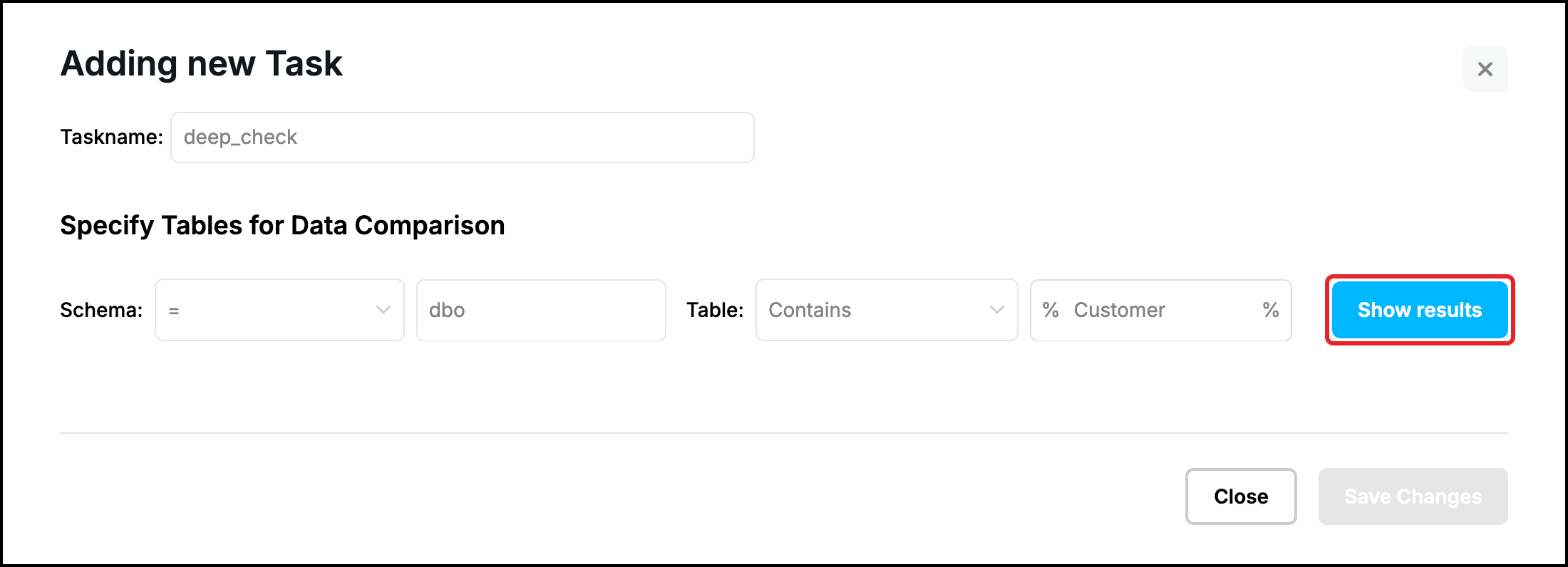
Under “Specify Tables for Data Comparison” enter the schema and the name of the table to look for. For each of the two names choose how it is compared: “Any” takes every name, “Like” the names which start with the text, “Contains” the names which contain the text and “=” only the name which is exactly the text. The % symbol is added for “Like” and “Contains”, do not type it. The operators are the same as in the Replication Object Wizard (see Replication Objects):
Click “Show results”. Only the tables that the Capture Process replicates are searched:
Tables to Compare
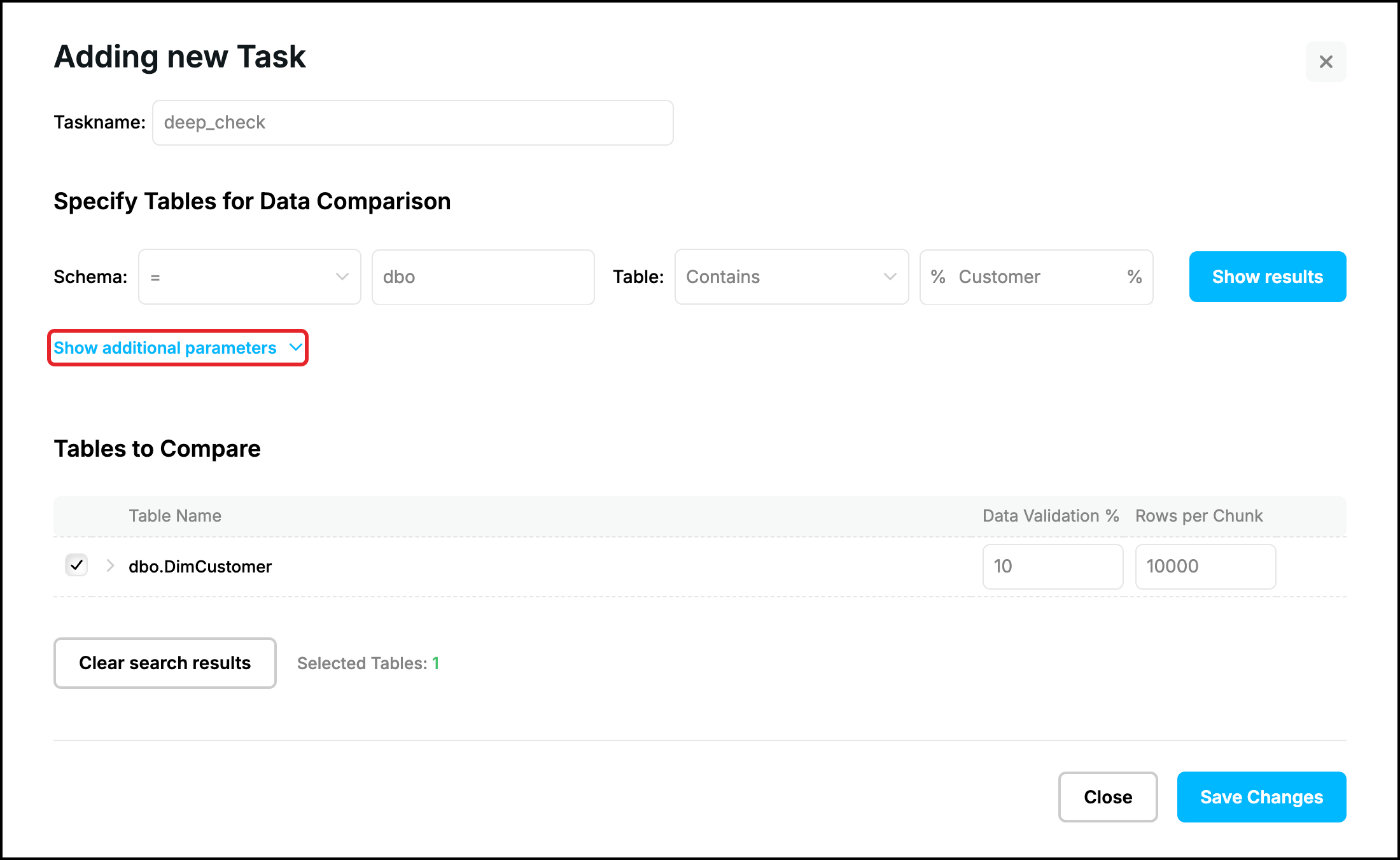
The tables that were found are listed under “Tables to Compare”, all of them ticked. Untick a table to leave it out. Every table has two settings:
- Data Validation % – the share of the rows of every chunk that is compared, from 1 to 100. The default is 10, 100 compares every row.
- Rows per Chunk – how many rows are read and compared at a time. The default is 10000. The report counts the chunks, so a smaller value shows the progress in finer steps.
“Selected Tables” counts the ticked tables. “Clear search results” empties the list so that you can search again:
Additional parameters
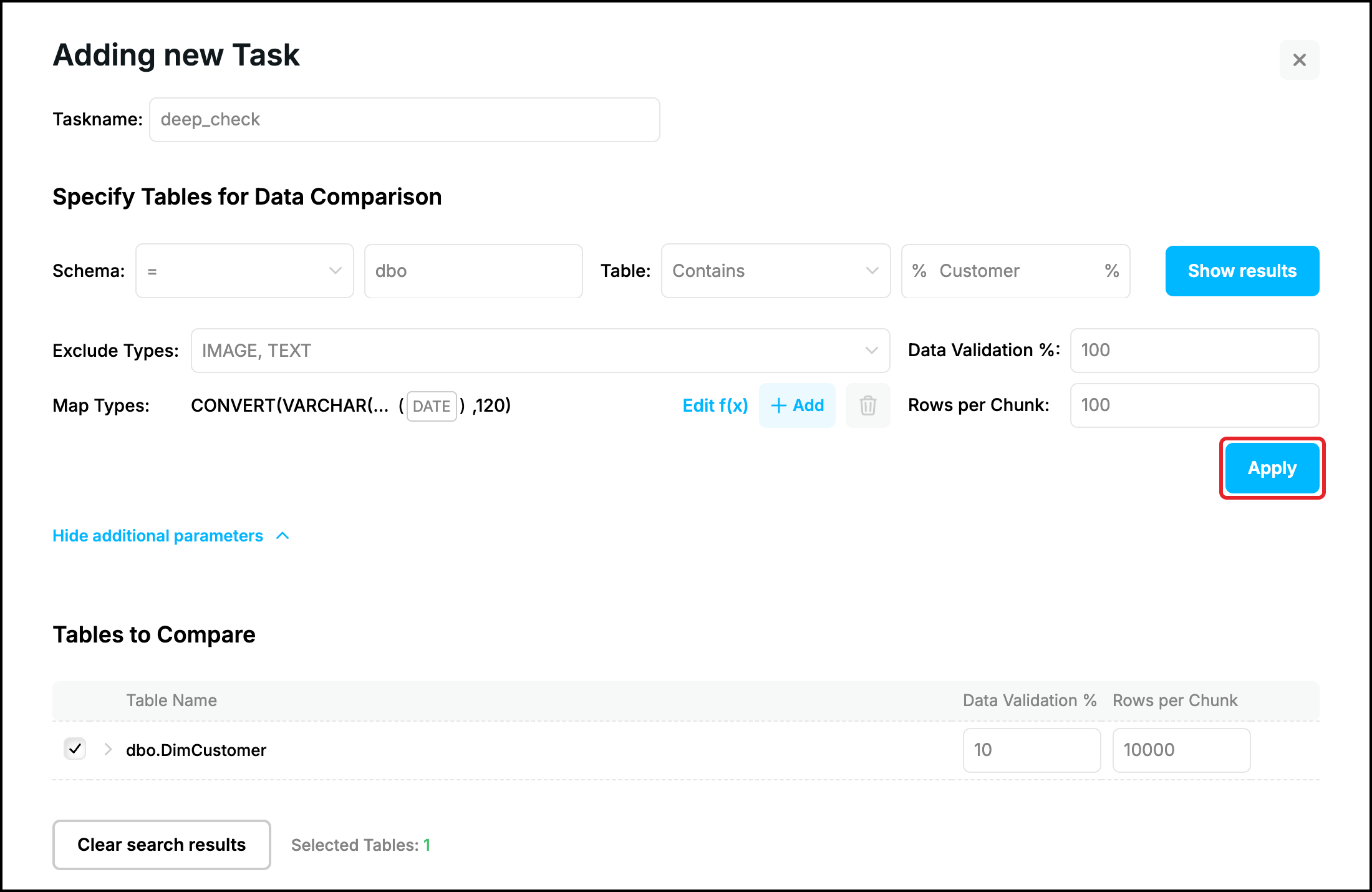
“Show additional parameters” opens settings which are applied to all the tables of the list at once:
- Exclude Types – the data types that are not compared. The columns of these types are left out in every table of the list, for example IMAGE and TEXT.
- Map Types – a function through which the columns of a data type are compared (see Functions below). Click “+ Add” to map another type.
- Data Validation % and Rows per Chunk – the values for all the tables.
Click “Apply” to put the settings into the list: the tables show the new percentage and chunk size and the columns show what is excluded or mapped. The types are not stored in the task: “Apply” turns them into settings of the columns of the tables which are in the list at that moment (see Columns below).
Columns
Click the arrow in front of a table to see its columns. Every column has three links on the right:
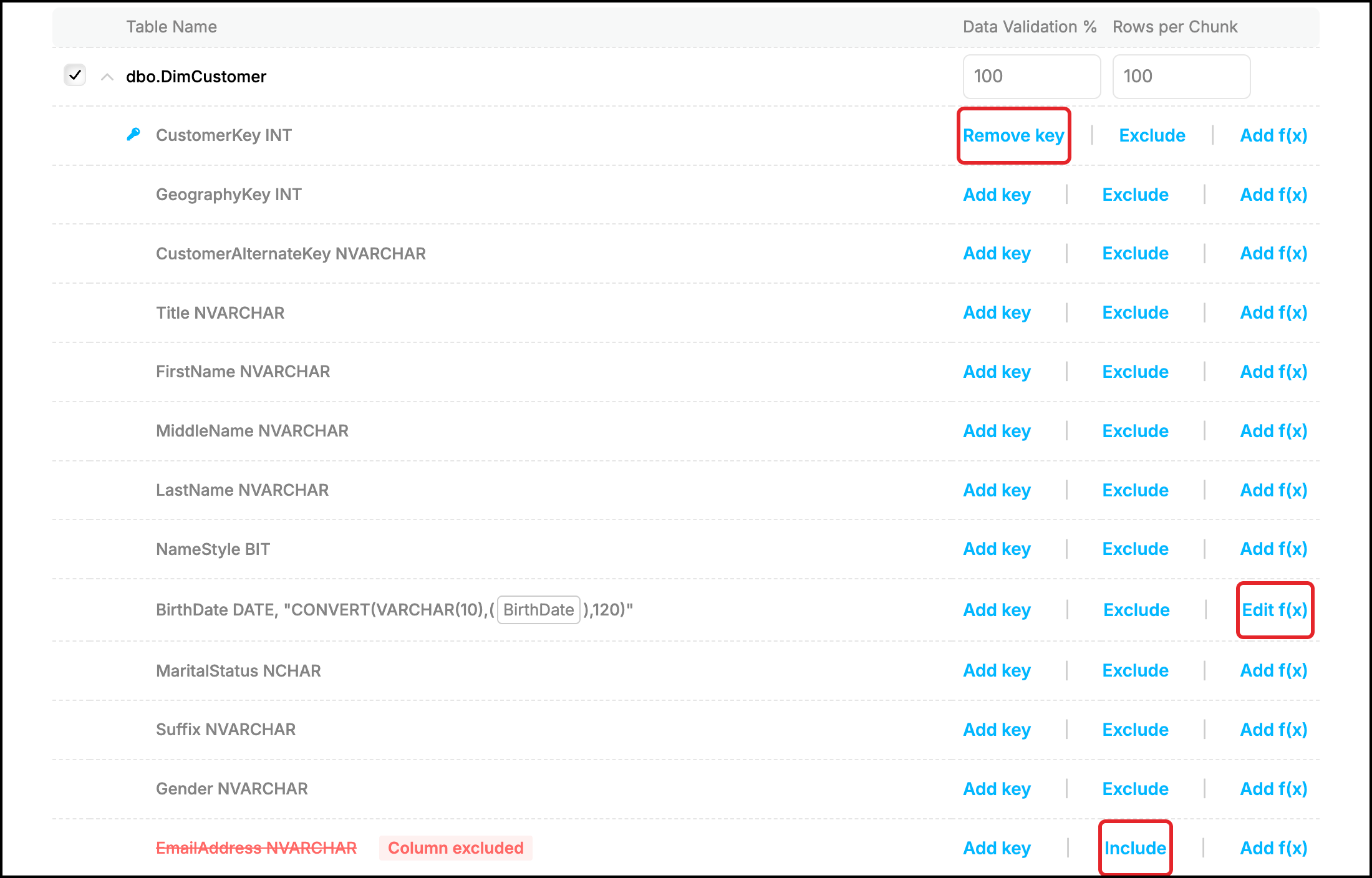
- Add key / Remove key – the key of the table: the columns that identify a row, marked with a key icon. It is the primary key or a unique index of the table, and you can add columns to it or remove them. A table without a primary key and without a unique index is listed with an information icon (“No primary key or unique index. Skipped.”) and is not compared; use “Add key” on a column that is unique to compare it. If you remove the only key column of a table, the table is skipped in the same way. Keep the real key of a table that you want to repair (see Tasks Control).
- Exclude / Include – leave the column out of the comparison, for example a column that an application changes only in the Target Database. An excluded column is struck through and marked “Column excluded”, click “Include” to bring it back.
- Add f(x) / Edit f(x) – compare the column through a function (see Functions below). The function is shown next to the name of the column.
Functions
A function changes the value of a column before it is hashed, so that values which are equal for you but are written differently in the two databases do not show as differences, for example upper and lower case, trailing blanks or the format of a date. The “Add f(x)” window builds the expression around the column: type the function in the left field, the column is added in brackets, and the right field takes what has to follow the column:
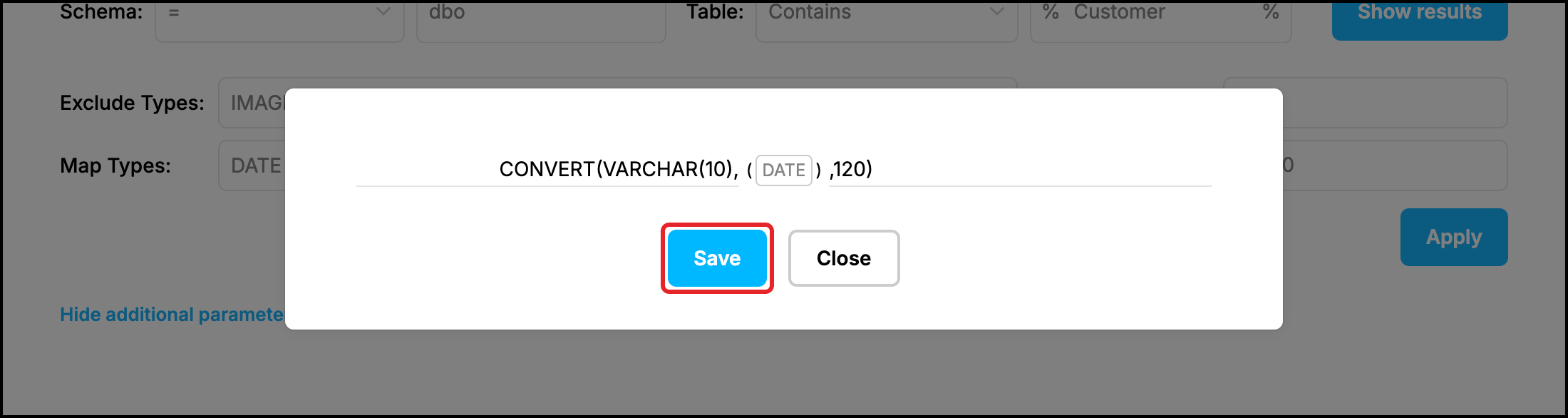
- UPPER in the left field and nothing in the right one gives UPPER(CurrencyName) for the column CurrencyName.
- In the picture the left field has CONVERT(VARCHAR(10), and the right field has ,120). For every column of the type DATE the expression is CONVERT(VARCHAR(10),(column),120), which compares a date as the text yyyy-mm-dd (SQL Server).
The left field is required. The expression is used in the queries of both databases, so it has to be valid in both of them. A function for a type is put on every column of that type when you click “Apply”, a function for a column is set with “Add f(x)” next to the column.
Save the task
Click “Save Changes”:

The task is saved on the server and appears as a new tab of the Compare window. Its status is INIT and its tables are listed with QUEUED, nothing has been compared yet:
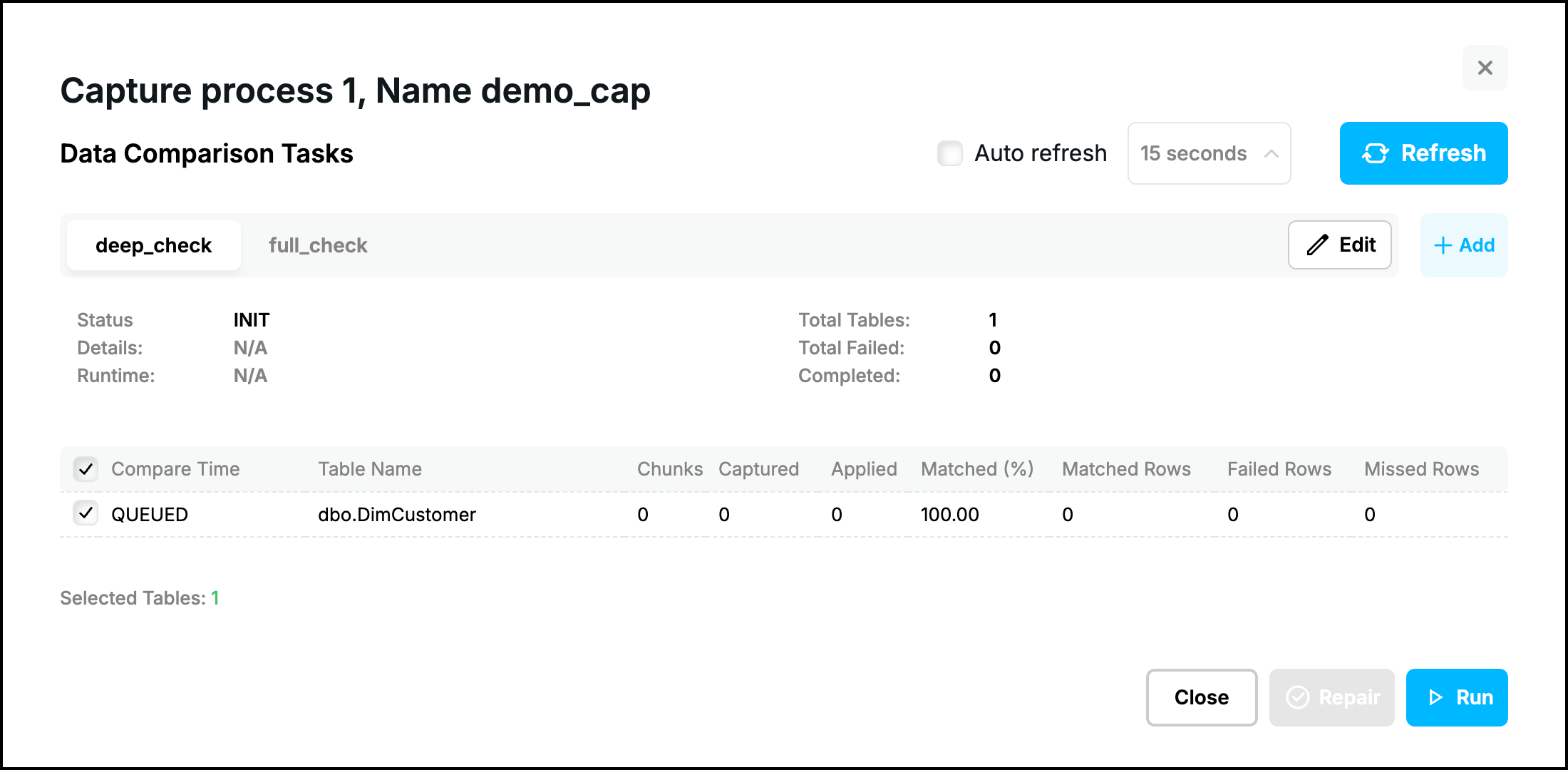
To compare the tables run the task (see Tasks Control).
Change a task
Select the tab of the task and click “Edit”:
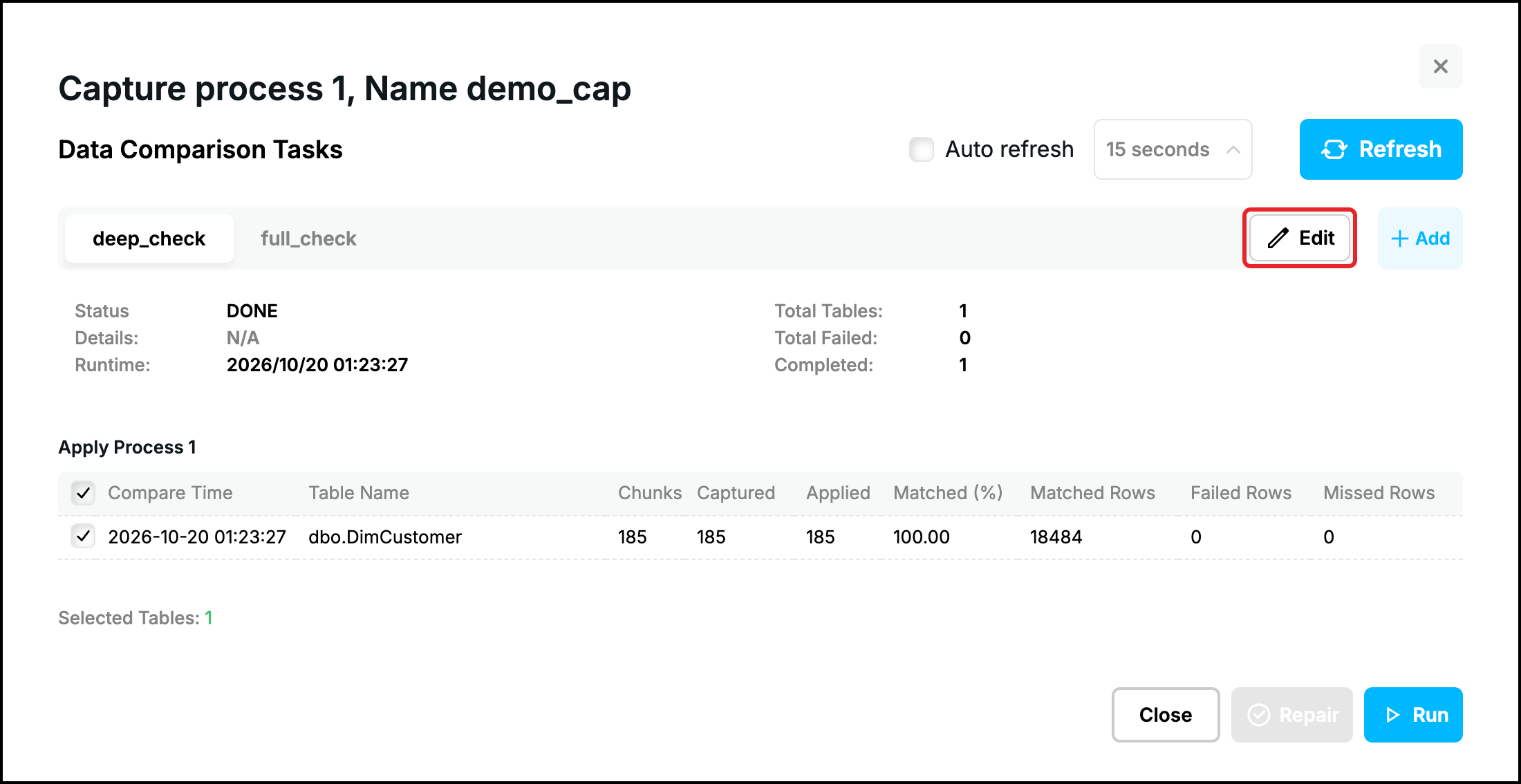
The window of the task opens with its saved settings. Change what you need, search other tables with “Show results” or open the columns, and click “Save Changes”, which is available when something has been changed. In the picture “Rows per Chunk” was changed to 10:
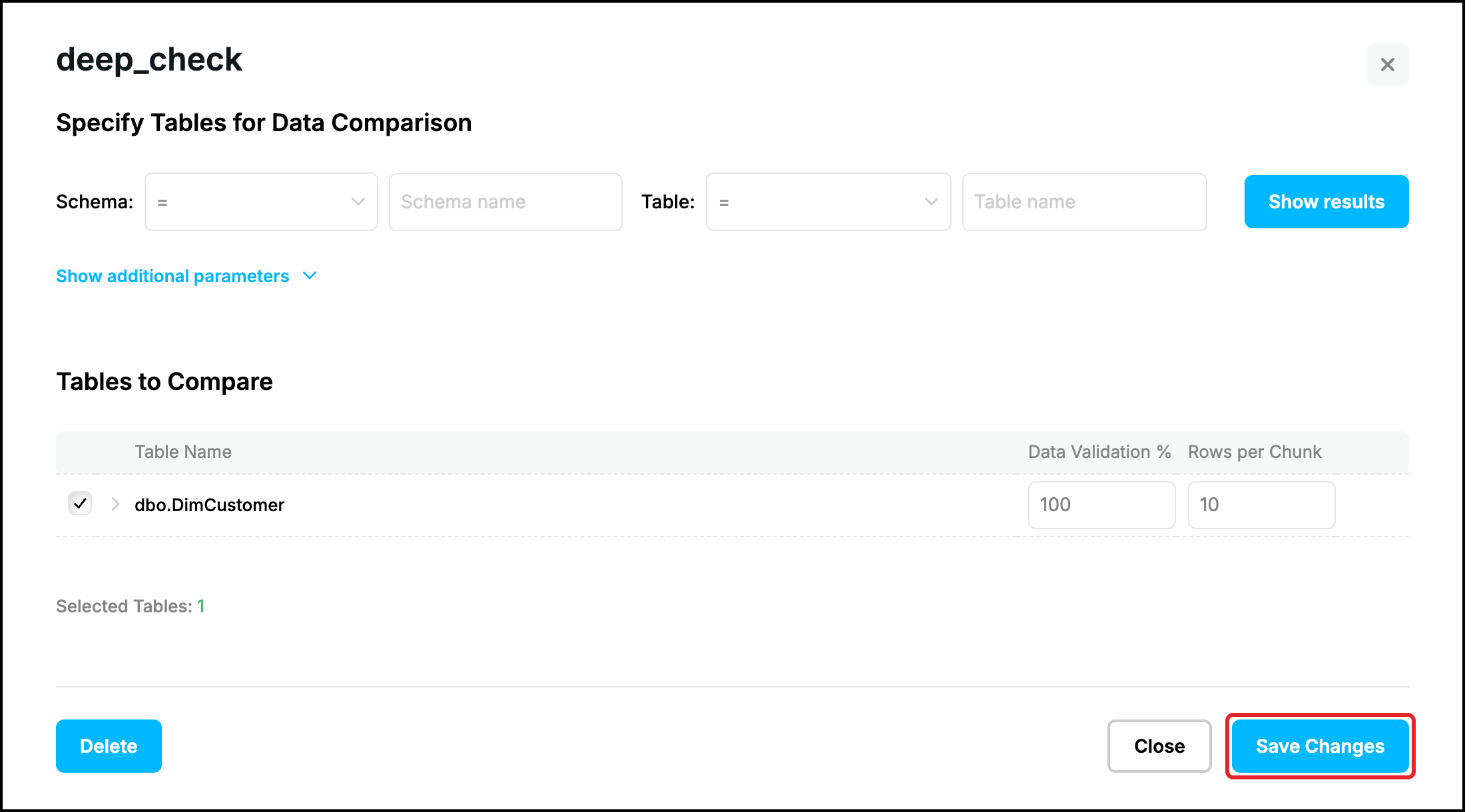
- A task cannot be changed while a comparison is running. Wait until it has finished or stop it (see Tasks Control).
- Saving a task does not change the report: the result of the last run stays until the task is run again. “Full Validation” starts from the beginning and uses the changed settings, “Resume” and “Incremental” go on with the settings that the task was started with.
Remove a table from a task
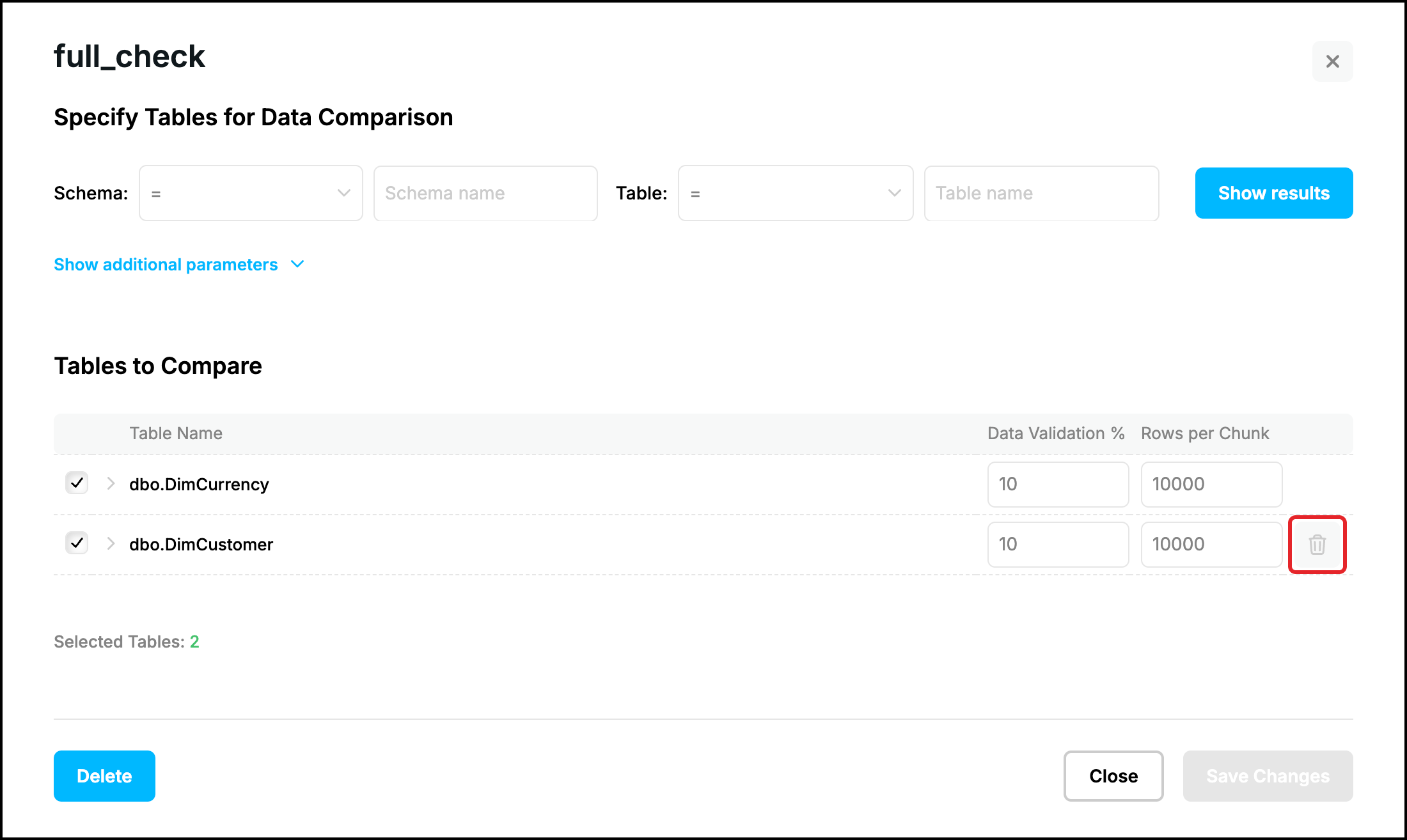
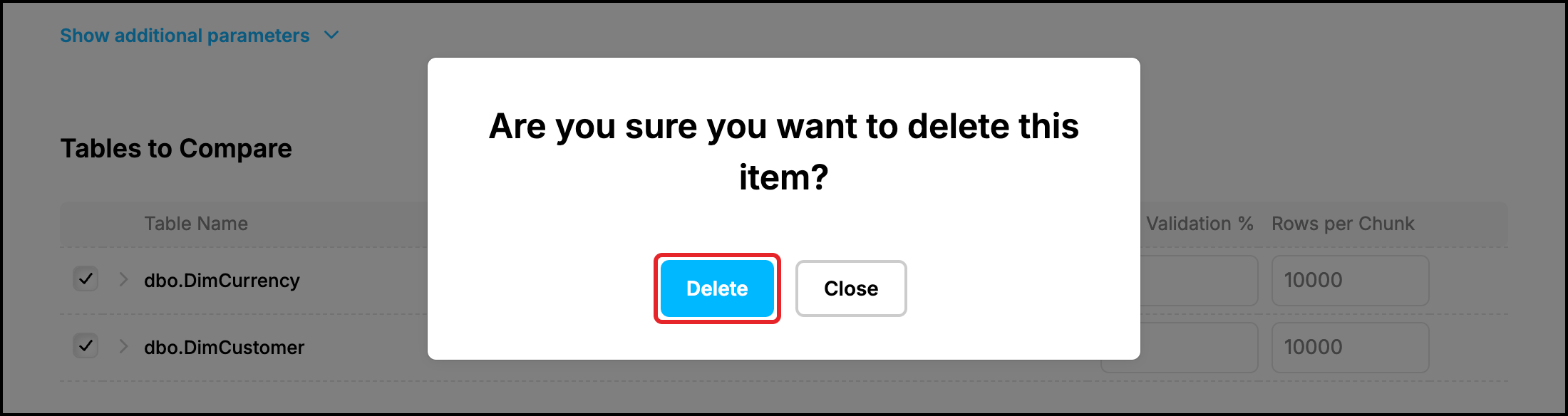
Open the window of the task with “Edit” and move the pointer over the line of the table: a bin icon appears at its end. Click it and confirm. The table is removed from the task when you click “Save Changes”:
Delete a task
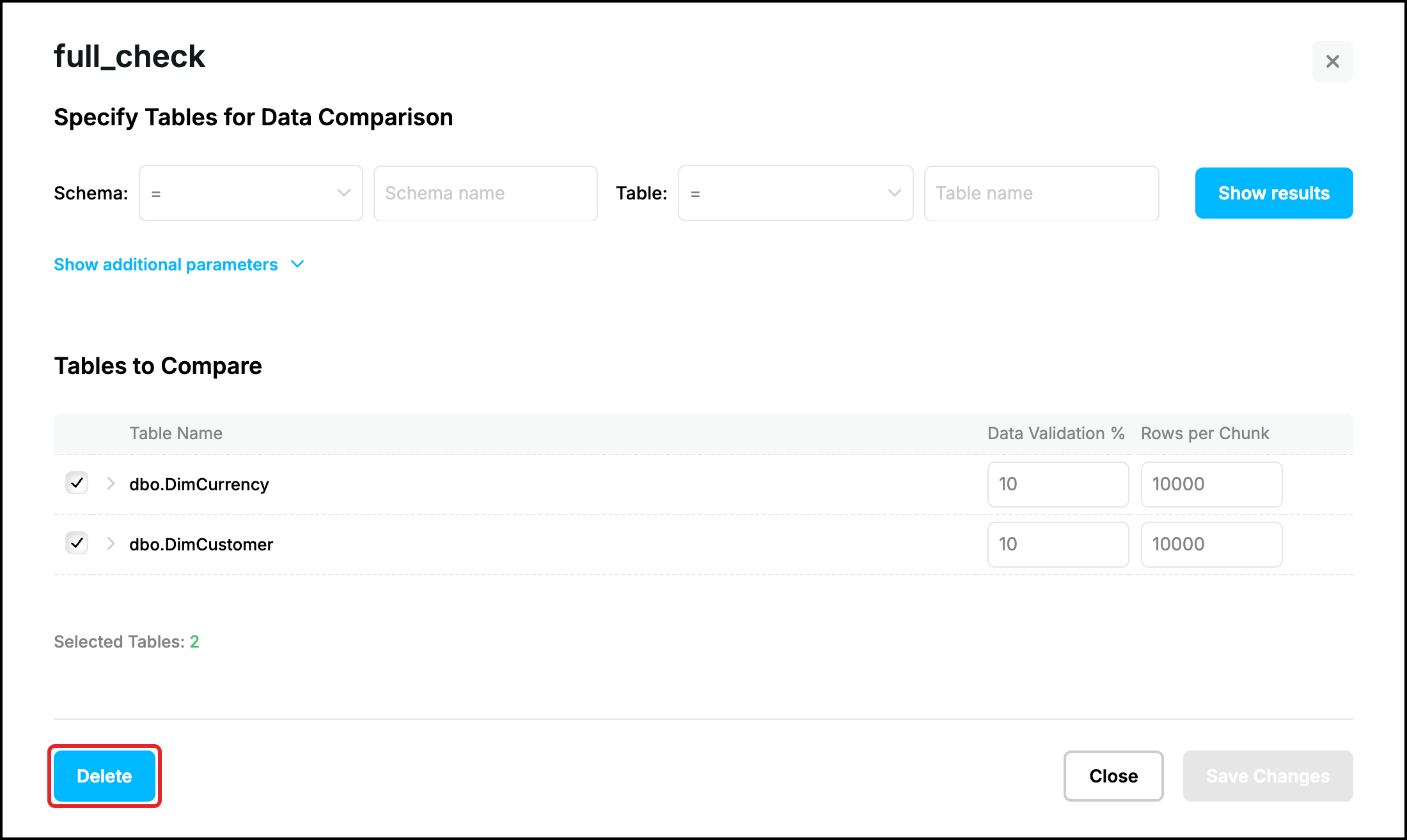
To delete a whole task open its window with “Edit” and click “Delete” at the bottom left. The same confirmation as for a table asks whether to delete the item. The task is removed together with its report; the tables are not touched. When the last task has been deleted the Compare window shows “Add New Task” again.
The next step is Tasks Control. The commands for tasks in repcli and in the REST API are described in Data Comparison.
Prev page:
Compare DataNext page:
Tasks Control- Repstance User Guide
- ABOUT REPSTANCE
- SUPPORTED DATABASE REQUIREMENTS
- GETTING STARTED WITH REPSTANCE
- INTERACTING WITH REPSTANCE SERVER
- CONFIGURE REPLICATION WITH REPSTANCE
- DATABASE CONFIGURATION COMMANDS
- PROCESS CONFIGURATION COMMANDS
- PROCESS CONTROL COMMANDS
- DATA COMPARISON
- REPSTANCE SERVER MAINTENANCE
- GLOSSARY