

Stop/Run Replication Processes
A Capture or an Apply Process can be stopped and run again at any time from the main dashboard of the Web UI: for example, to pause the replication during maintenance of the source or target database, or to run a process again after the cause of its failure has been fixed. A stopped process keeps its configuration and the position where it stopped, so when you run it again it continues from the same place.
Stop or run all processes
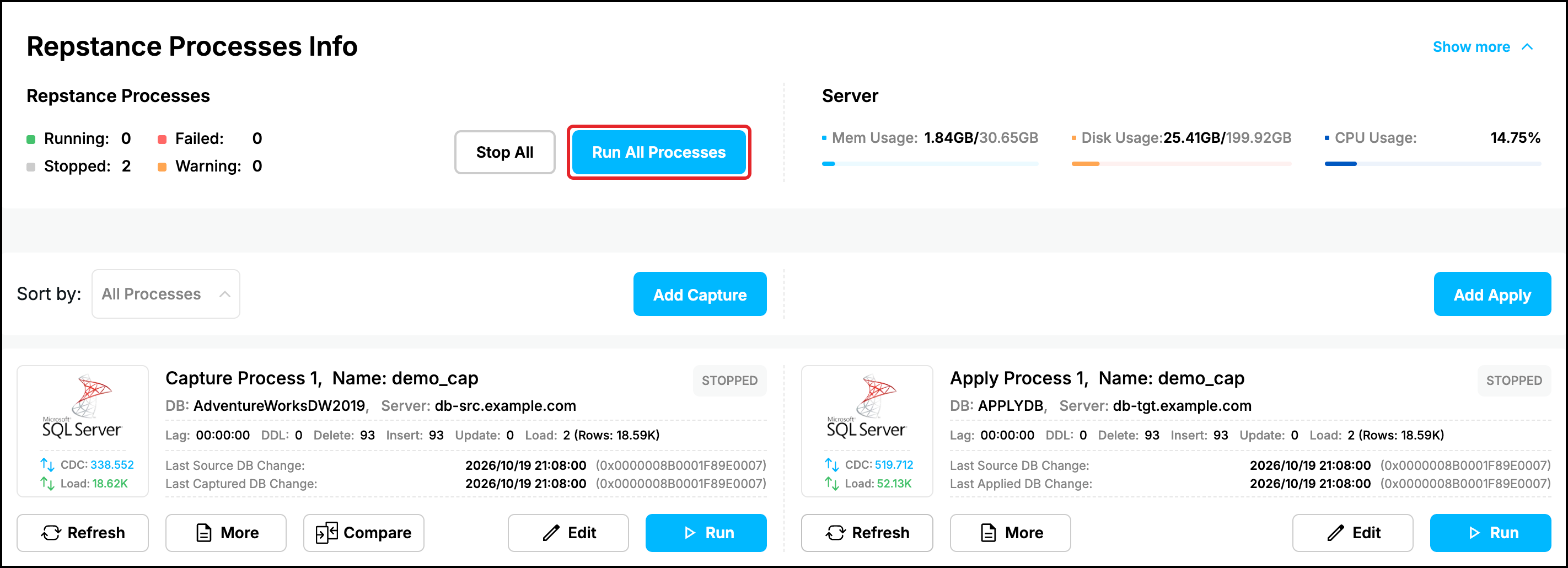
You can stop or run ALL the replication processes from the “Repstance Processes Info” section at the top of the dashboard. The section counts the processes by their state (Running, Failed, Stopped and Warning) and has the “Stop All” and “Run All Processes” buttons:

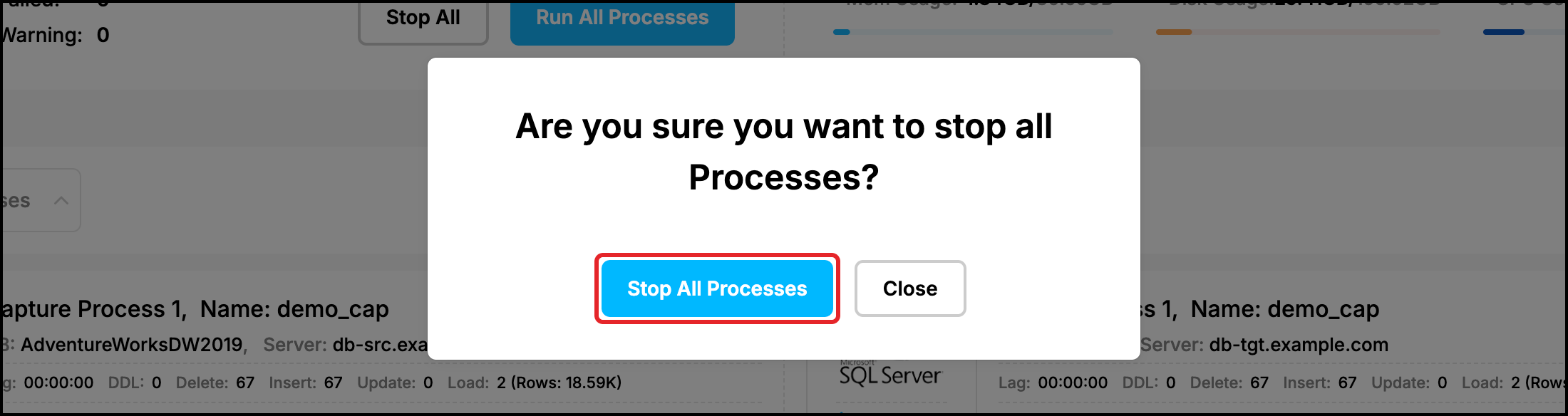
Click “Stop All” and confirm with “Stop All Processes”:
To run all the processes again, click “Run All Processes”:
and confirm with “Run All Processes”:
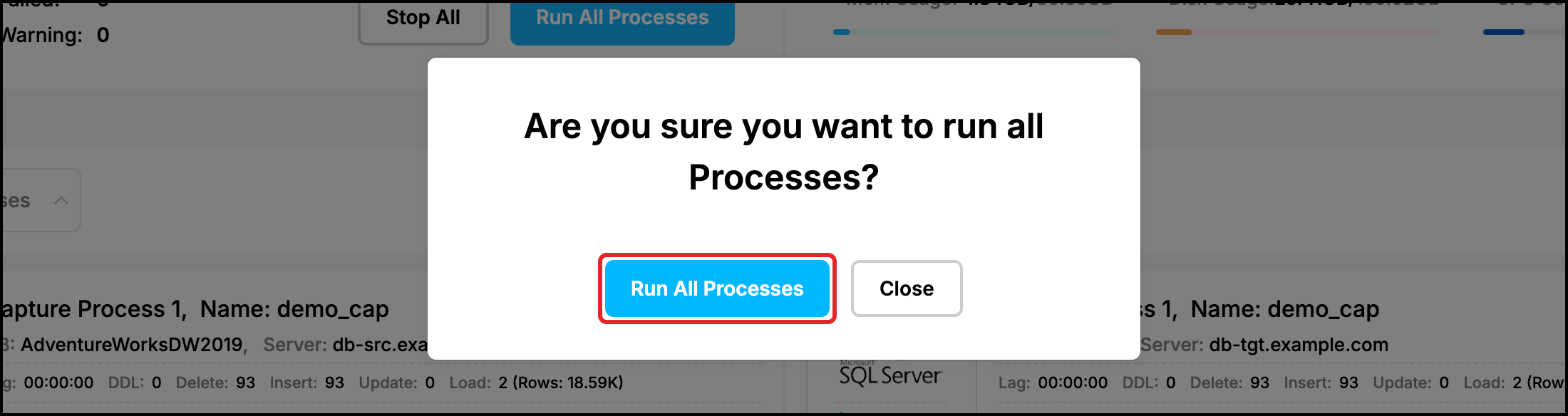
The buttons skip the processes that are already in the requested state: “Stop All” does not affect the processes that are stopped already, and “Run All Processes” does not affect the processes that are running.
Stop or run a single process
Every process card has its own button: “Stop” for a running process and “Run” for a stopped or failed one. Click “Stop” on the card of the process:

and confirm with “Stop Process”:
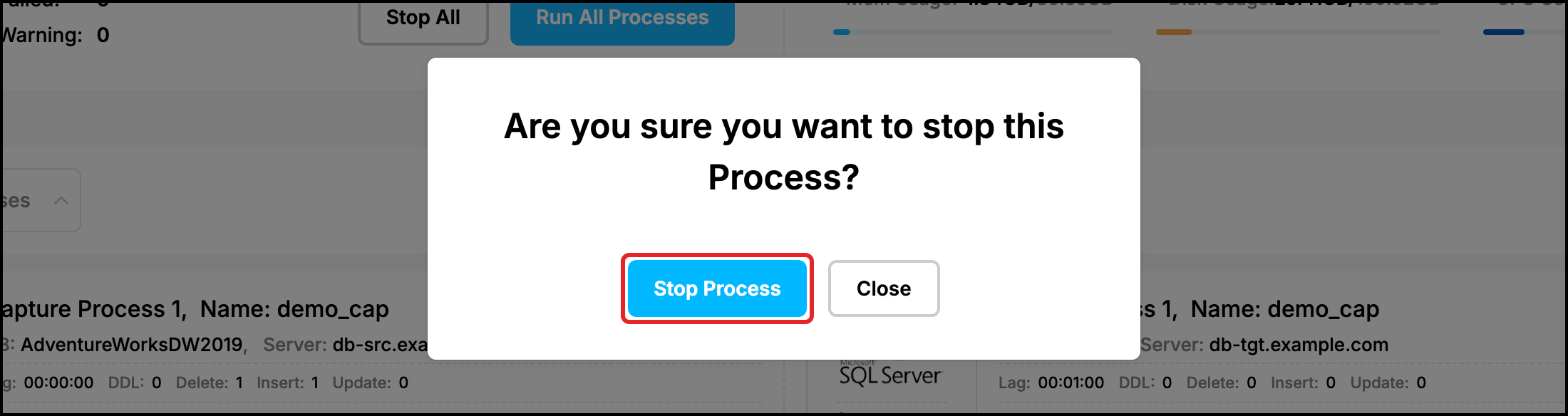
The button of the card changes to “Run” at once, but the process needs a few seconds to finish its work, so the card can still show the RUNNING state. Click “Refresh” on the card to see the current state. You can also click “Refresh” in the upper right corner of the page to refresh the whole dashboard, or enable “Auto refresh” there to refresh it automatically:

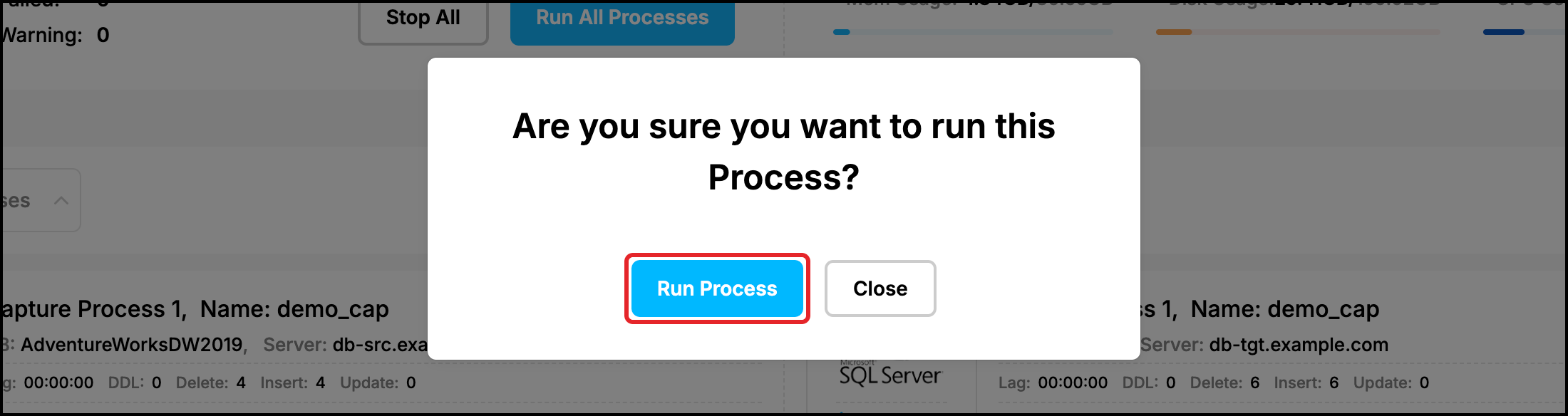
When the process is stopped, the card shows the STOPPED state and the counters of the “Repstance Processes Info” section are updated. To run the process again, click “Run” on the card and confirm with “Run Process”:

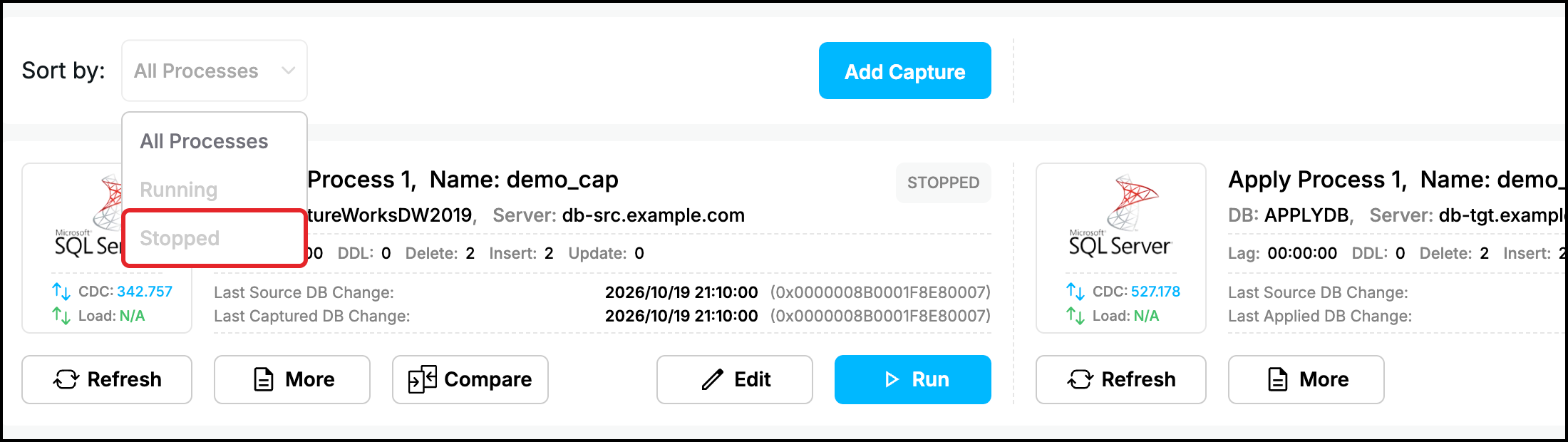
To see only the processes that are in a given state, for example the stopped ones, select the state in the “Sort by” list above the process cards:
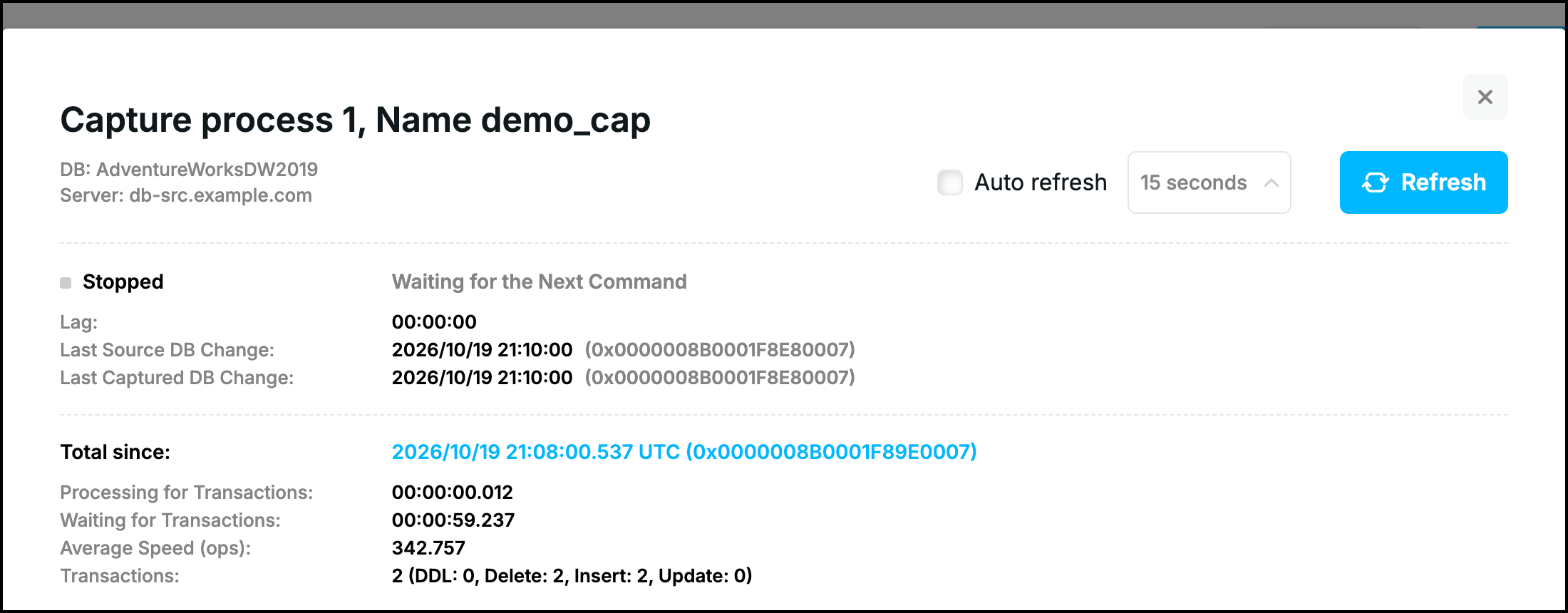
You can also stop or run a process in the process details window (click “More” on the card, see Monitoring Replication). The window shows the state of the process (“Stopped”) and what it is doing (“Waiting for the Next Command”). The “Total since” line shows the time and the position (LSN) with which the process started its current run; the counters below are collected from this position (see Status of any Capture or Apply Processes for more details):
The “Run Process” button (it is “Stop Process” while the process is running) is in the lower left corner of the window:

What happens when a process is stopped and run
- Position. A stopped process keeps the position of the last transaction it has processed and continues from this position when it is run again. A Capture Process captures the changes that were made in the source database while it was stopped, an Apply Process applies the transactions that were captured in the meantime.
- Capture and Apply are independent. While a Capture Process is stopped, its Apply Process applies the transactions that are already in the trail files and then waits for new ones. While an Apply Process is stopped, its Capture Process keeps capturing and the trail files wait for the Apply Process, so make sure that the Repstance server has enough free disk space (an Apply Process deletes a trail file only after it has applied it, see Housekeeping). The “Lag” of a stopped Apply Process grows and goes down again after the process is run.
- Changes of the source database. If a Capture Process stays stopped for a long time, make sure that the source database still has the changes the process has not captured yet: do not delete the Oracle archived redo logs before they are processed (see Supported Databases and Requirements) and check that the SQL Server CDC cleanup job does not remove them (see the “housekeeping” parameter in SQL Server as a Source Database).
- Checks. Before a process starts, Repstance checks that the source and the target databases are configured for the replication. If they are not, the process fails and the error message lists the inconsistencies (see Monitoring Replication).
- Configuration changes. The changes of the replication objects and of the transformation rules of a process (see Edit Replication Processes) are put into effect when the process is run. After you save the changes of a running process, click “Restart Now” to stop it and run it again with the new configuration, or stop and run it again later.
- First run. The first time a Capture Process is run, it starts from the first change available in the CDC tables it creates (SQL Server) or from the current SCN (Oracle). The first time an Apply Process is run, it starts from the first transaction in the trail files of its Capture Process; it fails if the Capture Process is not configured or has never been run (see Run any Capture or Apply Processes).
Autostart and automatic restart
A process with the “Autostart” flag is run automatically when it is created and every time the Repstance service is started, for example after the server restart. A process without the flag stays stopped until you run it, even if it was running before the restart. The flag is set when the process is created (see Setup First Replication) and can be changed with “Edit”.
If a process fails, Repstance runs it again automatically: the server checks the processes every 5 minutes. The “restartattempts” parameter (the “Restart Attempts” field on the “Process Parameters” tab of the Apply Process Configuration, see SQL Server Capture Process Parameters and SQL Server Apply Process Parameters) sets the number of the attempts: the default value is 5, the value 0 disables the automatic restart. For a Capture Process the parameter is set in “Advanced Settings” of its configuration (see Edit Replication Processes). The number of the attempts is restored as soon as the process makes progress after a failure. When the attempts are used up, the notification channels are informed (see Monitoring Replication). A process that you stopped yourself is not restarted.
To run a failed process by yourself, find the cause in the process details or in the Incident Management section (see Monitoring Replication), fix it and click “Run” on the card of the process.
Related
A running process cannot be removed: stop it first (see Remove Replication Configuration). To make an Apply Process continue from another position, stop it and use “Reset” (see Reset Process).
The same operations are available in repcli and via the REST API: see PROCESS CONTROL COMMANDS for the details.
Prev page:
Tasks ControlNext page:
Edit Replication Processes- Repstance User Guide
- ABOUT REPSTANCE
- SUPPORTED DATABASE REQUIREMENTS
- GETTING STARTED WITH REPSTANCE
- INTERACTING WITH REPSTANCE SERVER
- CONFIGURE REPLICATION WITH REPSTANCE
- DATABASE CONFIGURATION COMMANDS
- PROCESS CONFIGURATION COMMANDS
- PROCESS CONTROL COMMANDS
- DATA COMPARISON
- REPSTANCE SERVER MAINTENANCE
- MONITORING WITH AMAZON CLOUDWATCH
- MONITORING WITH AZURE MONITOR
- TROUBLESHOOTING AND FAQ
- GLOSSARY