

Transformation (Mapping) Rules
A transformation rule changes an object on its way from the Source to the Target Database: it renames a table, adds, removes or changes a column, changes the data of a column or removes a table from the replication. The “Transform Tables” tab of the Replication Object Wizard builds these rules for you in the syntax of the “Transformation Rules” tab of the process form (see Objects Mapping and Transformation Rules for the syntax and for the order in which the rules are applied).
The rules of a Capture Process are applied for all the Apply Processes which read from it, the rules of an Apply Process only for that Apply Process. Open the wizard in the form of the process which the rules belong to.
Search the tables and the columns
Open the “Transform Tables” tab. Search the tables as on the “Include Tables” tab (schema and table with the operators “Any”, “Like”, “Contains” and “=”, see Replication Objects). Click “Show attributes” to search by the columns:
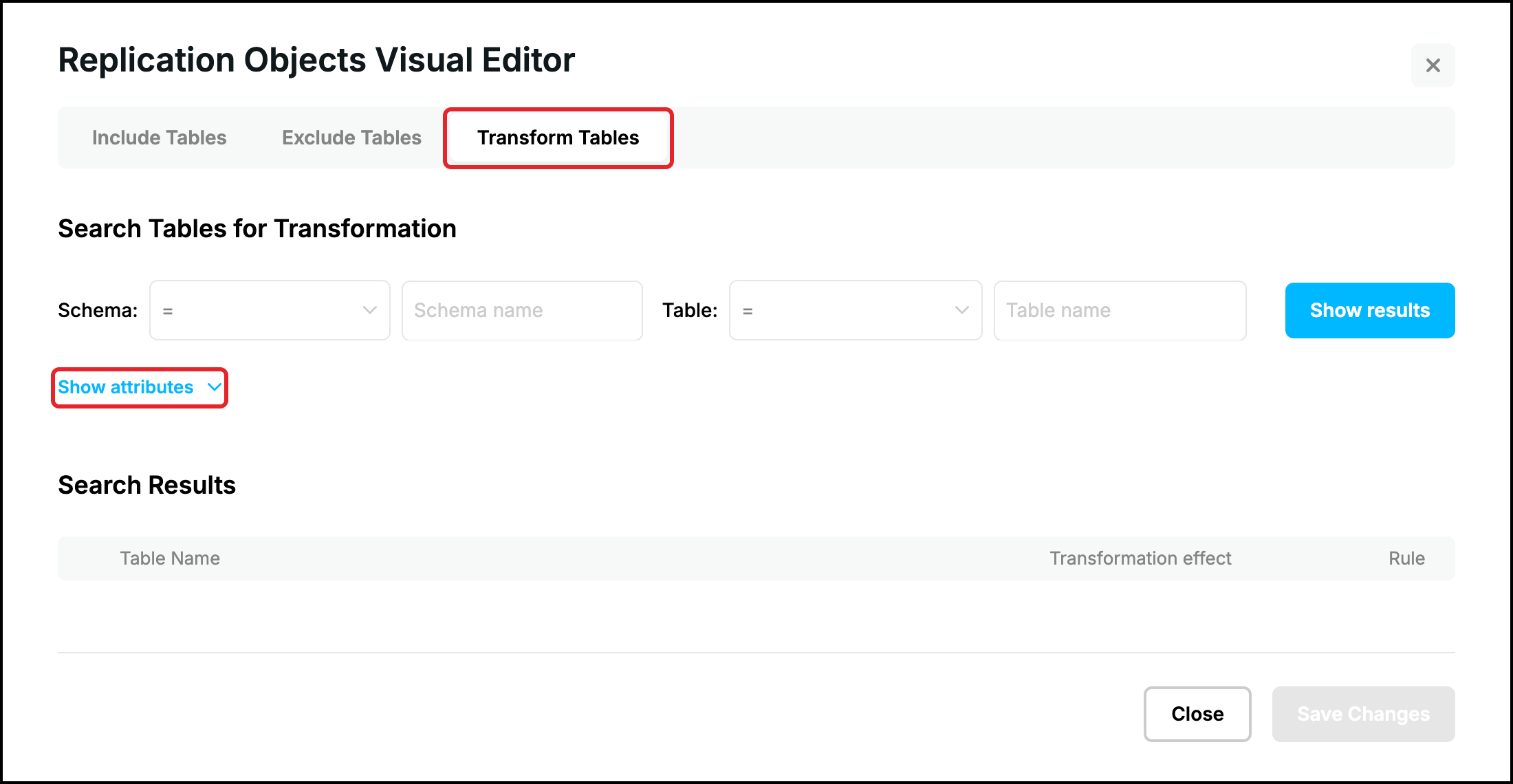
The “Column” line selects the columns by the name (with the same operators) and by the attributes: the key (“Unique Index”, “Primary Key”, “No key”), the identity (“Identity”, “Reference Identity”, “Non Identity”), the data type and the length. Click “Show results”:
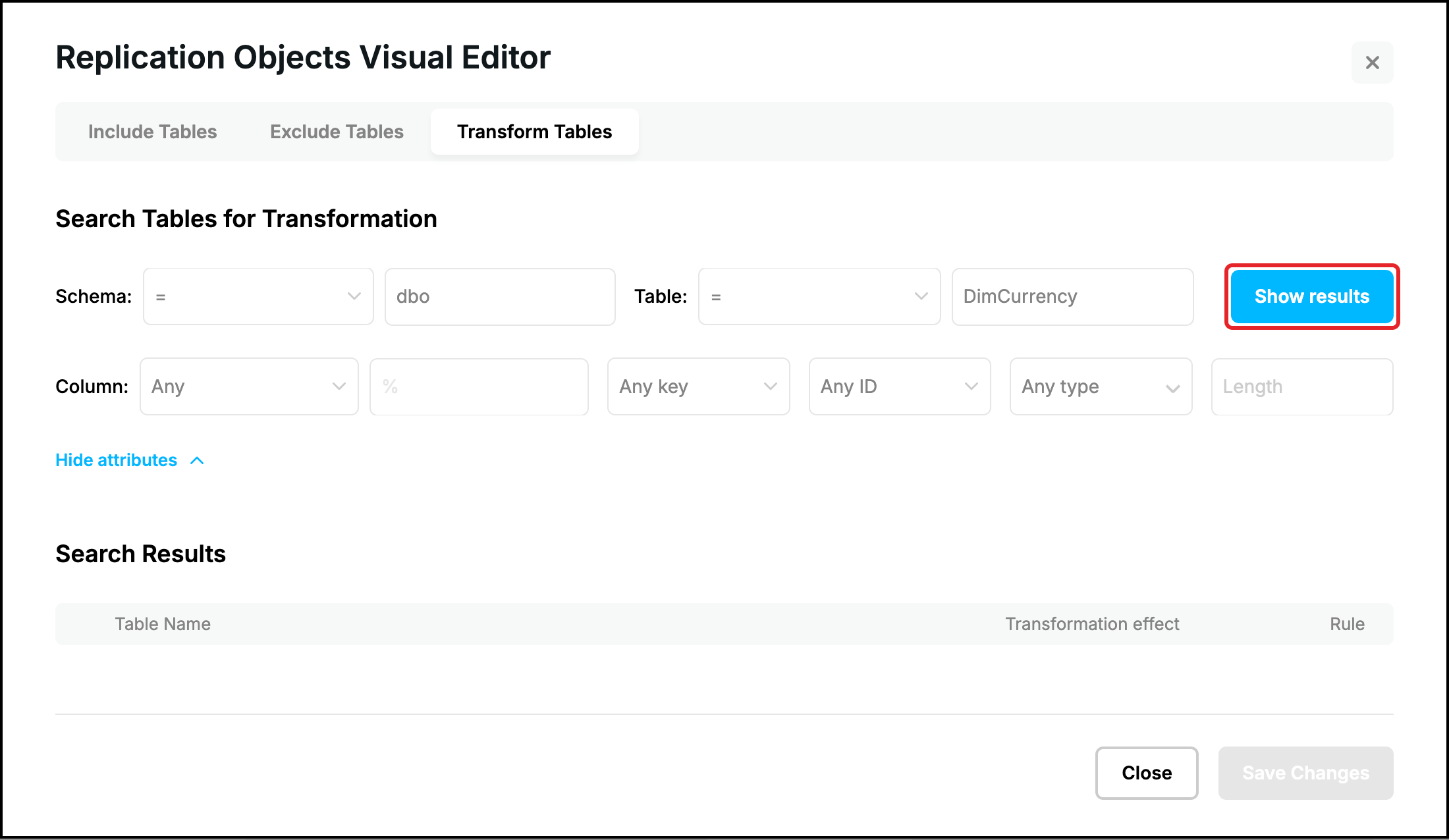
The tables which meet the criteria are listed. Click the arrow of a table to see its columns with their data types, the key icon marks the primary key. Tick the tables, or the columns for the rule types which work with columns, and choose the type of the rule in “Select Transformation Rule Type”:
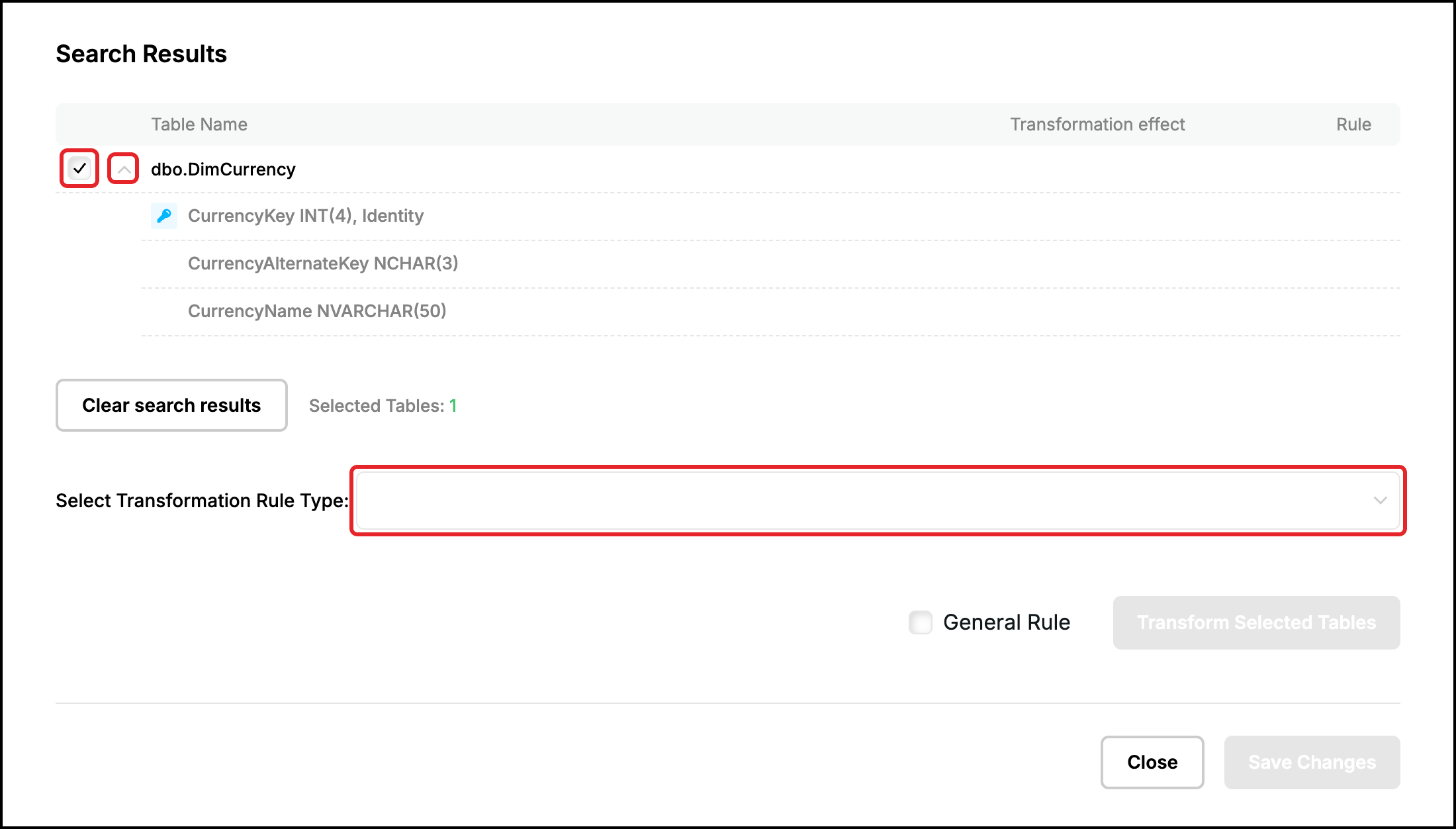
There are five types of the rules:
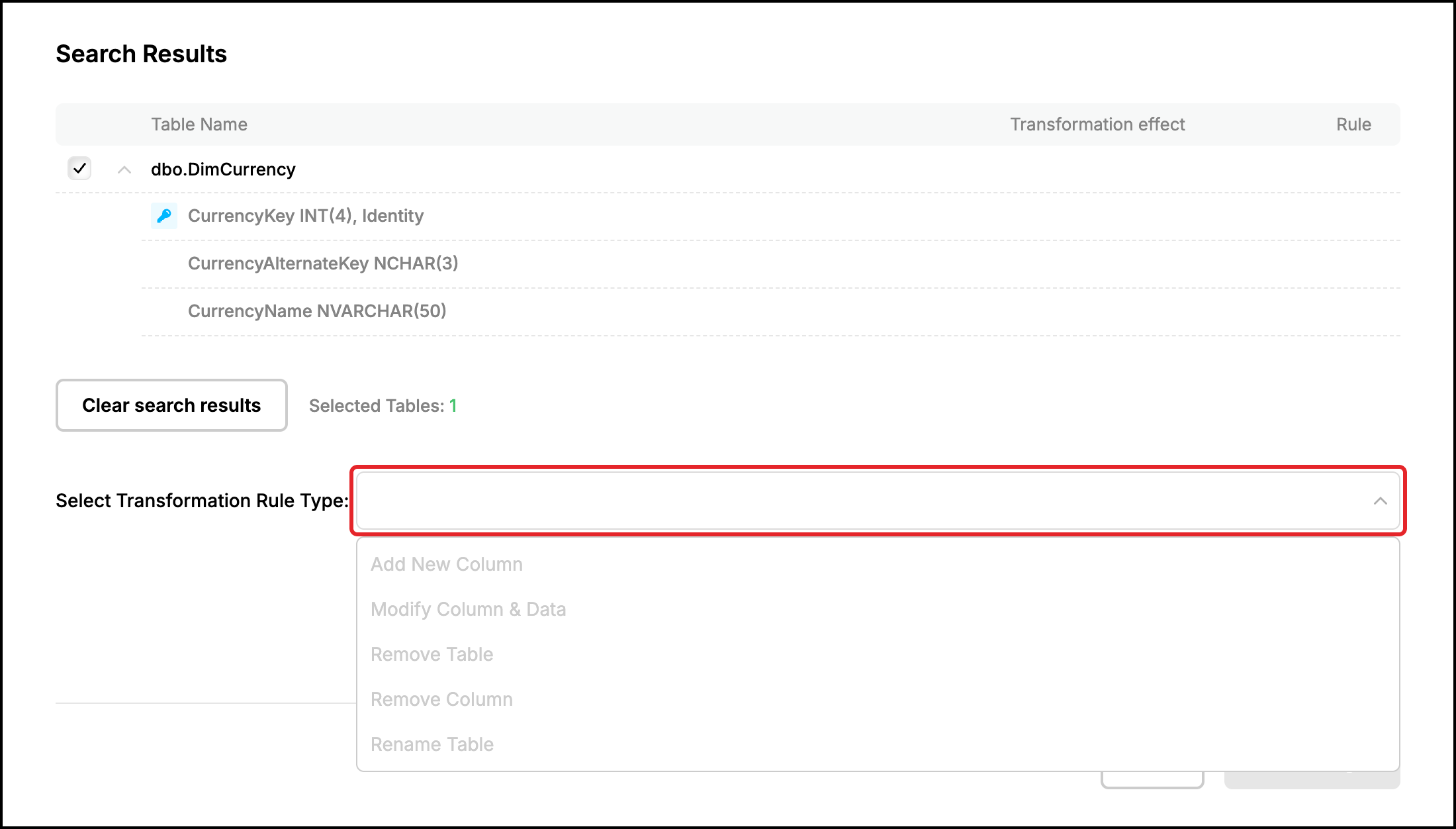
- Add New Column – adds a column which does not exist in the Source table.
- Modify Column & Data – changes the name, the key, the identity, the data type or the length of a column, and the data of the column.
- Remove Table – the table is not replicated.
- Remove Column – the column is not replicated.
- Rename Table – changes the schema and the name of the table in the Target Database.
“General Rule” (ticked at the start) generates one rule from the search criteria, which applies to all the objects which meet them, also to the tables which are not in the list or are created later. When you tick tables or columns, “General Rule” is cleared and the rule is generated for the ticked objects only.
Warning: with “General Rule” the column criteria of “Show attributes” are part of the rule. If “Column” is “Any”, “Remove Column” generates a rule such as dbo.DimCurrency.%:dbo.DimCurrency.NULL, which removes every column of the table. Tick the column or enter its name and use the operator “=”.
Add New Column
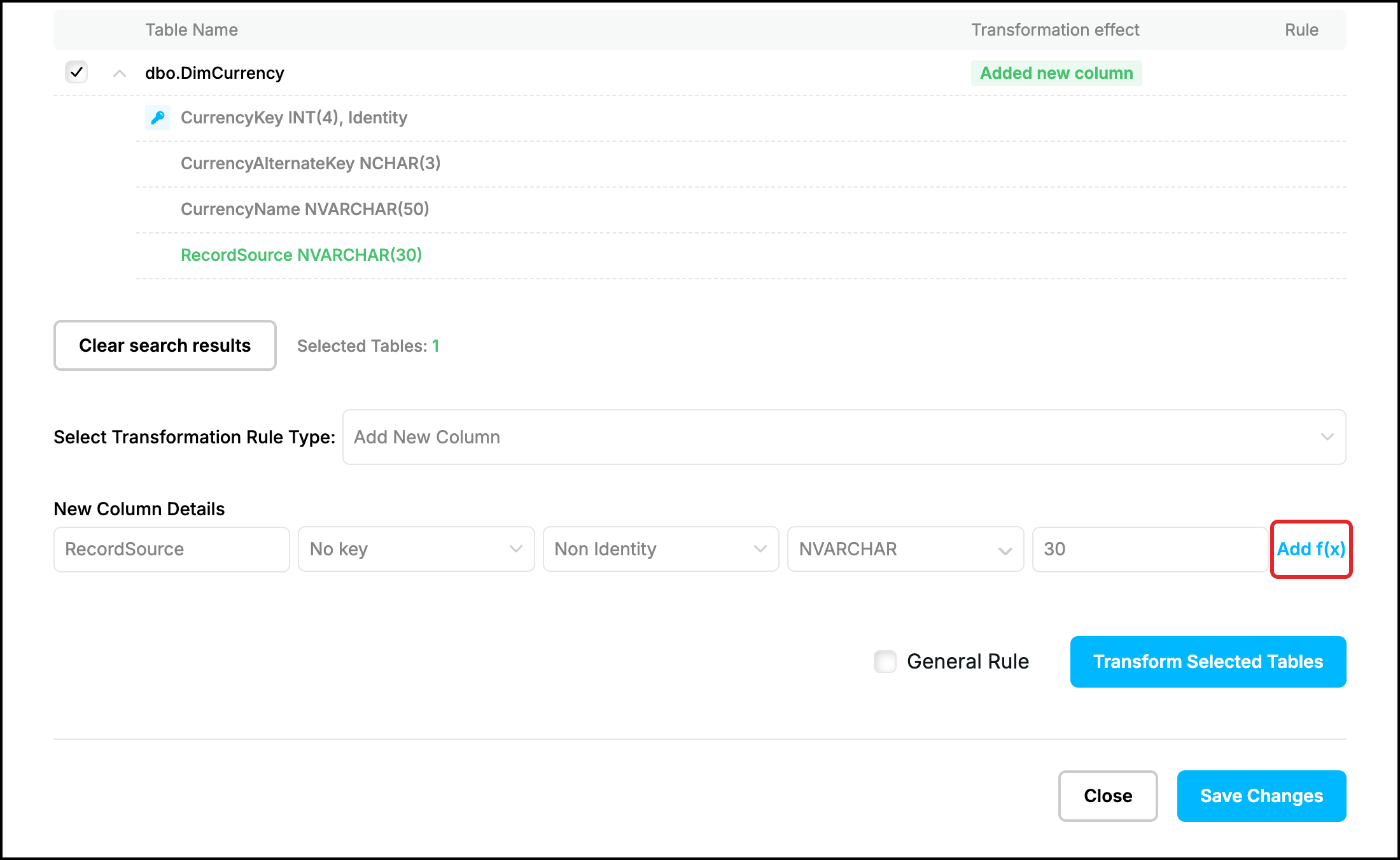
Select “Add New Column” and enter the details of the new column: the name, the key (“No key”, “Unique Index” or “Primary Key”), the identity (“Non Identity”, “Identity” or “Reference Identity”), the data type (select it in the list or type its name) and the length. The new column is shown in green in the list. To fill the column with data click “Add f(x)”:
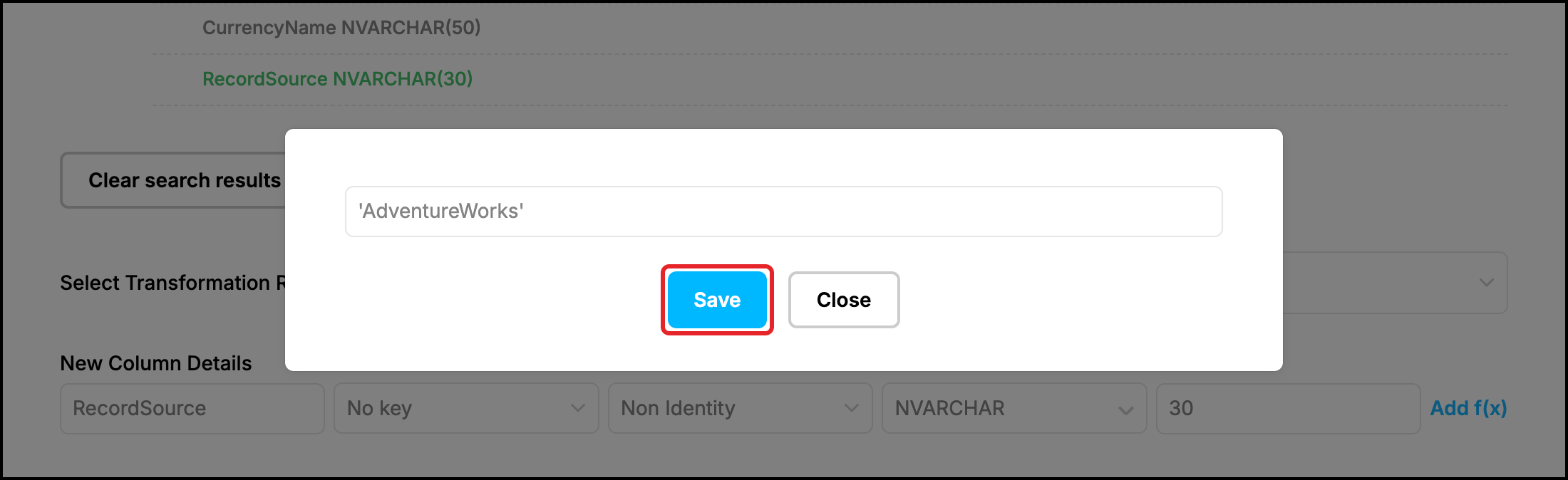
Enter the value in “Column Data” and click “Save”. It can be a constant in quotes, for example 'AdventureWorks', the value of other columns of the table (C:2+C:3, where the number is the position of the column) or a function which exists in the Target Database and is run by the Apply Process (see Objects Mapping and Transformation Rules):
The link is called “Edit f(x)” from now on. Click “Transform Selected Tables”:
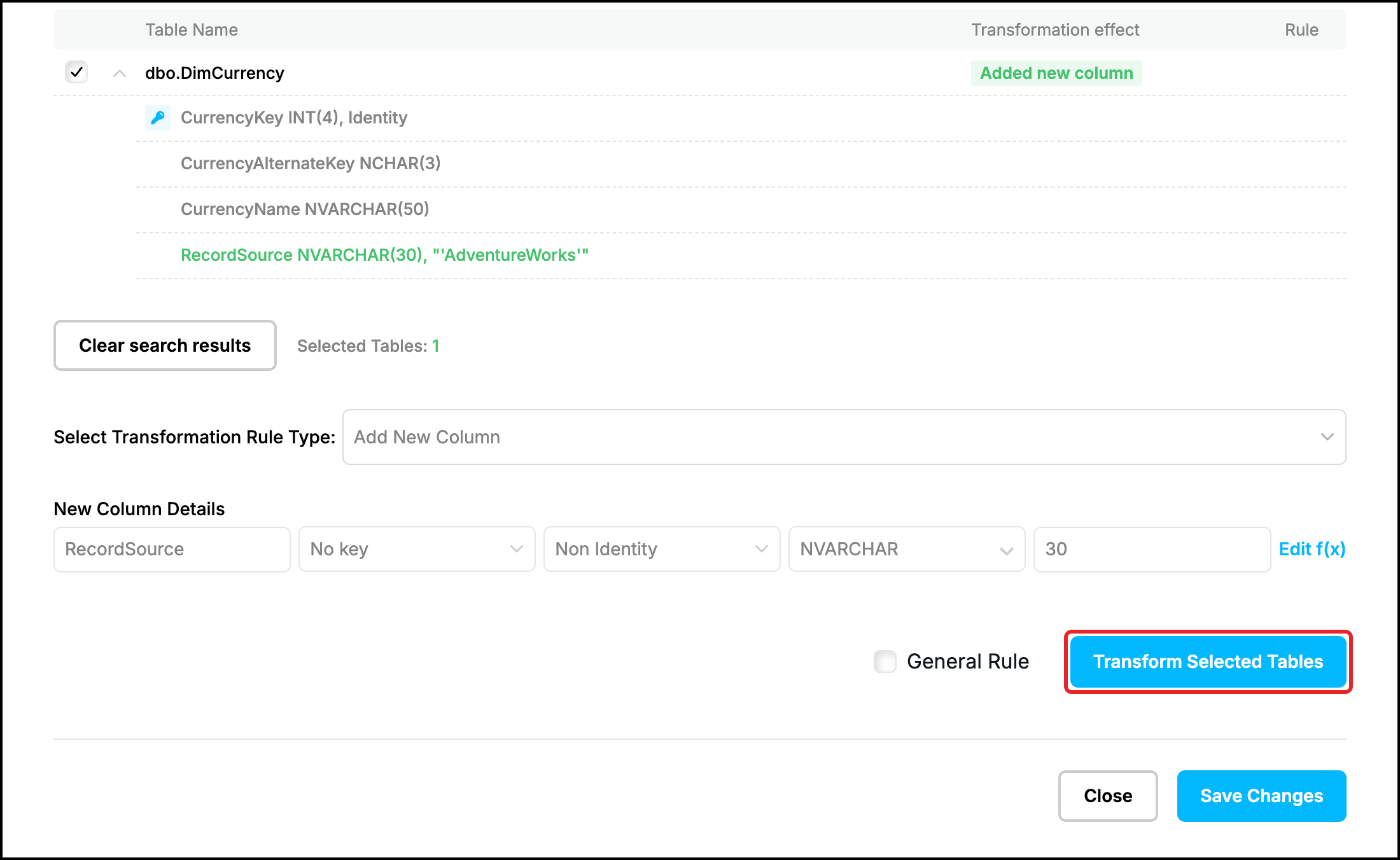
The rule is added to the “Rules” list: dbo.DimCurrency.NULL:dbo.DimCurrency.RecordSource.[PK=N;ID=0;TYPE=NVARCHAR;LEN=30;DATA="'AdventureWorks'"]
Modify Column & Data
Select “Modify Column & Data”, tick the column in the list and enter what changes. Leave % in the first field to keep the name of the column or enter the new name. The key, the identity, the data type and the length keep their values while they are “-”. “Add f(x)” changes the data of the column: the % symbol is the current value, for example upper(%) converts the names to upper case. The list shows the change:
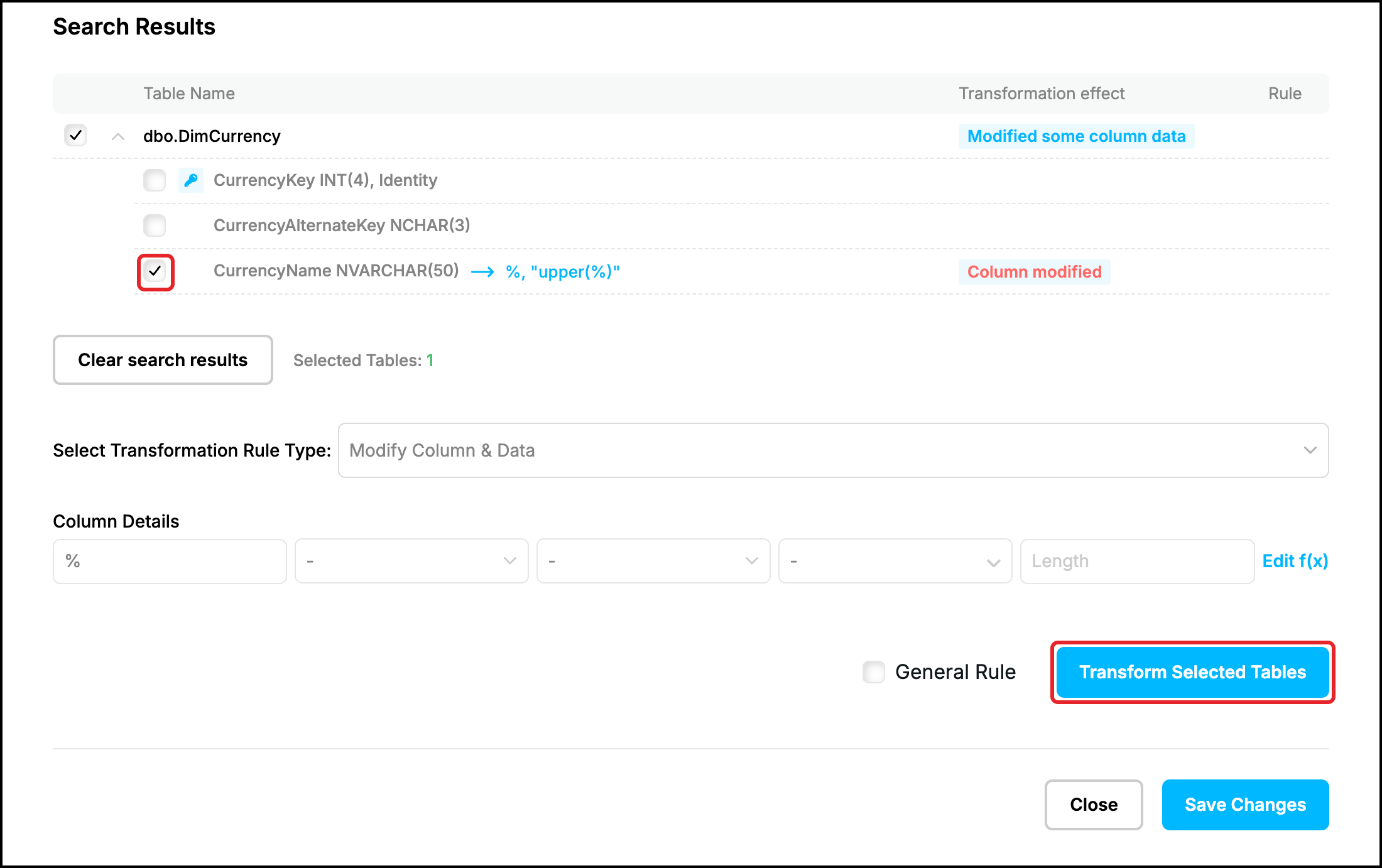
The rule is dbo.DimCurrency.CurrencyName:dbo.DimCurrency.%.[DATA="upper(%)"].
Remove Column
Select “Remove Column” and tick the columns which must not be replicated. They are struck through in the list:
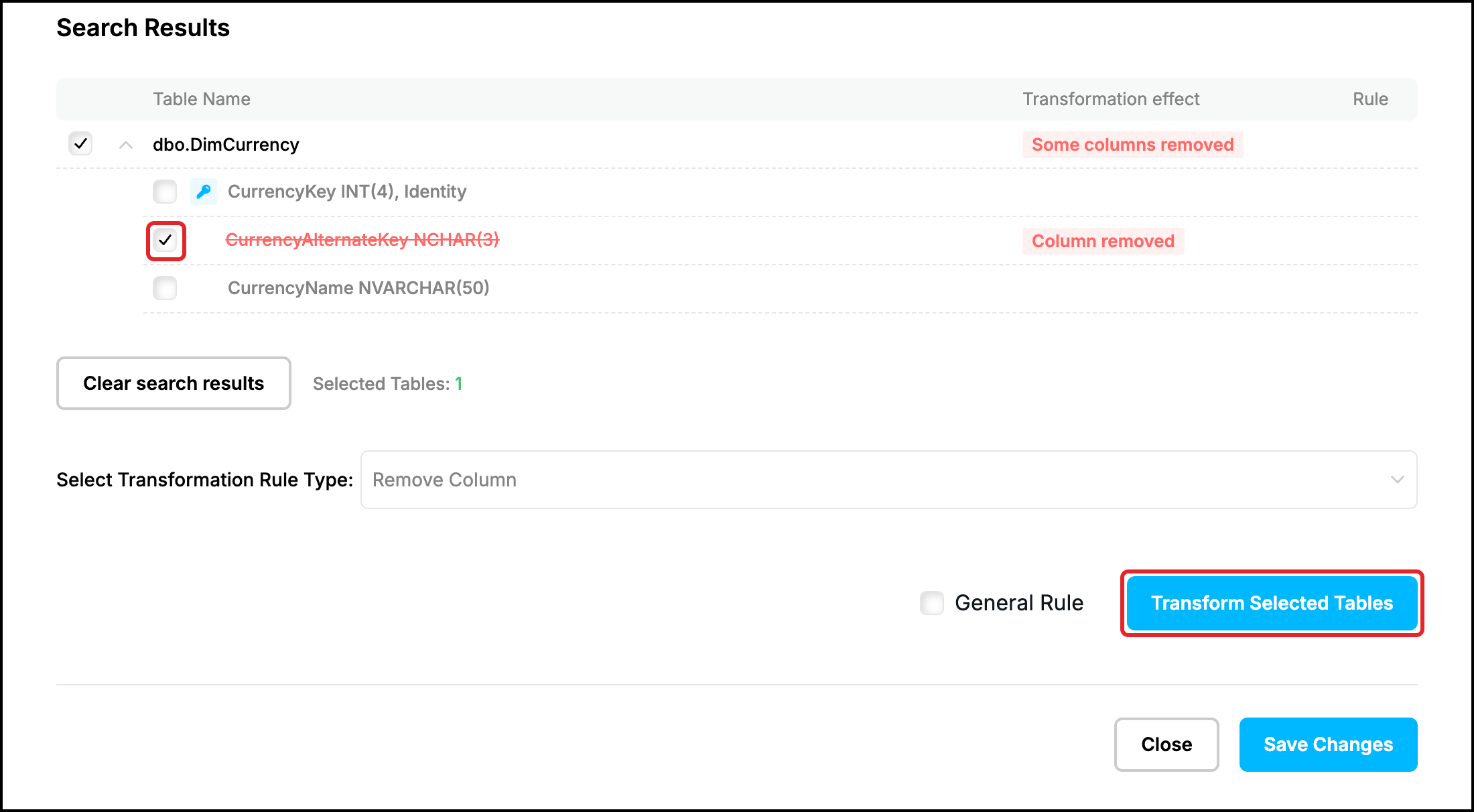
The rule is dbo.DimCurrency.CurrencyAlternateKey:dbo.DimCurrency.NULL.
Remove Table
Select “Remove Table” and tick the tables which must not be replicated. They are struck through in the list:
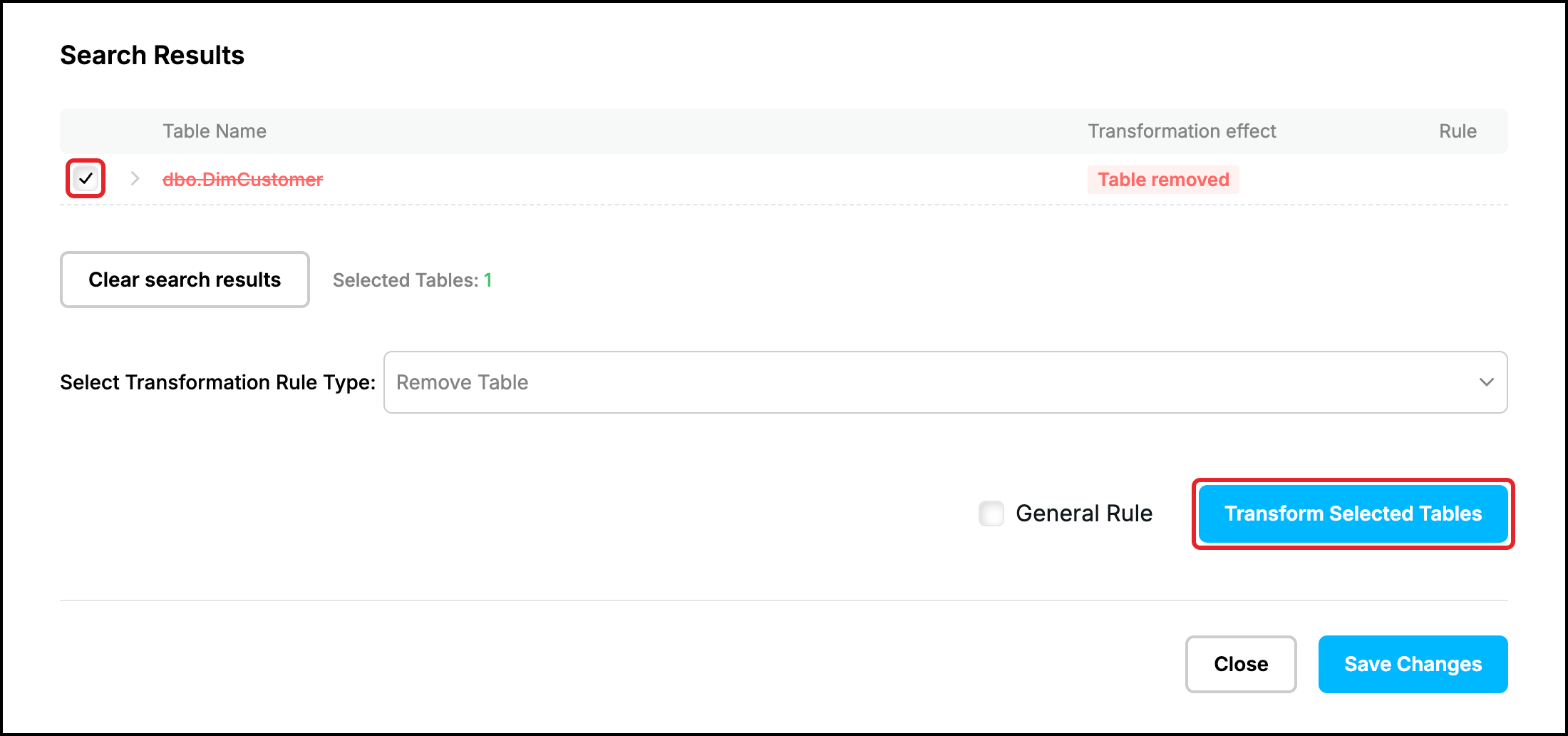
The rule is dbo.DimCustomer:dbo.NULL.
Rename Table
Select “Rename Table”, tick the table and enter the new schema and the new name in “Rename Condition”. The list shows the new name:
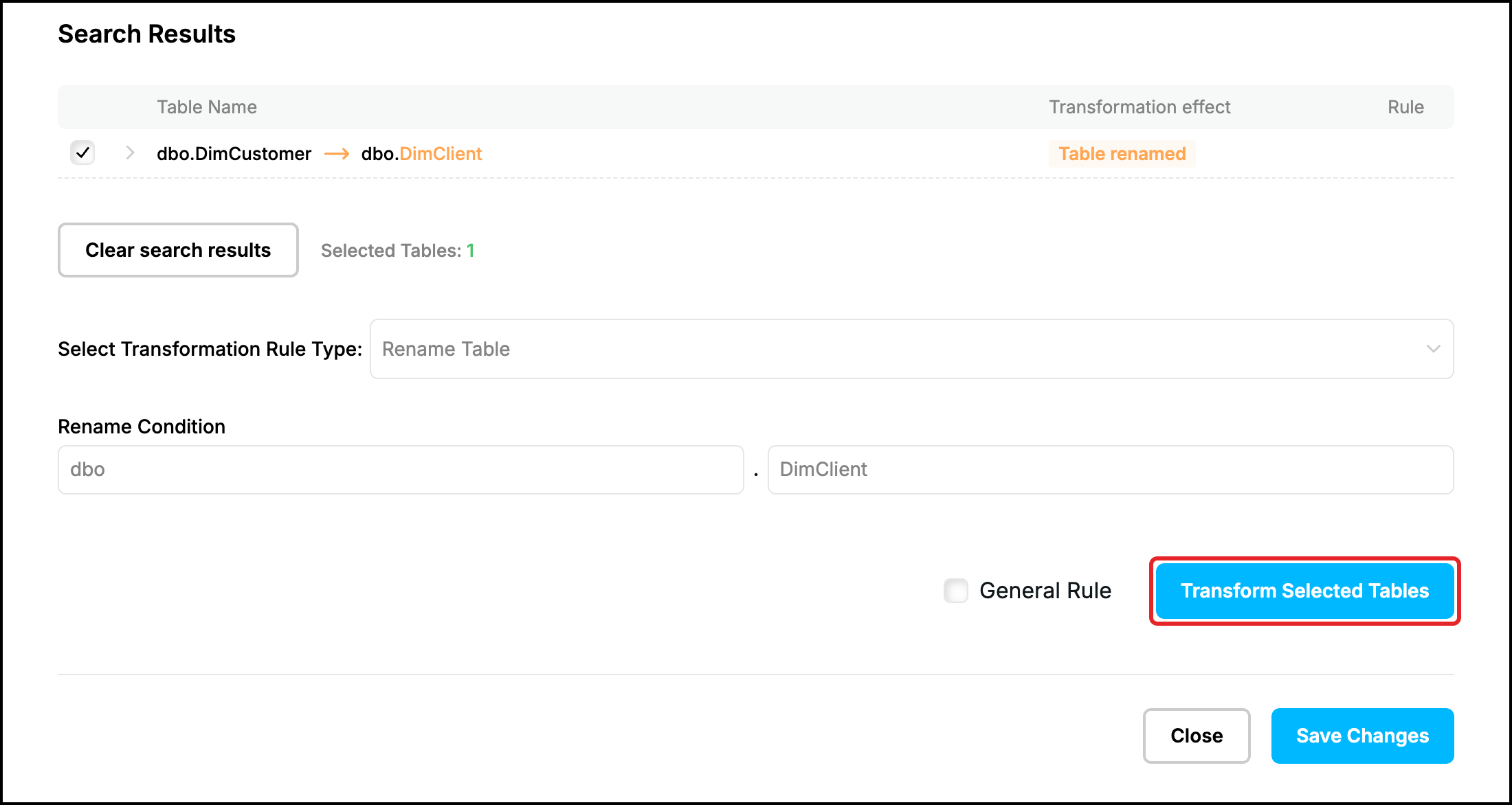
The rule is dbo.DimCustomer:dbo.DimClient.
Rules and priority
Every click on “Transform Selected Tables” adds rules to the “Rules” list at the bottom of the window. The number of the rule is shown in the “Rule” column of the search results, which show the effect of the first rule only. The rules are applied in the order of the “Priority” column and an object is changed by the first rule which matches it, the following rules are ignored for it. Put the rules for a small set of objects (one column) before the rules for a big set (all the tables of a schema), see Objects Mapping and Transformation Rules. Click the arrows to move a rule up or down, enter a “Description” (it is stored with the rule) and click the trash icon to delete a rule, the wizard asks for a confirmation:
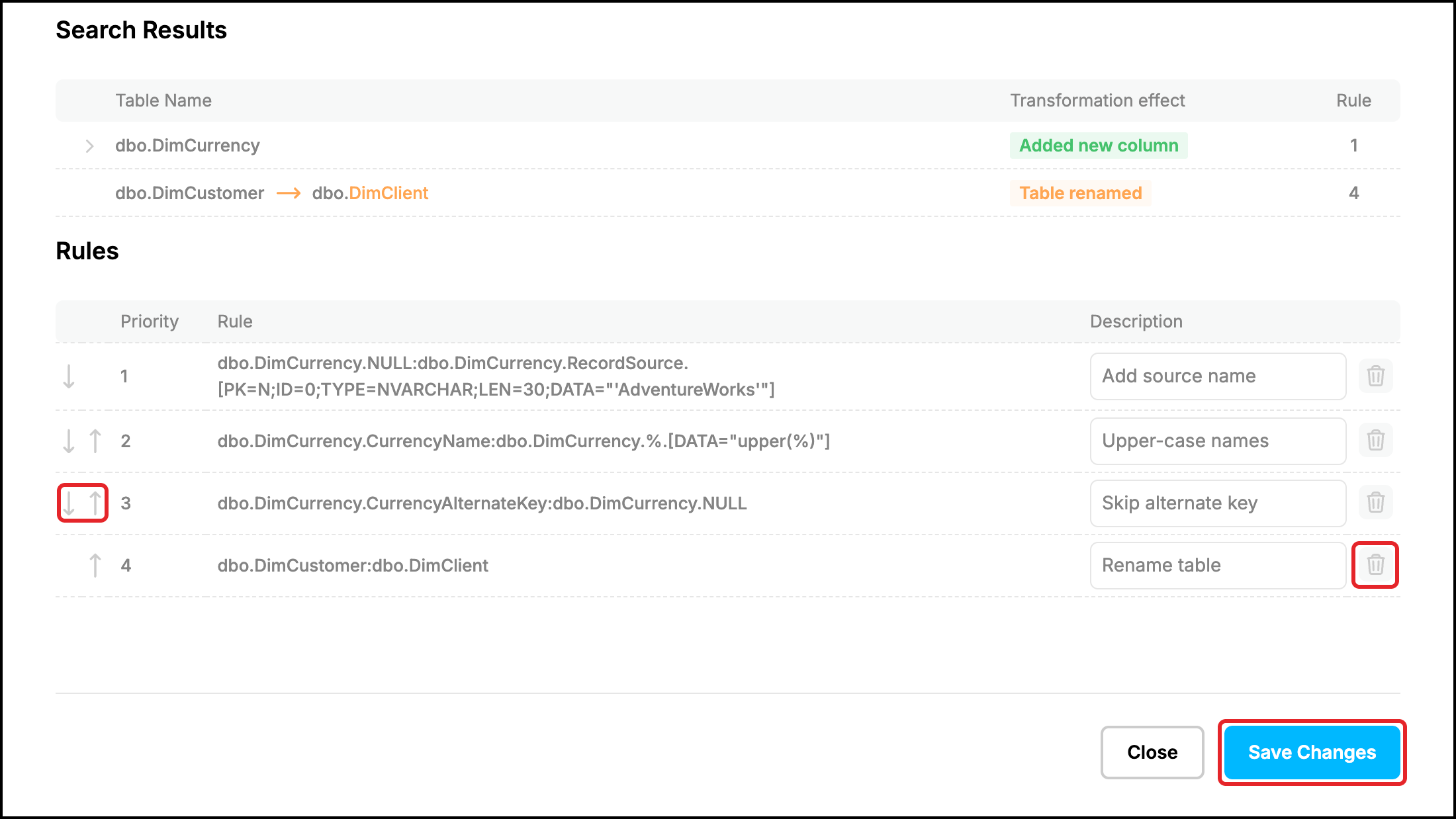
If “Save Changes” is grey after a new search, select a type of the rule in the list.
Save the rules
Click “Save Changes”. The window closes and the rules are in the “Transformation Rules” tab of the process form as map=1,rule=(…) lines with their descriptions, “Preview Transforms” shows what they do (see Edit Replication Processes):
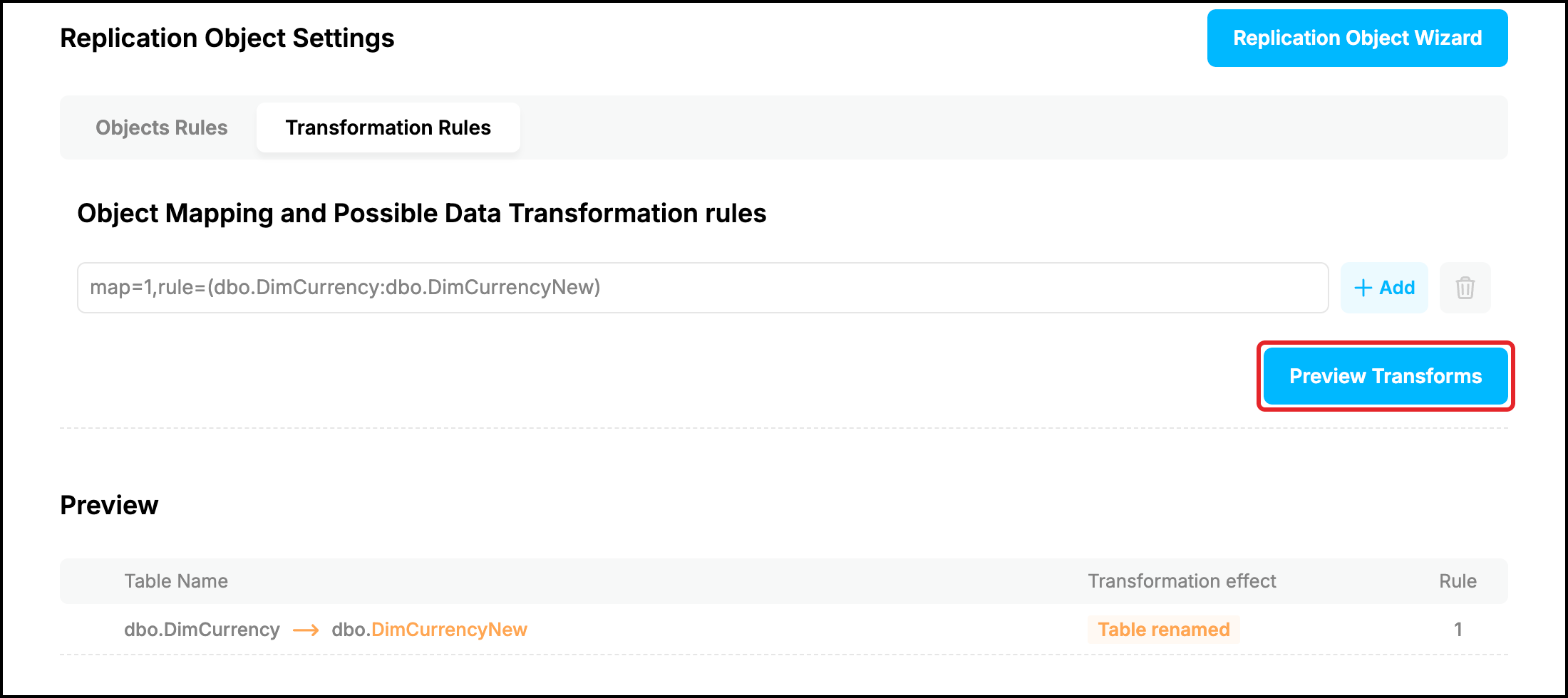
The rules are stored when you click “Save Process” and are put into effect when the process is run (see Run any Capture or Apply Processes). The Apply Process has its own “Transformation Rules” tab, the wizard of an Apply Process has this tab only.
Prev page:
Replication ObjectsNext page:
Compare Data- Repstance User Guide
- ABOUT REPSTANCE
- SUPPORTED DATABASE REQUIREMENTS
- GETTING STARTED WITH REPSTANCE
- INTERACTING WITH REPSTANCE SERVER
- CONFIGURE REPLICATION WITH REPSTANCE
- DATABASE CONFIGURATION COMMANDS
- PROCESS CONFIGURATION COMMANDS
- PROCESS CONTROL COMMANDS
- DATA COMPARISON
- REPSTANCE SERVER MAINTENANCE
- GLOSSARY