

Compare Data
Compare Data checks that the Target Database holds the same data as the Source Database while the replication keeps running. No data is exported or copied: a compare process calculates a hash for every row it reads in the Source Database, the Apply Process calculates the hash of the same row in the Target Database and the two hashes are compared. The rows that differ, or are missing in the Target Database, are listed in a report and can be repaired with one click.
The feature lives in one window, the “Compare” window of a Capture Process. This page explains how a comparison works and how to read its report. The two pages below it describe the work step by step: Task Configuration (create, change and delete the tasks) and Tasks Control (run, stop, resume, compare selected tables or only the changes, and repair).
Open the Compare window
Click “Compare” on the card of a Capture Process on the dashboard. The window belongs to that Capture Process and shows its comparison tasks, one tab for each of them. The same functions are available in repcli and in the REST API (see Data Comparison).

How a comparison works
Three parts of Repstance work together. The compare process is a separate process of the Repstance server, started with the task, but it is integrated with the Capture Process: it uses the connection settings and the metadata of the Capture Process, keeps its files in the trail folder of the Capture Process and hands its results over through it. The Capture Process carries them in the stream of the replicated changes and the Apply Process compares them with the Target Database.
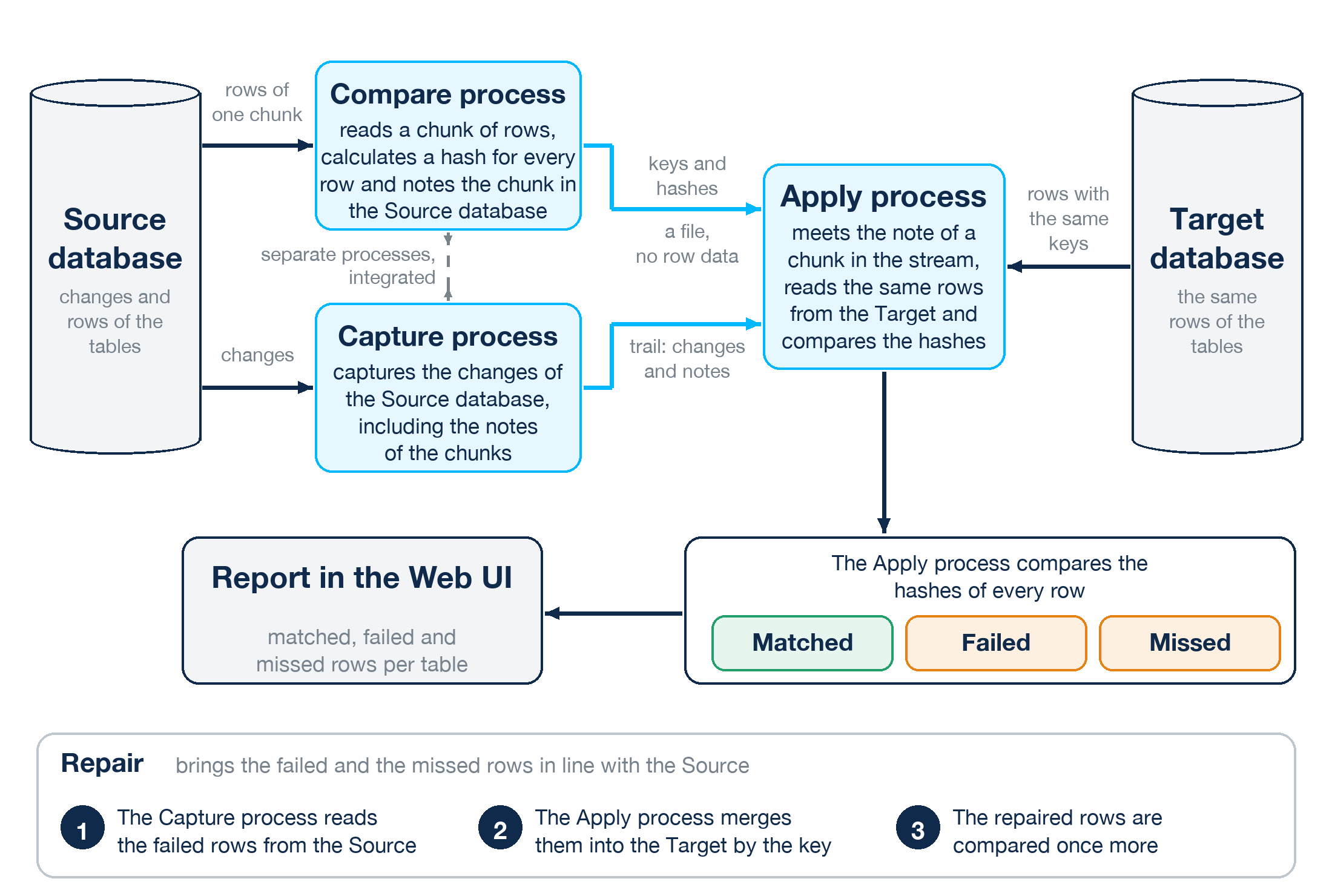
- You create a task: the tables to compare and the settings for them (see Task Configuration).
- You run the task. The compare process reads the rows of the Source Database in portions, called chunks, in the order of the key of the table, and calculates a hash of every row. It saves the keys and the hashes of a chunk in a file in the trail folder of the Capture Process (the data of the rows stays in the databases) and notes the chunk in the Repstance table ValidateTables in the Source Database (see Database Privileges).
- The Capture Process captures this note like any other change, so the chunk takes its place in the stream of the replicated transactions, behind the changes that were made before it.
- The Apply Process meets the note in the stream, reads the rows with the same keys from the Target Database, calculates their hashes in the same way and compares them with the hashes in the file. By then it has applied everything that came before the chunk in the stream. This is why the Capture Process and the Apply Process must be running, and why a comparison can run while the replication is running.
- The result of every chunk is added to the report of the task: the rows that match, the rows that differ (failed rows) and the rows that are missing in the Target Database (missed rows).
- If the report shows differences you can repair them: the Capture Process reads these rows again from the Source Database, the Apply Process merges them into the Target Database and the repaired rows are compared once more.
The terms
| Term | What it is |
|---|---|
| Task | A named list of tables with the settings for each of them. A Capture Process can have several tasks, each is a tab of the Compare window. Only one task of a Capture Process runs at a time. |
| Compare process | The part of Repstance that does the work of a task on the Source side: it reads the chunks and calculates the hashes. It is a separate process, started with the task, and it is integrated with the Capture Process (see How a comparison works). |
| Chunk | The rows of a table are read and compared in portions. “Rows per Chunk” sets the size of a portion, 10000 rows by default. The report counts the chunks. |
| Data Validation % | The share of the rows of every chunk that is compared, from 1 to 100, 10 by default. With 100 every row is compared, a smaller value is a spot check that takes less time. |
| Key | The columns that identify a row: the primary key or a unique index of the table. The rows of the two databases are matched by the key. A table without a key is not compared unless you choose key columns for it. |
| Failed row | A row that exists in both databases but has different values. |
| Missed row | A row that exists in the Source Database but not in the Target Database. A row that exists only in the Target Database is not reported. |
| Repair | Brings the failed and the missed rows in line with the Source Database. |
What the report shows
The report is the main part of the window. It shows the task of the selected tab. The numbers in the picture are explained below it:
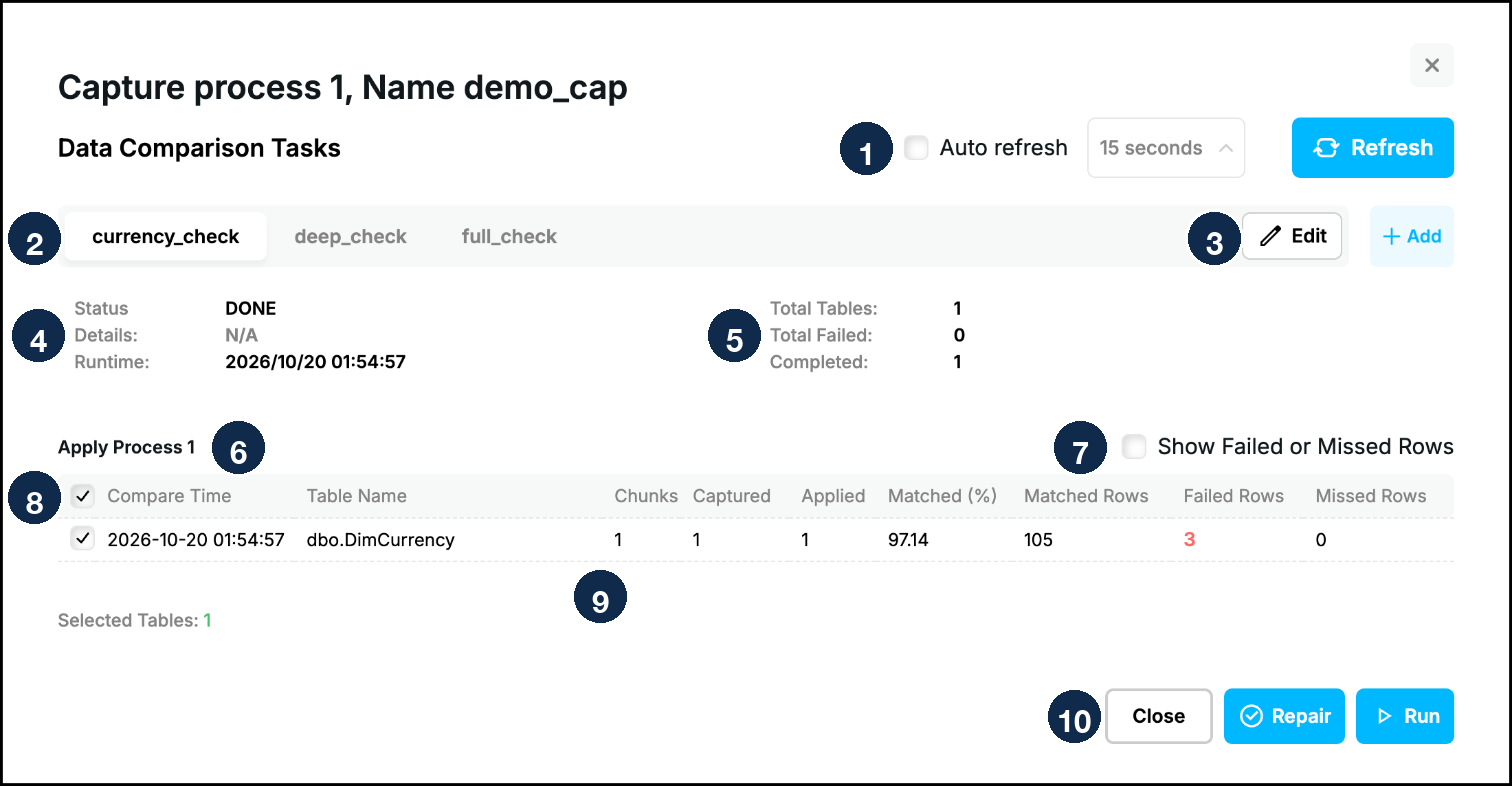
| No. | Part | What it shows |
|---|---|---|
| 1 | “Auto refresh”, the interval, “Refresh” | The report shows the state at the moment it was loaded. Click “Refresh” to load it again, or tick “Auto refresh” to load it every 5, 10, 15, 30, 120 or 180 seconds. |
| 2 | The tabs | One tab for each task of the Capture Process. The report of the selected tab is shown. |
| 3 | “Edit” and “+ Add” | “Edit” opens the settings of the selected task, “+ Add” creates a new task (see Task Configuration). |
| 4 | Status, Details, Runtime | The status of the task (see Tasks Control for the values), what it is doing at the moment and the time of the start of the comparison. |
| 5 | Total Tables, Total Failed, Completed | The number of tables of the task, the number of tables whose comparison ended with an error (it is not the number of failed rows) and the number of tables which are complete. |
| 6 | Apply Process 1 | The report of the Apply Process that compares the hashes. When several Apply Processes read from the Capture Process there is a report for each of them and arrows to switch between them. |
| 7 | “Show Failed or Missed Rows” | It appears when some table has differences. When it is ticked, only those tables are listed. |
| 8 | The check boxes | They select the tables which “Run” and “Repair” work with, the check box in the header selects all of them. “Selected Tables” counts them. |
| 9 | The table | One line for each table, see the columns below. |
| 10 | The buttons | “Close”; “Repair”, which is available when a selected table has failed or missed rows; “Run”, which is replaced by “Stop” while the task is running. |
The columns of the table (9):
| Column | What it shows |
|---|---|
| Compare Time | When the comparison of the table was started. QUEUED means that the table has not been started yet. |
| Table Name | The table, as it is named in the Source Database. |
| Chunks | The number of chunks of the table. It is an estimate while the table is being read and the real number when the table is complete. |
| Captured | The chunks which the compare process has read and hashed in the Source Database. |
| Applied | The chunks which the Apply Process has compared. |
| Matched (%) | The share of the compared rows that are equal in both databases. |
| Matched Rows | The number of the rows that have been compared. The rows with a difference are counted too: 105 compared rows with 3 failed rows give 97.14 %. |
| Failed Rows | The rows that exist in both databases and differ. Click the number to see the keys of some of them. |
| Missed Rows | The rows of the Source Database that are missing in the Target Database. Click the number to see the keys of some of them. |
Run modes at a glance
The “Run” button opens a dialog with the run modes that fit the state of the task. They are explained in Tasks Control:
| You want to | Do this |
|---|---|
| Compare the tables from the start | “Run”, then “Full Validation” |
| Continue a task that was stopped | “Run”, then “Resume” |
| Compare only the rows that have changed since the last run | “Run”, then “Incremental”. It needs the trail files of the Capture Process, see Tasks Control |
| Compare only some of the tables | Untick the other tables, then “Run” |
| Stop a running task | “Stop” |
| Fix the differences that were found | “Repair” |
Good to know
- Only the tables that the Capture Process replicates can be compared.
- The chunks reach the Apply Process through the Capture Process, so both processes have to be running while a task runs. Start them before you run a task. Stopping a task stops only the comparison.
- A task cannot be added or changed while a comparison is running.
- “Incremental” reads the changes from the trail files of the Capture Process. The Apply Process deletes the trail files it has applied unless “Cleanup Trail Files” of the Apply Process says otherwise, and an incremental run fails when a trail file that it needs is gone. Run “Full Validation” then, or keep the trail files (see Tasks Control).
- The comparison reads the data in both databases, so it adds load to them. A smaller “Data Validation %” makes a run shorter.
- The same functions are available from the command line and in the REST API, see Data Comparison.
Prev page:
Monitoring ReplicationNext page:
Task Configuration- Repstance User Guide
- ABOUT REPSTANCE
- SUPPORTED DATABASE REQUIREMENTS
- GETTING STARTED WITH REPSTANCE
- INTERACTING WITH REPSTANCE SERVER
- CONFIGURE REPLICATION WITH REPSTANCE
- DATABASE CONFIGURATION COMMANDS
- PROCESS CONFIGURATION COMMANDS
- PROCESS CONTROL COMMANDS
- DATA COMPARISON
- REPSTANCE SERVER MAINTENANCE
- GLOSSARY